
The Vetspire AI app enables providers to use AI Scribe on their iOS mobile device (iPhone or iPad) during an encounter. AI Scribe transcribes your conversations with clients and auto-generates detailed SOAP notes for you. (AI Patient Summaries display in the app, too!)
Once you begin an encounter in the app and start your AI Scribe recording, Vetspire AI’s speech-to-text mapping populates conversation data in the corresponding encounter sections (such as Assessment, Plan, and Discharge Instructions). When you confirm an AI Scribe-suggested input in the app, the data then displays in Vetspire on the web.
In this article, we’ll walk you through using the Vetspire AI app during an encounter from start to finish.
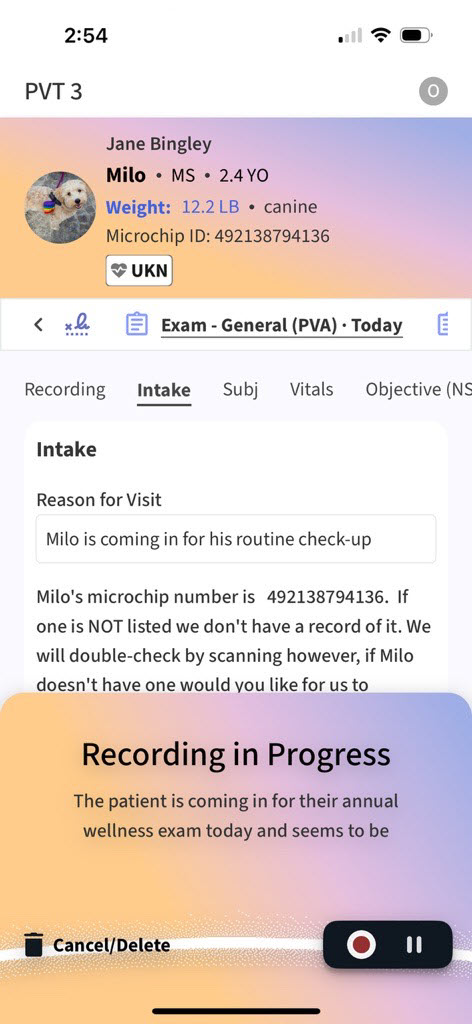
How It Works
Login and View Schedule
Log into the Vetspire AI app with your organization name and the same credentials you use to log into Vetspire on the web.
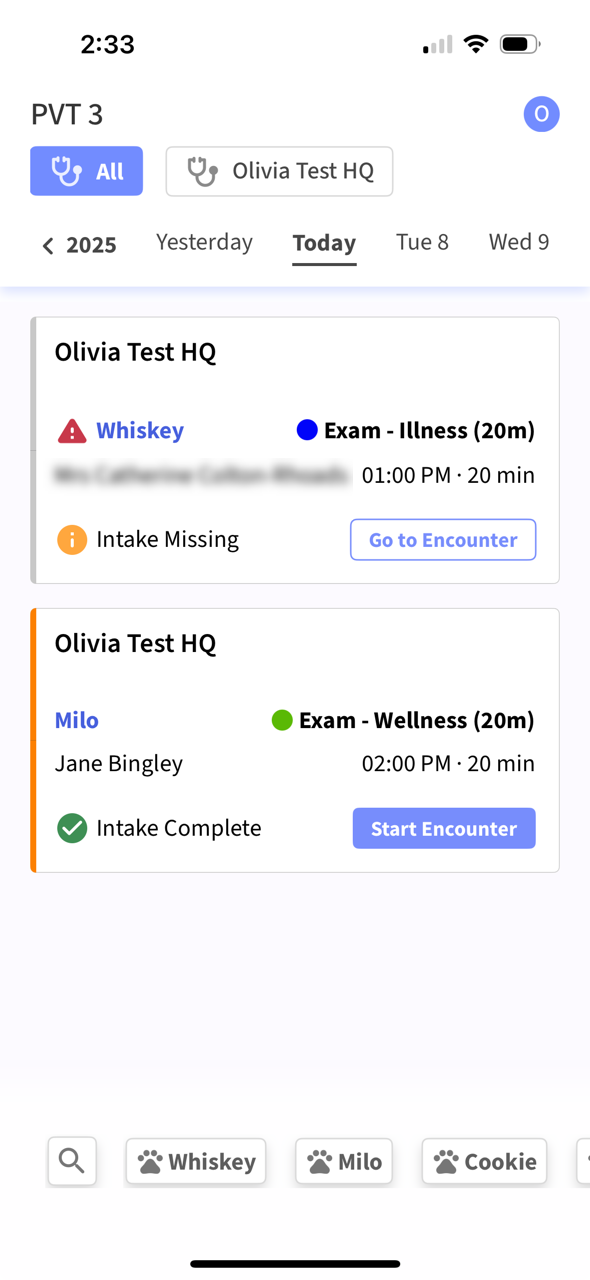
Once you’re logged in, the app displays your clinic’s Schedule.
You can begin a patient’s exam on-the-go from the Vetspire AI app, which allows you to record from the lobby, exam room, and anywhere in the clinic with AI Scribe!
-
The Schedule can be filtered by Location, Date, and Provider.
-
Appointment cards sync with Vetspire to display real-time status updates for the appointment, intake form completion, and encounter.
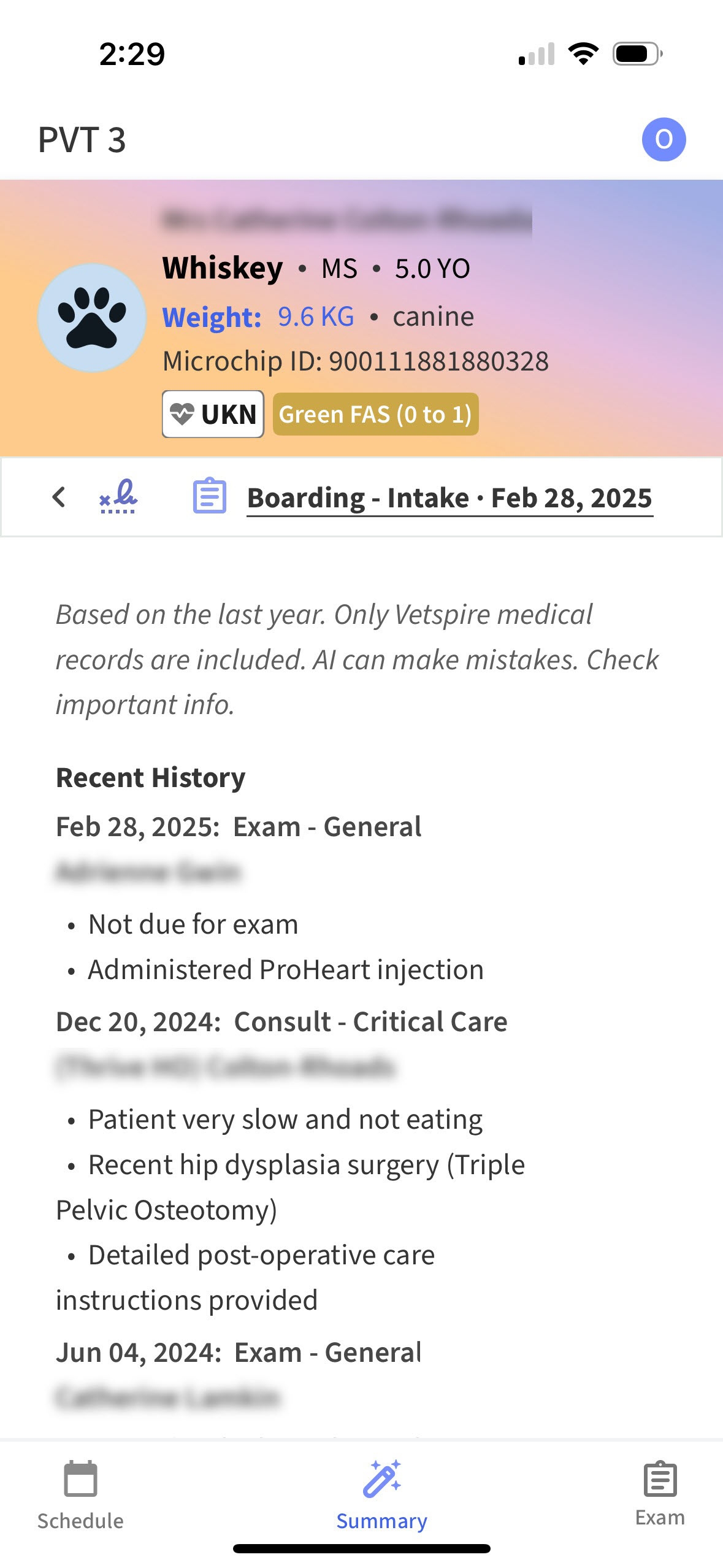
Essential Patient Info in One Click
Before starting an encounter, select the patient’s name on the app’s Schedule to display their AI Patient Summary and signed encounter history from the past three years.
Use the Schedule, Summary, and Exam tabs in the app footer to navigate through the Vetspire AI app.
Start Recording
When you are ready to begin an appointment, select Start Encounter on the app’s Schedule. This also begins the appointment in Vetspire on the web.
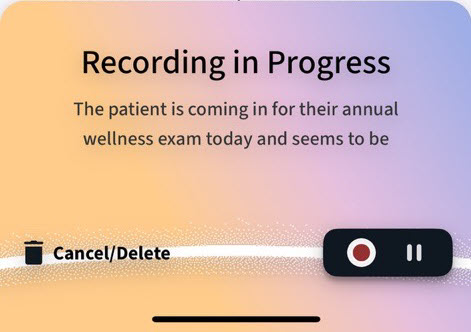
Select the microphone button in the lower right corner of the app to start your recording and transcription.
You can pause the AI Scribe recording at any time before saving or cancel the recording to delete the audio file and start over.
Multiple recordings can be saved to the same encounter.
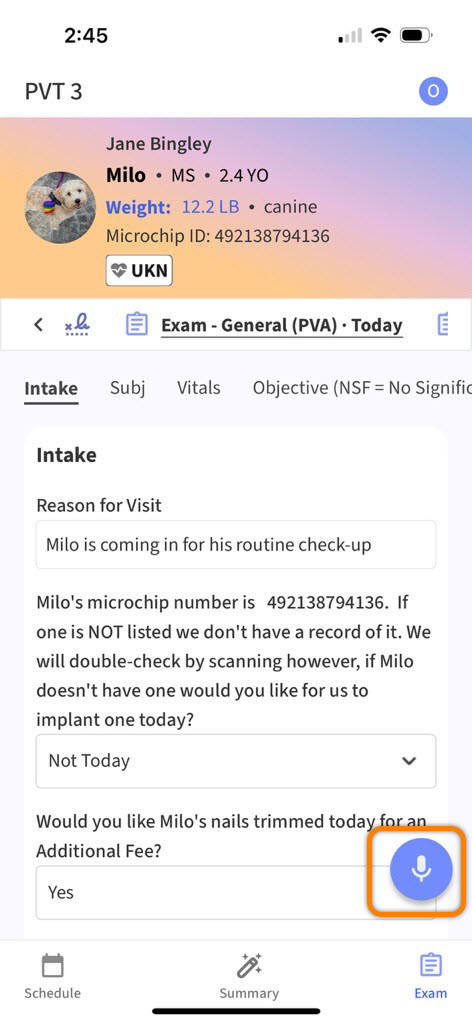
Scroll through the Encounter While Recording
AI Scribe populates your words in the app as you speak, so you can continue your conversation while simultaneously navigating through the encounter.
You can manually enter encounter data within the app and interact with all encounter sections while AI Scribe is recording.
Tip: The Vetspire AI app is compatible with Apple Pencil and Bluetooth keyboards!
After you save your recording, the Vetspire AI app displays a message when notes generated by AI Scribe are ready for your review.

Intuitive Review Process
You have complete control over the notes suggested by AI Scribe. Once approved, AI Scribe notes sync with Vetspire to display in your encounter on the web.
-
Review and sync AI Scribe’s suggested notes for each encounter section.
-
Select Sync All at the top right of the app to approve all of AI Scribe’s suggestions at once.
-
You can revert any changes if needed.
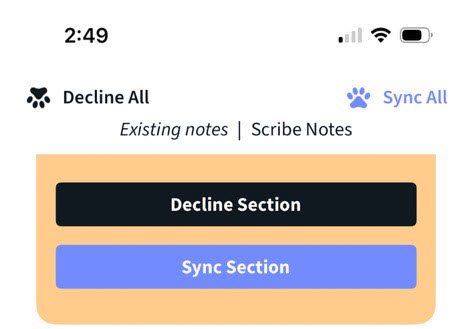
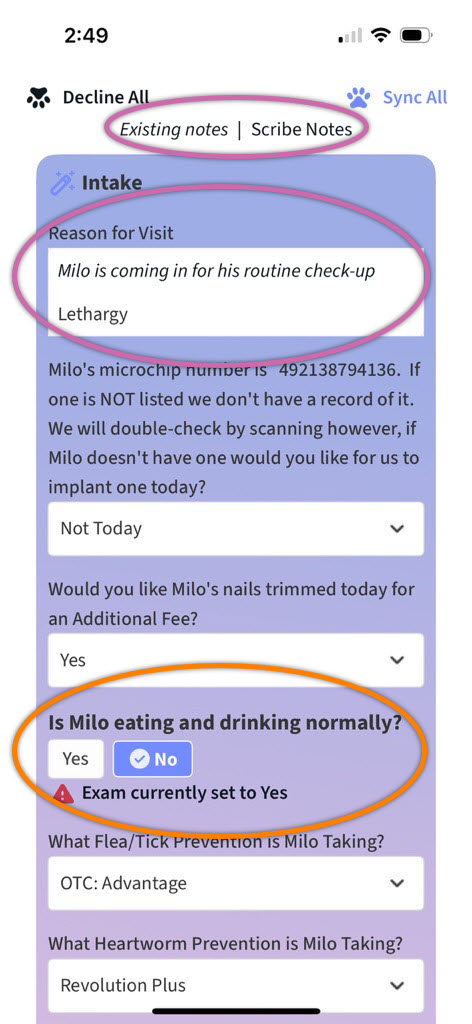
In each encounter section, existing/manually entered notes display in italics. New notes suggested by AI Scribe are not stylized.
Additionally, Scribe displays an alert ⚠️ for suggested changes that differ largely from the original encounter notes.
Recordings Available for 7 Days
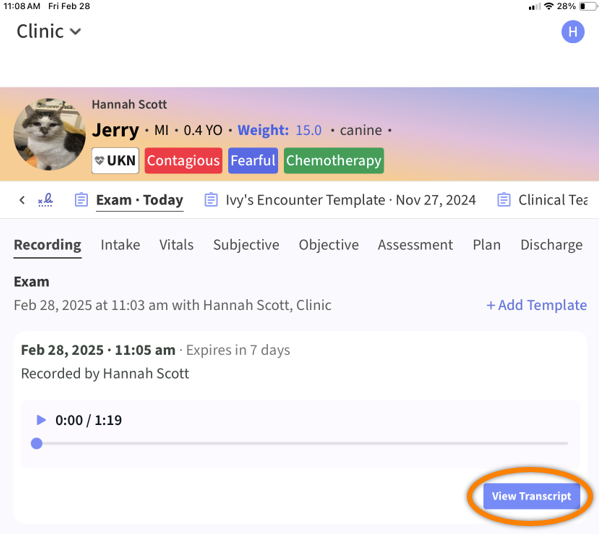
The audio files of your AI Scribe recordings are stored in the encounter for 7 days after the recording is saved.
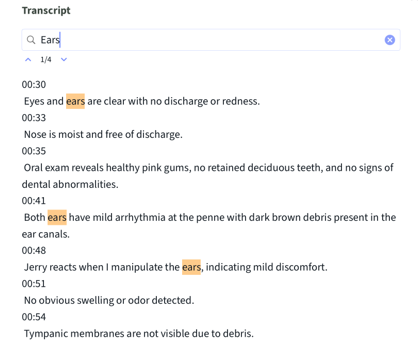
Select View Transcript to read a copy of the recording, and use the search bar at the top of the transcript to locate key terms. The recording transcript does not expire.
Upload Attachments in the Vetspire AI App
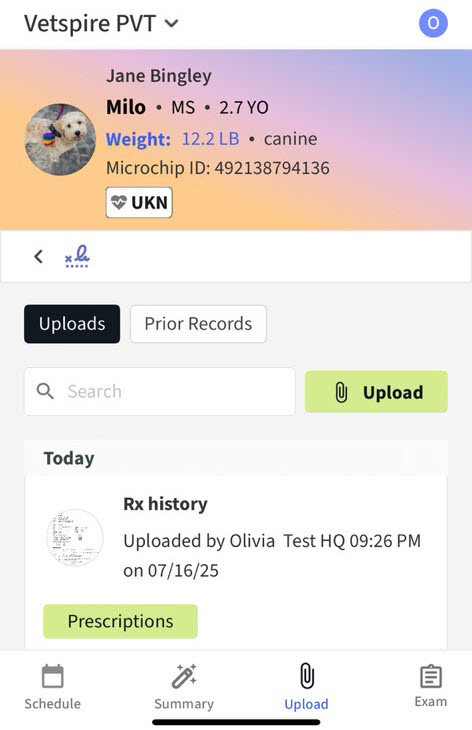
You can upload photos and files from your iOS device directly to Patient Chart in the Vetspire AI app. You can also view documents, images, and rDVM records that have been uploaded to Patient Chart in Vetspire on the web.
Troubleshooting: AI Scribe Not Recording Audio
If you are using AI Scribe on an iOS mobile device, ensure that your device’s case or plastic screen protector is not covering the device’s microphone.