
Org admins can configure custom Discount Reasons, Credit Reasons, Payment Reasons, and Invoice Line Item Reasons that can be selected when applying discounts/coupons and collecting payments. The recorded reasons then display in financial reports (when applicable).
Discount Reasons
In More > Admin > Configure > Discount Reasons, you can customize the list of reasons that display for selection when discounting the total amount of an invoice.
Total discounts and line item discounts can only be applied to Open invoices. Discounts cannot be applied to finalized invoices.
This settings page has several common discount reasons listed by default. You can rename or remove these reasons as needed, as well as create new reasons.
Discount reasons can be selected when:
-
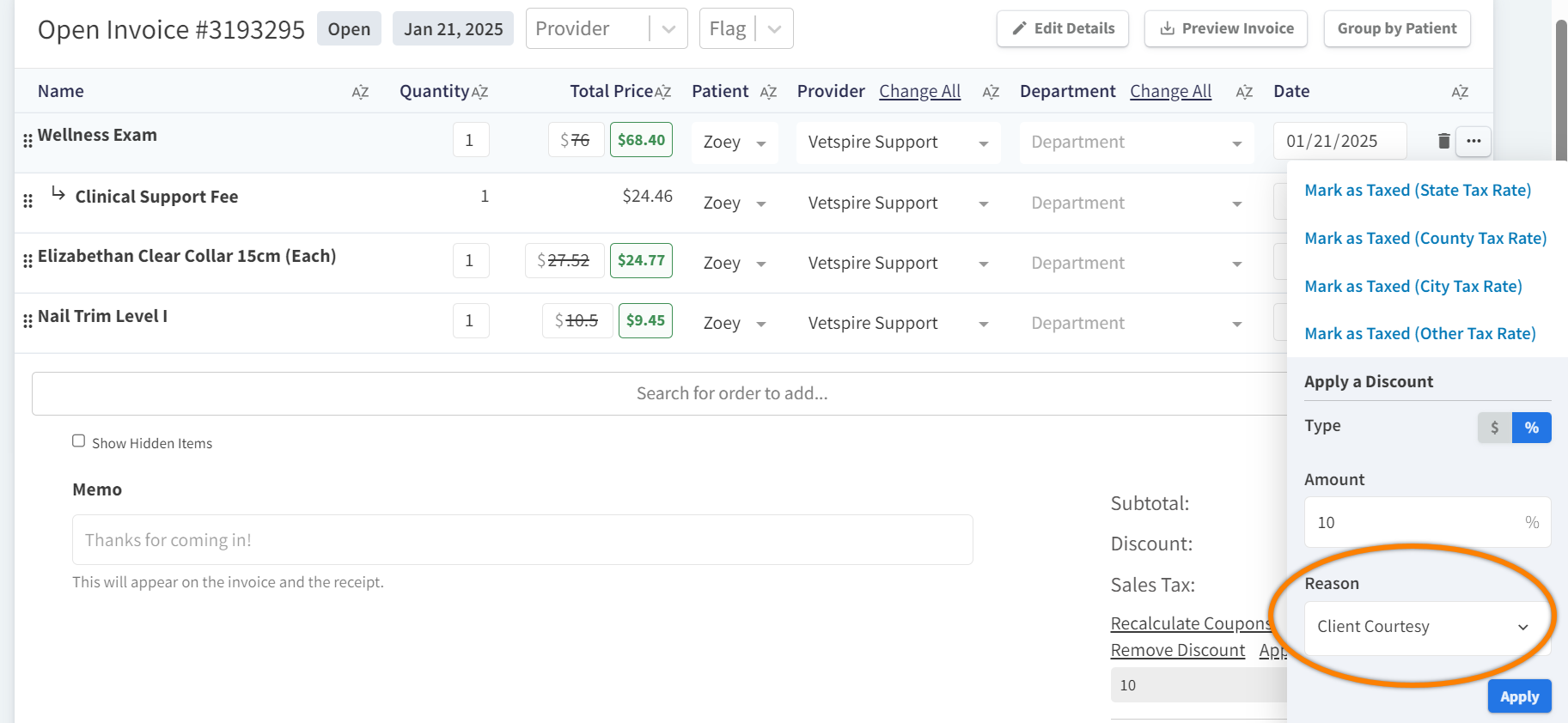
Discounting a single line item on an Open invoice (in the Reason field):
-
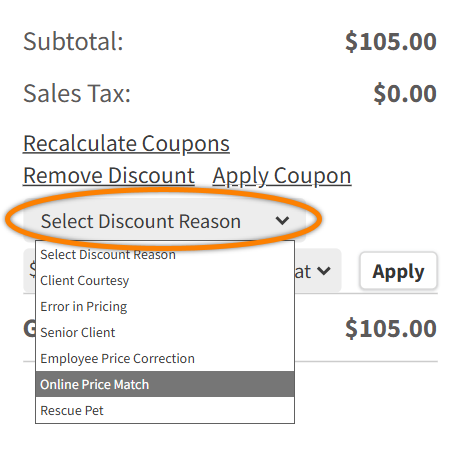
Discounting the entire amount of an Open invoice (in the Select Discount Reason field):
Credit Reasons
The Credit Reasons feature gives you the ability to assign a ‘Credit Reason’ when applying an account credit to a client’s invoice.
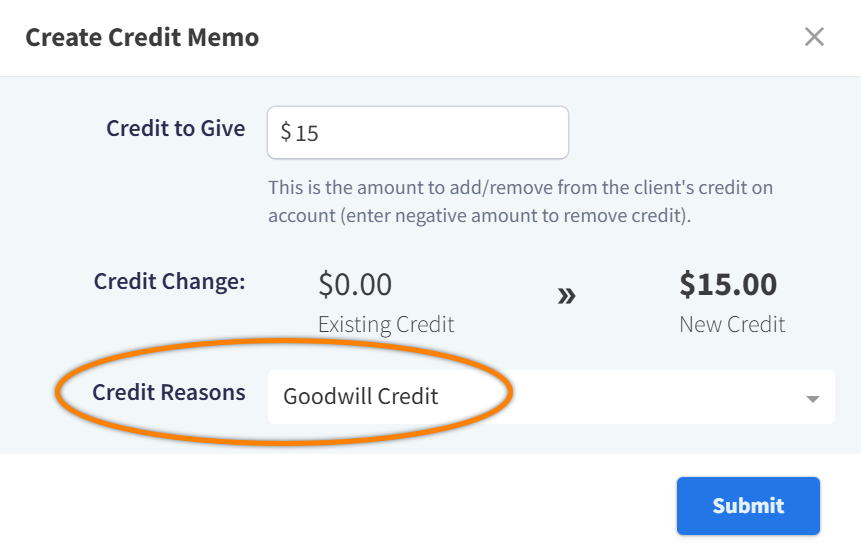
There are two steps to enabling Credit Reasons:
-
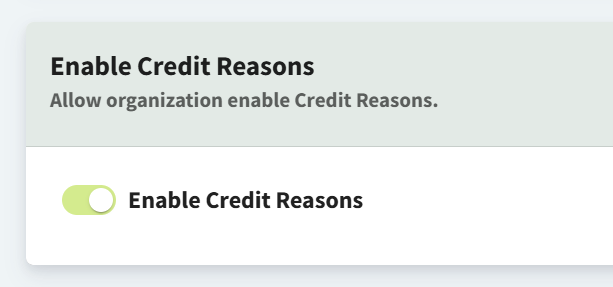
In More > Admin > Settings > Preferences, toggle on the Enable Credit Reasons setting. This action adds ‘Credit Reasons’ under the Admin > Configure menu.
-
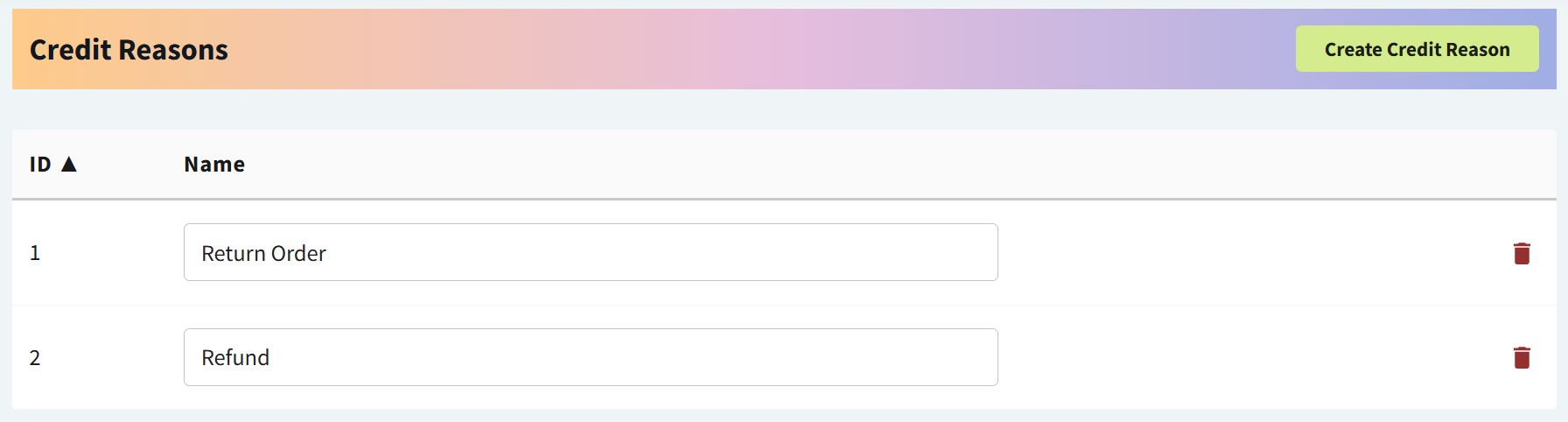
Go to More > Admin > Configure > Credit Reasons and select Create Credit Reason. On this page, you can add, rename, and delete Credit Reasons.
The selected Credit Reason is recorded in the Account Credit History table in Patient Chart > Billing.

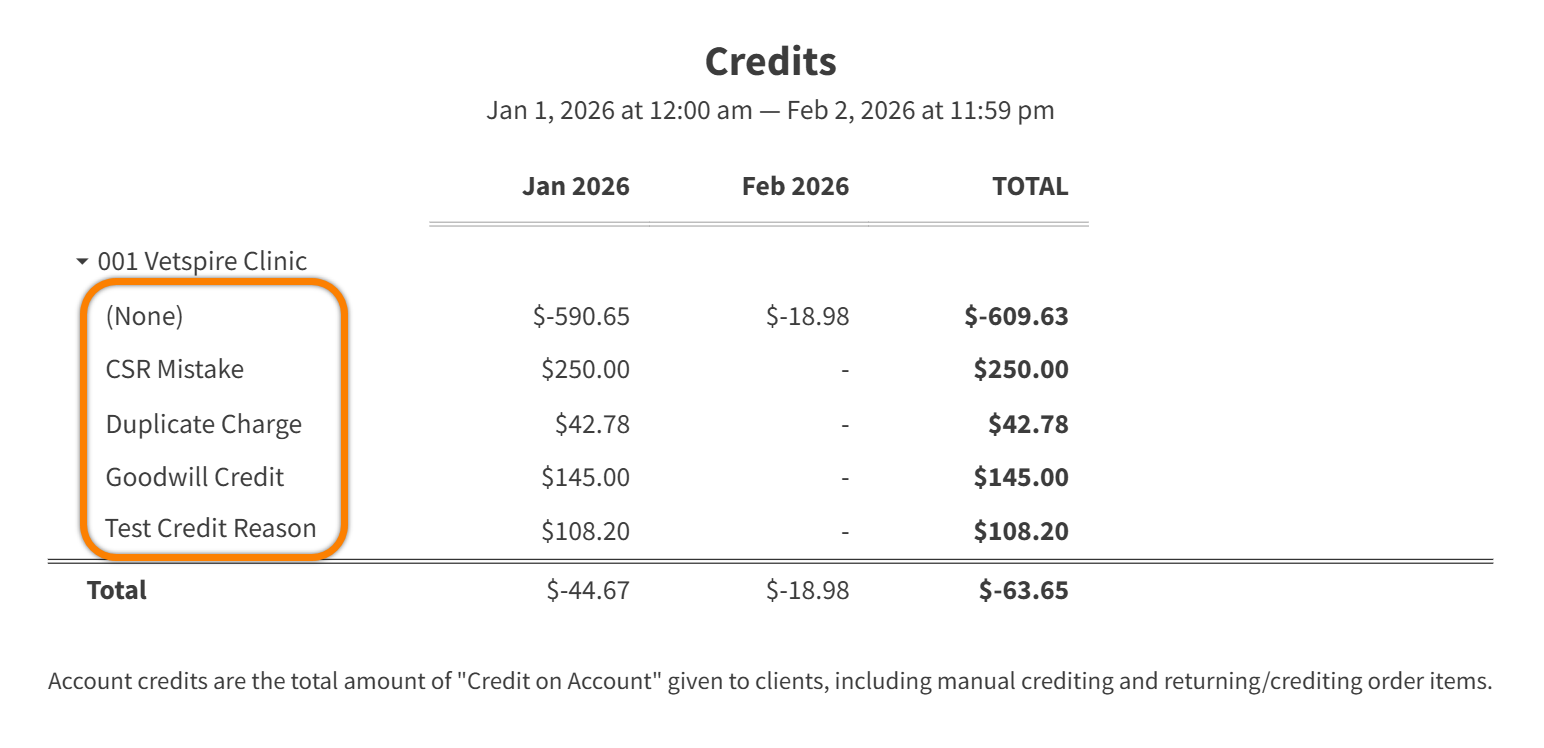
When running reports on account credit usage, you can break down the report by Credit Reason Name.
Payment Reasons
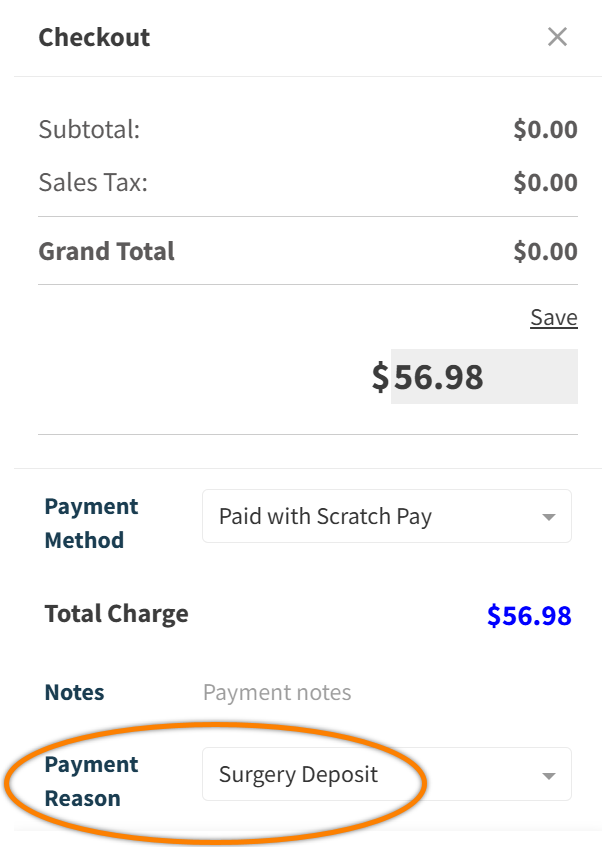
The Payment Reasons feature gives you the ability to note additional details about a payment at checkout (e.g., where a donation is from).
There are two steps to enabling Payment Reasons:
-
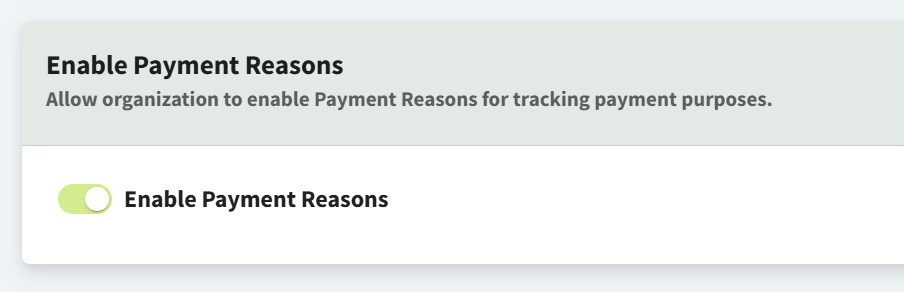
In More > Admin > Settings > Preferences, toggle on the Enable Payment Reasons setting. This action adds ‘Payment Reasons’ under the Admin > Configure menu.
-
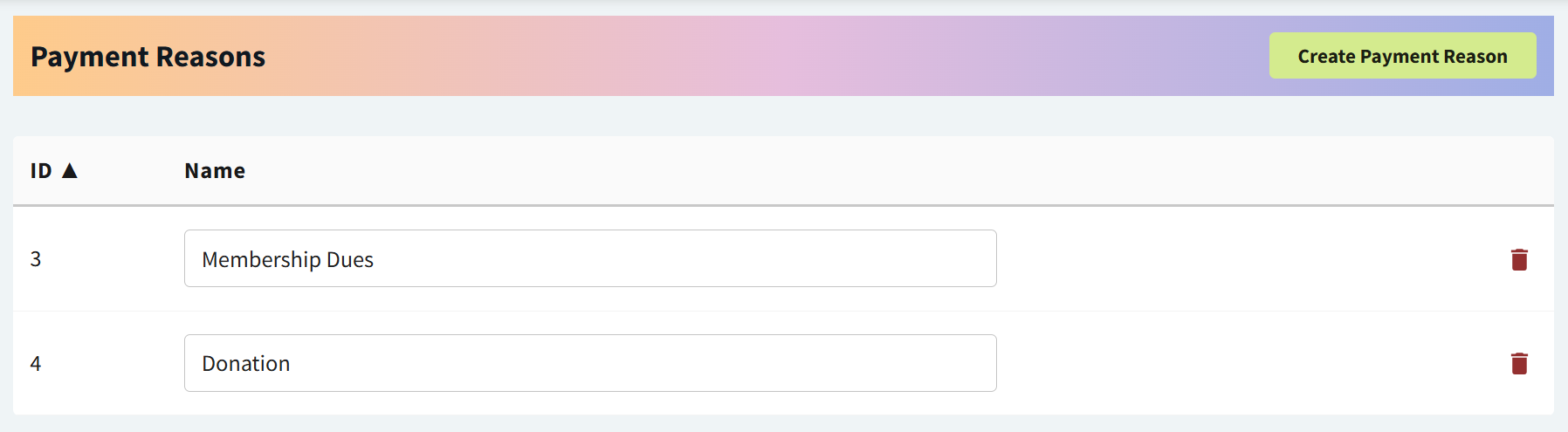
Go to More > Admin > Configure > Payment Reasons and select Create Payment Reason. On this page, you can add, rename, and delete Payment Reasons.
The Payment Reason selected at checkout is recorded in the Payments table in Patient Chart > Billing.

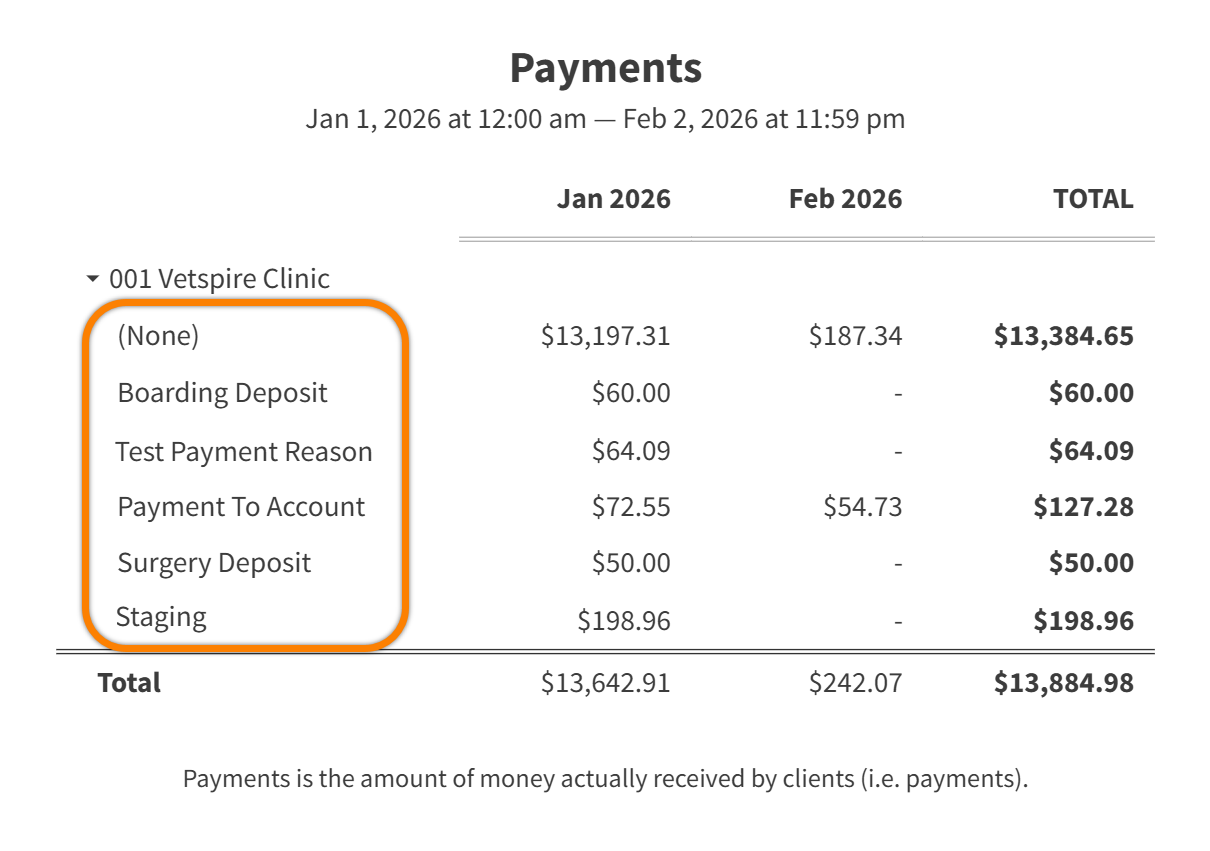
When running payment reports, you can break down the report by Payment Reason.
Invoice Line Item Reasons
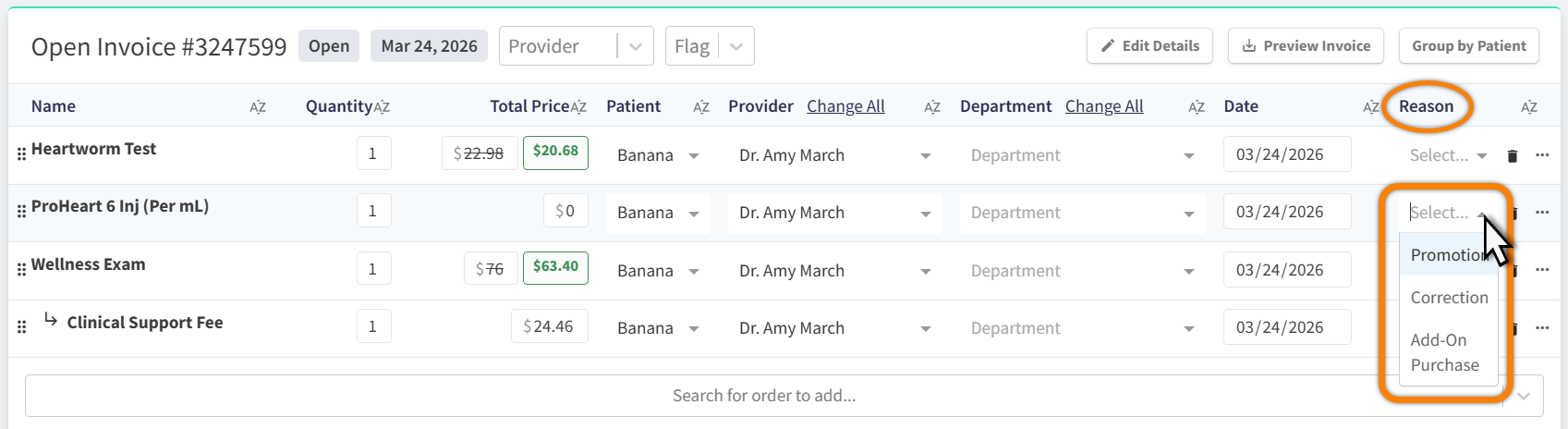
The Invoice Line Item Reasons feature gives you the ability to select a custom reason for why a specific line item is included on an invoice. Invoice Line Item Reasons can only be added to line items on Open invoices.
There are two steps to enabling Invoice Line Item Reasons:
-
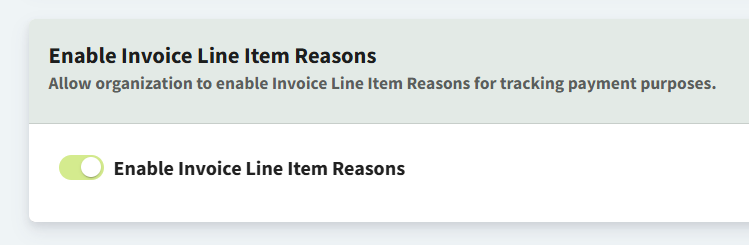
In More > Admin > Settings > Preferences, toggle on the Enable Invoice Lime Item Reasons setting. This action adds ‘Invoice Line Item Reasons’ under the Admin > Configure menu.
-
Go to More > Admin > Configure > Invoice Line Item Reasons and select the Create Invoice Line Item Reason button. On this page, you can add, rename, and delete Invoice Line Item Reasons.
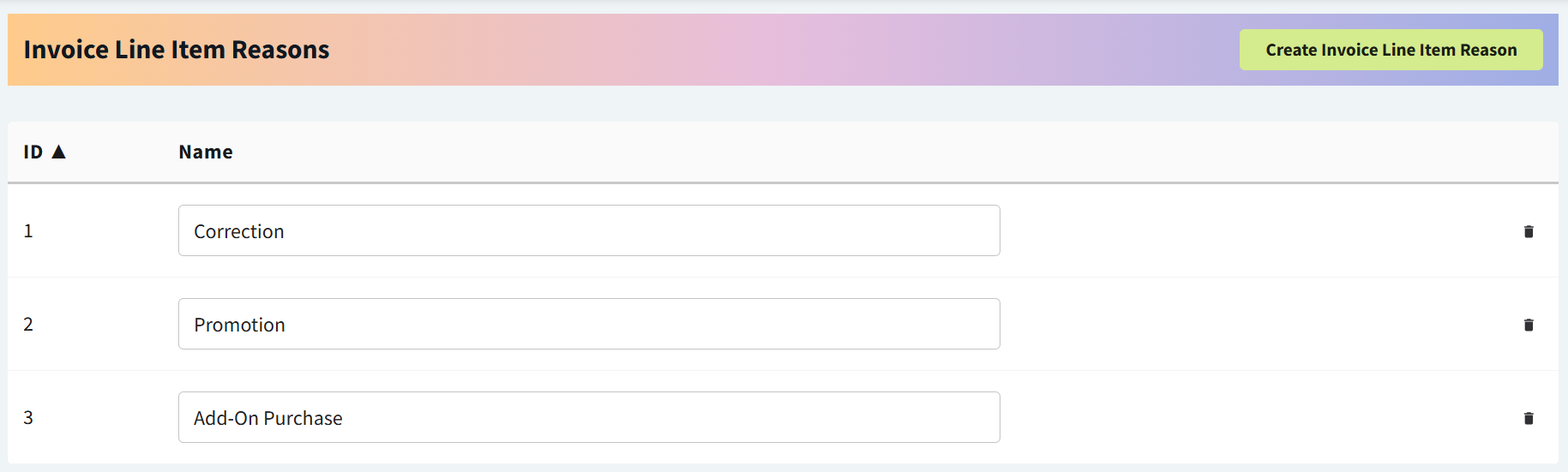
Selected reasons display in the Line Item Reason column on the Line Items report (accessed via Financials > Accounting > Line Items).