
The Diagnostic tab in Patient Chart displays all Pending, Completed, and Cancelled diagnostic results from in-house or reference lab orders.
Pending Orders
The Pending Orders table displays Pending diagnostic orders that have not been run or have not been processed through a lab integration.
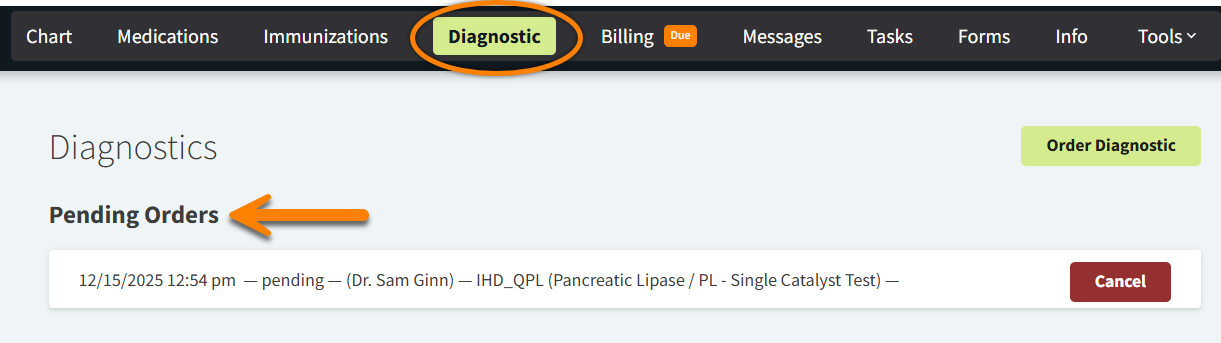
If a Pending diagnostic order was not ordered through an encounter, you can link the order to an encounter from this tab. Select the order, then select one of the patient’s encounters from the Select Encounter drop-down menu.
If you have received the order results but the order still displays as Pending, check the Orphaned Diagnostic Results section of the Dashboard to see if the results need to be linked to the patient.
Can pending lab orders be cancelled?
Yes, but this feature is permission-based. Please contact your org admin for more information on permissions enabled for your Vetspire user role.
Order Results
The Order Results table displays results from in-house and reference labs that are integrated with Vetspire. Abnormal results display in red text.

Select an order from this table to view the full lab results. From this expanded view, you can also see which encounter the lab results are linked to and change the encounter if needed.
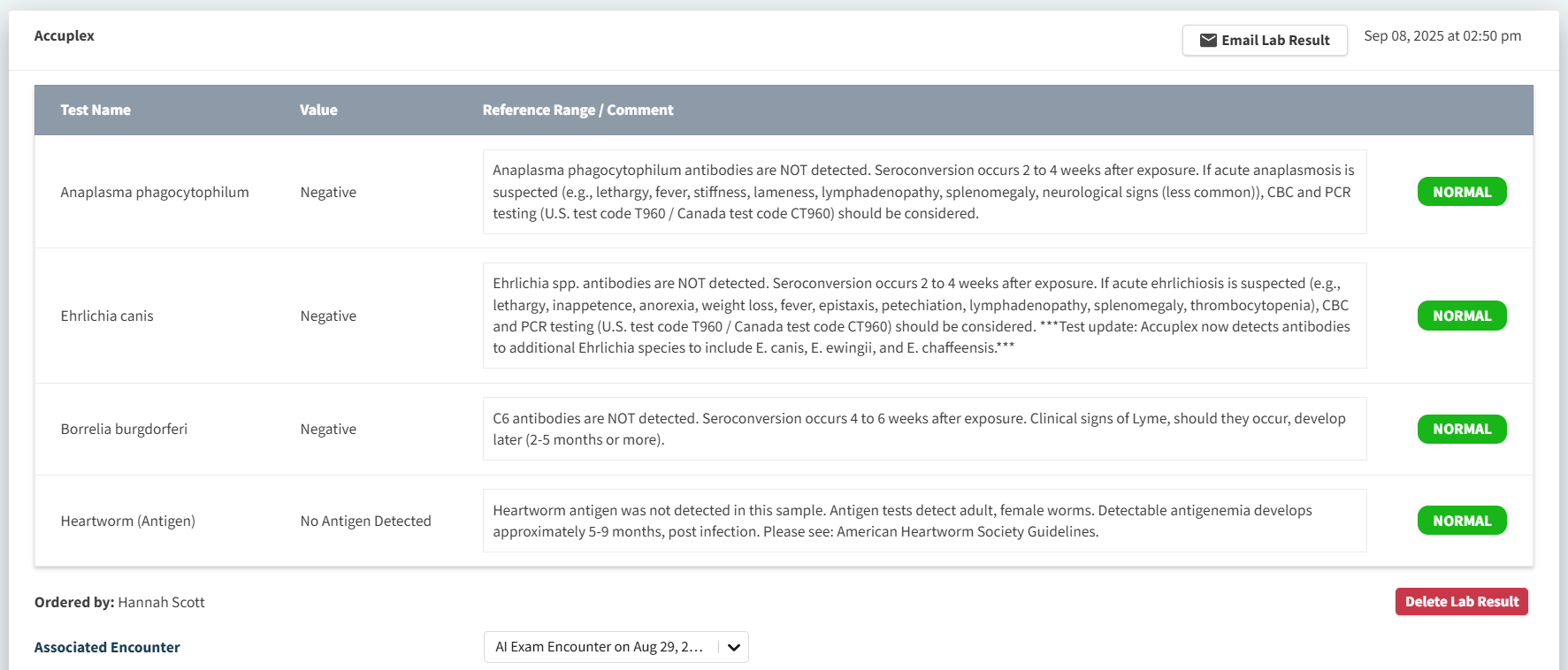
When you select Email Lab Result, the Compose Message window displays. The To field is automatically populated with the client’s email address and, when applicable, the rDVM’s email address. You can edit the Subject and body message as needed, then select Send. The order results will be attached to the email as a PDF file.
Diagnostic Results
The Diagnostic Results table displays results from non-integrated labs. These are lab orders that are manually added to an encounter. See our guide to non-integrated diagnostics for more information: Tip: Non-Integrated Diagnostic Results

Two buttons display below the Diagnostic Results table:
-
Show Completed: Select to view diagnostic orders in the Completed status.
-
Show Cancelled: Select to view diagnostic orders in the Cancelled status.