About AI Clinical Assistant Chat

This feature is available upon request for organizations using Vetspire AI.
Please contact Vetspire Support or your account representative to add AI Clinical Assistant to your Vetspire AI suite.
When using AI Summary for patient medical records and uploaded documents, you can chat with Vetspire AI to quickly search for and locate key information in the patient’s chart and document history.
The AI Clinical Assistant chat is designed to:
Generate responses that are grounded in the patient’s medical record
Prevent the addition of unsupported information
Maintain a natural conversation flow when you ask follow-up questions
Provide clear error messages and reliable error handling to ensure a smooth user experience
You can access the Patient Summary Assistant in Patient Chart and the PDF Assistant in the ‘Uploads’ tab.

Available in AI Diagnosis Assistant!
Vetspire AI’s chat technology is also available with the AI Diagnosis Assistant tool!
AI Diagnosis Assistant Chat uses your SOAP notes, the patient’s medical history, presenting complaints, and trusted veterinary journals to answer your questions and make recommendations on diagnosis differentials. Learn more about AI Diagnosis Assistant.
Patient Summary Assistant
In Patient Chart, select the AI Summary button in the Patient Banner. This opens the Patient Summary panel on the right side of the screen.

Select the Patient Summary Assistant button at the bottom of the Patient Summary panel. The AI Clinical Assistant chat window then displays next to the Patient Summary.
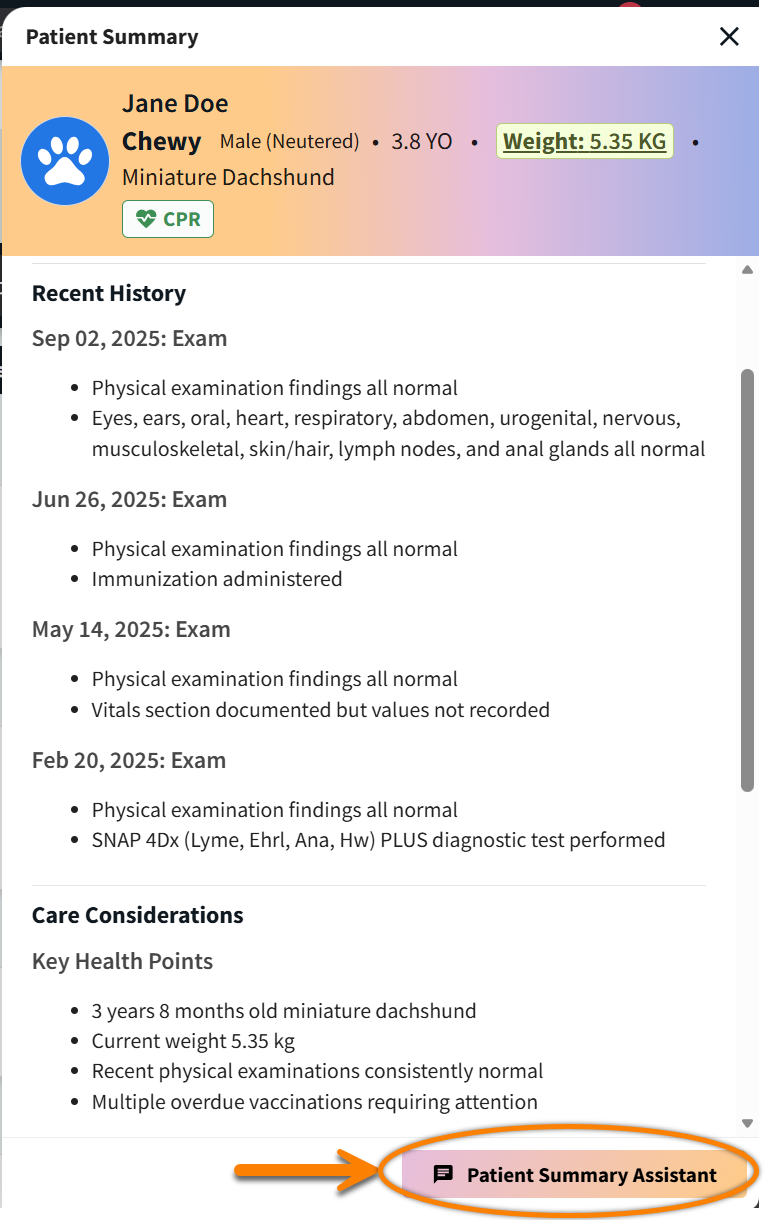
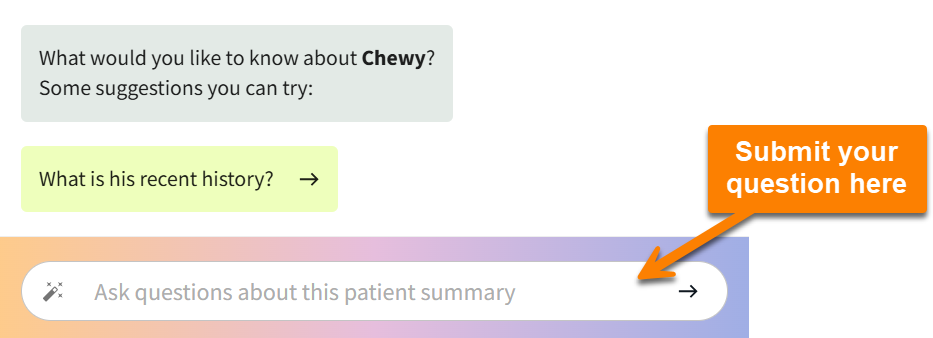
Type your question in the chat window, then select the arrow icon or the Enter key on your keyboard to submit your entry. AI Clinical Assistant will also prompt you with suggested questions to get started.
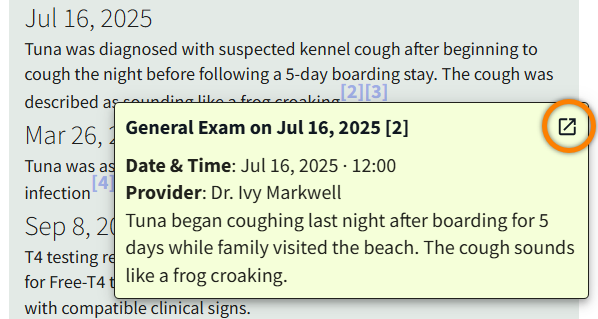
AI Clinical Assistant includes links to the encounters and uploads that it cites information from. Select the reference number and then select the source title or the arrow icon to navigate to the source.
PDF Assistant
From Patient Chart > Uploads, select the AI Summary button for the document you want to review. This opens the PDF Summary panel on the right side of the screen.
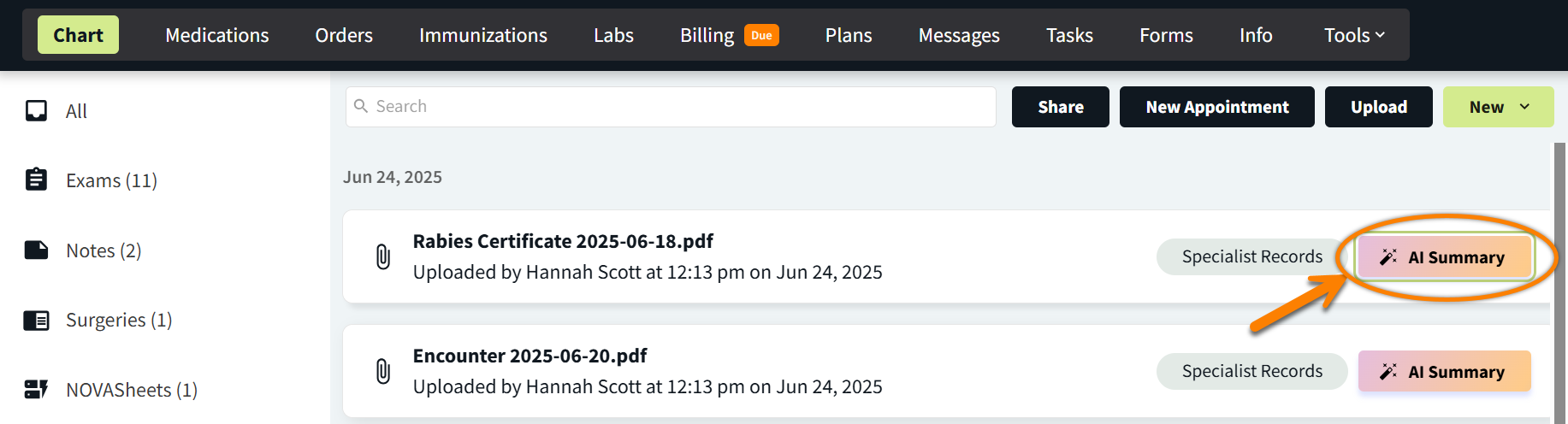
AI Summaries match the original content of the PDF, including dates, personal details, measurements, and medication information.
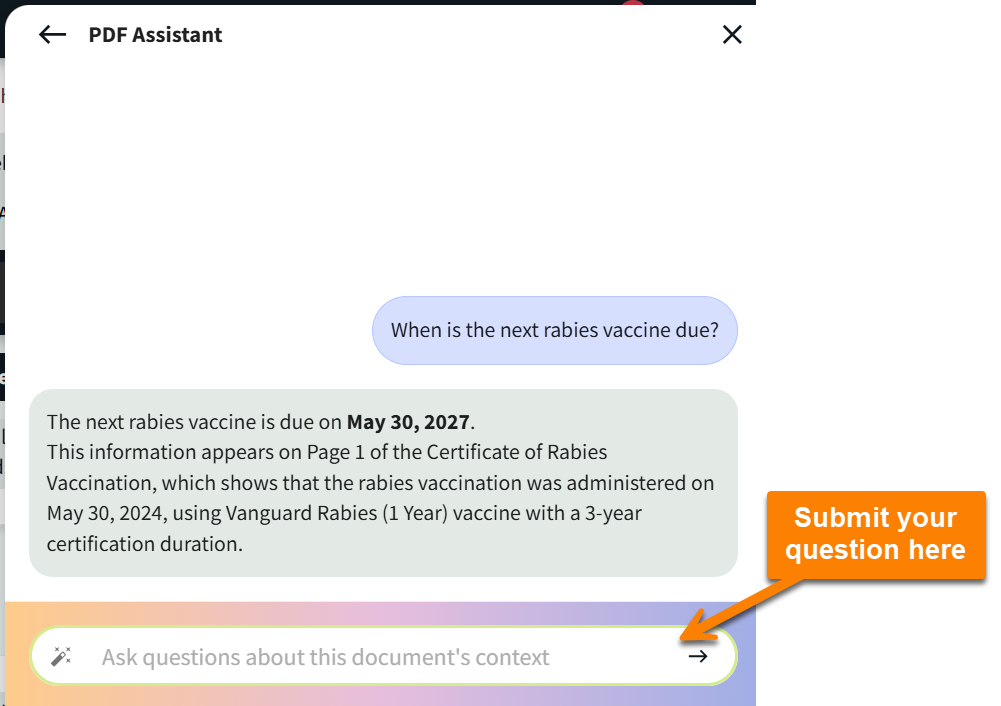
Select the PDF Assistant button at the bottom of the PDF Summary panel. The AI Clinical Assistant chat window then displays next to the PDF Summary panel.
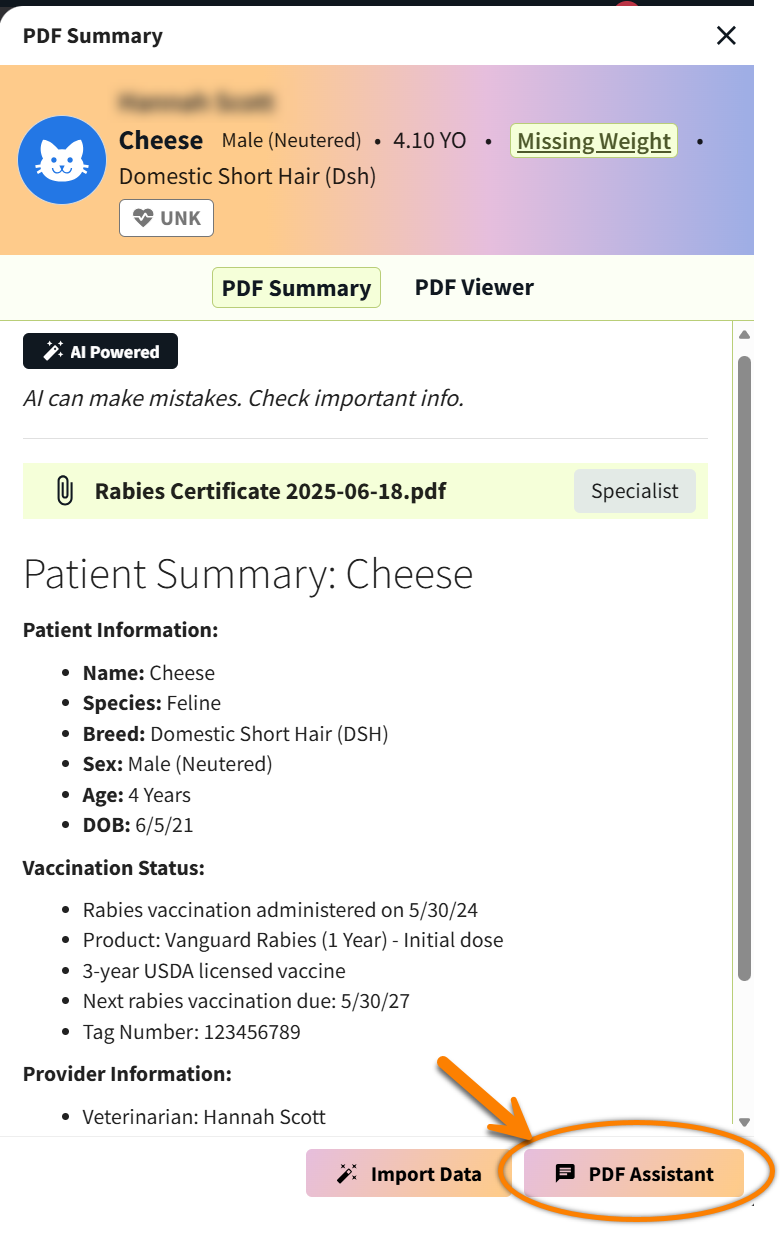
(Optional) Vetspire AI displays chat prompts based on how the PDF document is categorized in the patient’s chart. You can select a prompt to ask the AI Clinical Assistant chat a related question.
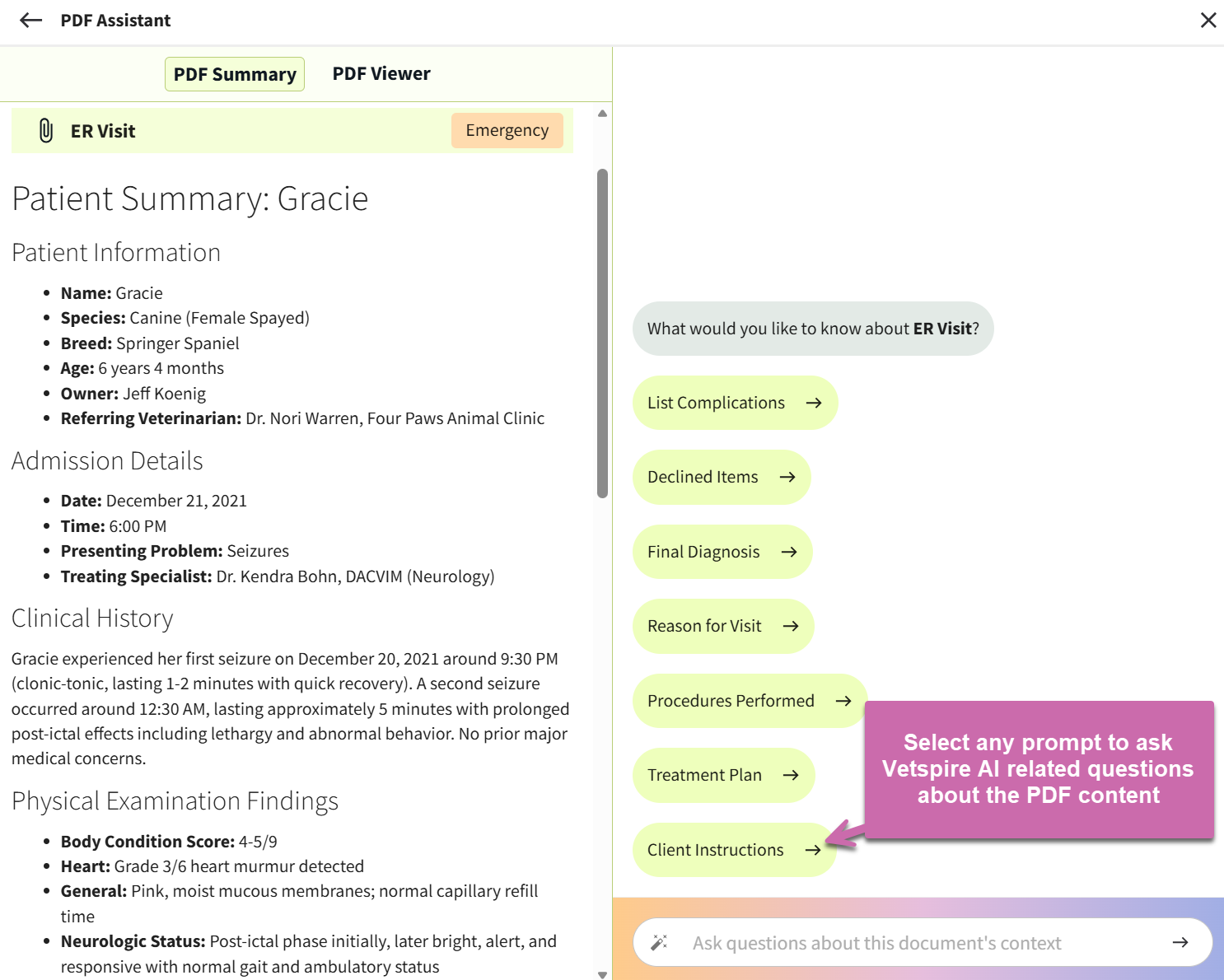
Example: Selecting the Client Instructions prompt asks the PDF Assistant Chat to “Get discharge instructions for client” from a PDF that has been categorized as Emergency Records.
Type your question in the chat window, then select the arrow icon or the Enter key on your keyboard to submit your entry.