Vetspire integrates with CardConnect to capture credit card payments. There are three CardConnect payment methods available in Vetspire:
-
Charge with CardConnect: Process payments using a physical CardConnect terminal located at your clinic.
-
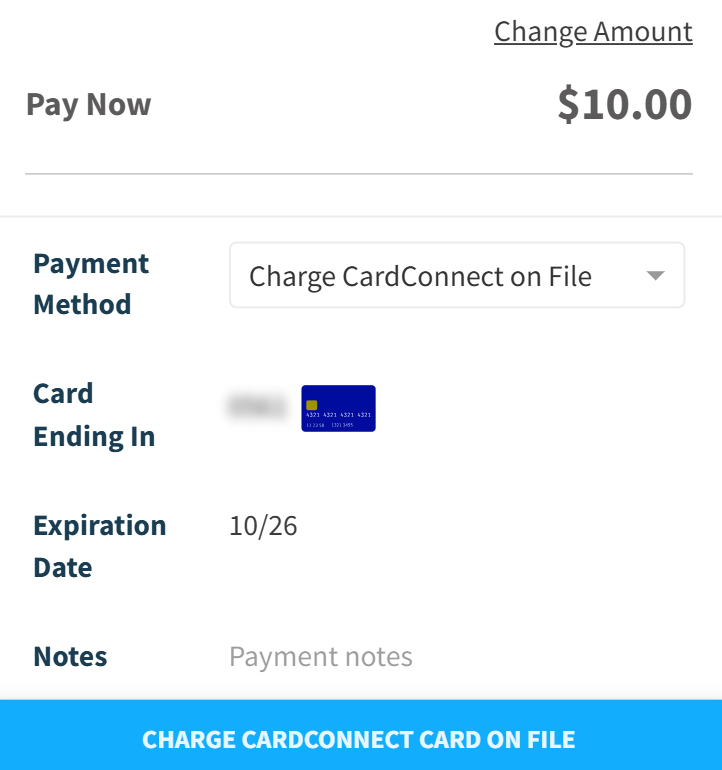
Charge CardConnect on File: Charge the card stored in the client’s Vetspire account (under ‘Cardconnect Billing’).
-
CardConnect Email/Text Pay: Email or text a secure payment portal link to a client from Vetspire, allowing the client to complete payments remotely.
Vetspire does NOT store actual credit card details.
A tokenized version of a client’s card is stored in their user profile for the Charge on File payment method.
How to Set Up Your CardConnect Integration in Vetspire
-
Go to More > Admin > Integrations > Payment Processors.
-
Select the Edit button for Vetspire Cardconnect.
-
Edit the credentials provided to you by CardConnect. An ‘Authenticated’ badge displays when your credentials are verified.
-
Toggle on the payment methods you want to enable.
-
Select Save.
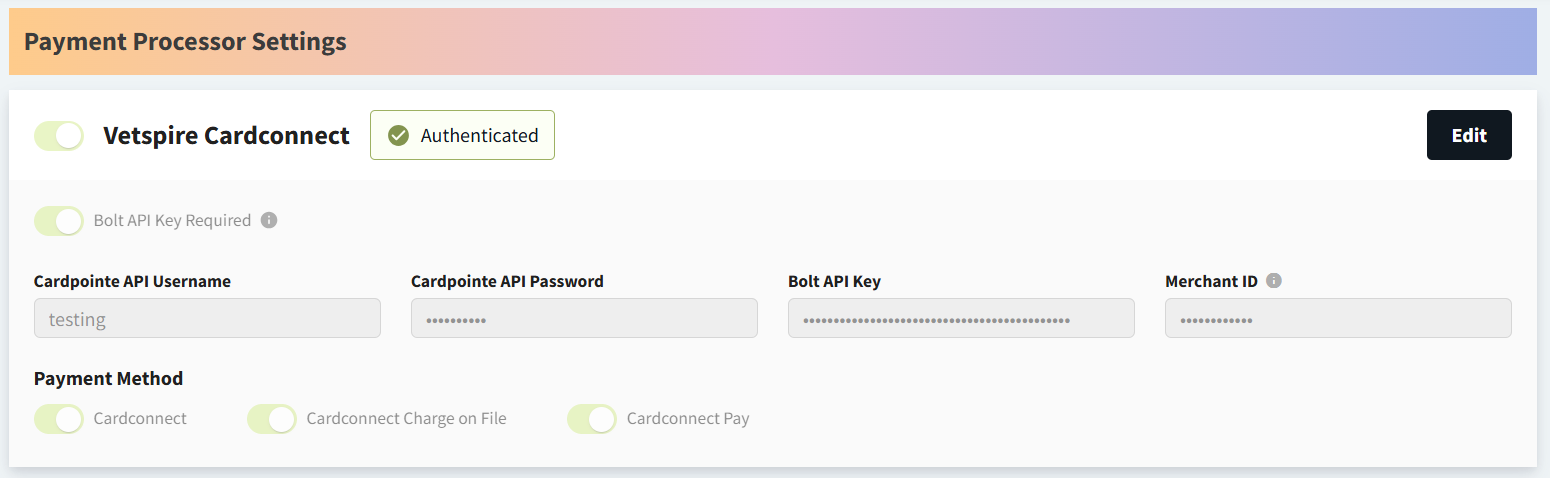
What is ‘Bolt API Key Required’?
Toggle off this option only if your organization does NOT use CardConnect payment terminals.
Enable CardConnect for Your Location
Once you enable the CardConnect integration for your organization, you must set up the integration for each of your locations.
-
Go to More > Admin > Locations and select the location you want to edit.
-
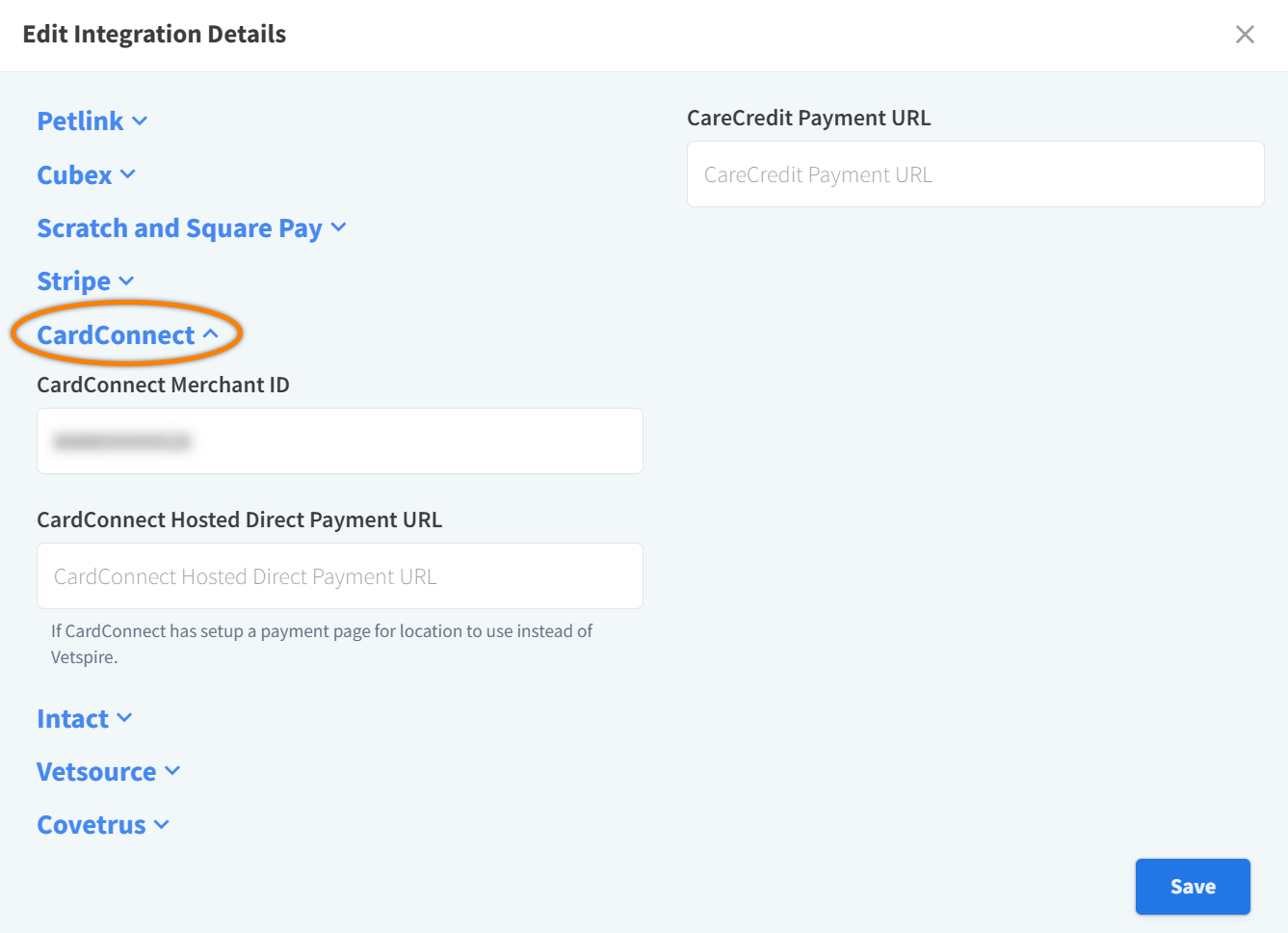
Scroll down to the Integrations section and select Edit. This will open the Edit Integration Details window.
-
Expand the CardConnect fields, then enter the CardConnect Merchant ID for your location.
-
Select Save.
-
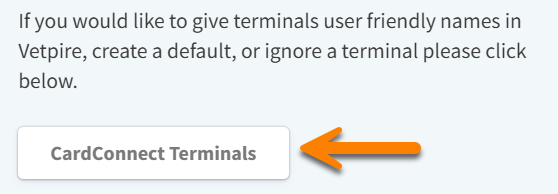
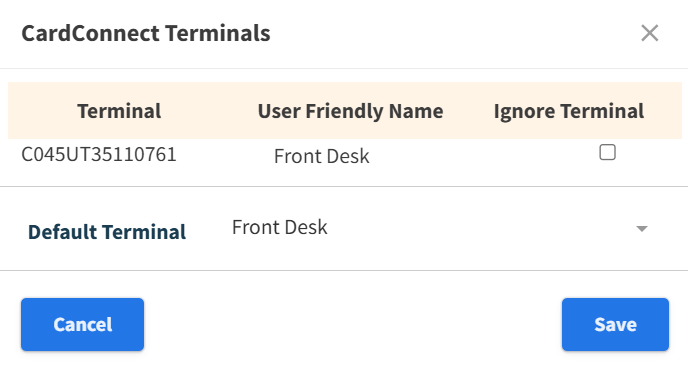
In the Integrations section of your location settings, select the CardConnect Terminals button. This will open the CardConnect Terminals window.
-
Give your terminals “Friendly Names,” such as Front Desk or Boarding Check-In.
-
Select Save.
How to Use a CardConnect Terminal with Vetspire
You can take a payment via a CardConnect terminal when checking out from a finalized invoice, collecting a deposit on an estimate, or collecting a new payment in Patient Chart > Billing.
In the payment window:
-
Edit the amount in the Pay Now field as needed by selecting Change Amount. (This step is required for collecting new payments that are not associated with an invoice or estimate.)

-
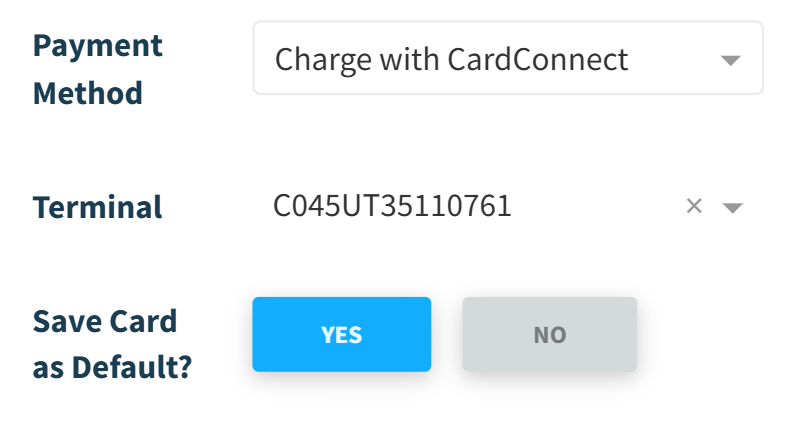
Set the Payment Method to Charge with CardConnect.
-
Select the CardConnect terminal from the Terminal menu.
-
Set the Save Card as Default option to Yes. This allows you to use the same card for this client in the future.
-
Select the CAPTURE WITH CARDCONNECT button. The client will then complete the transaction using the selected terminal.
Save Card to Client’s Profile Using Terminal (Charge CardConnect on File)
In the Checkout or Take Deposit window, when you set the Save Card as Default option to Yes, the client must insert their card into the terminal for the card to be saved to their profile in Vetspire. Tap-to-pay will NOT save the card.
When at least one payment has been collected with a CardConnect terminal and the card is saved to the client’s profile, you can then use the Charge with CardConnect on File payment method.
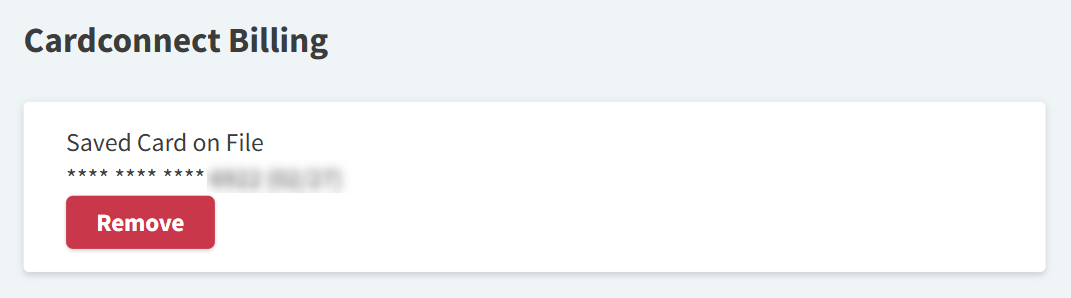
To confirm that a card is saved to a client’s profile, locate the Cardconnect Billing section in their profile. This field will display the Saved Card on File with the last four digits and expiration date of the card.
How to Email/Text CardConnect Payment Link
You can email or text a CardConnect payment link to a client when checking out from a finalized invoice or collecting a deposit on an estimate.
In the payment window:
-
(Optional) Edit the amount in the Pay Now field as needed by selecting Change Amount.
-
Set the Payment Method to CardConnect Email/Text Pay.
-
From the Delivery Method menu, select Send as Email or Send as Text.
-
Select SEND.
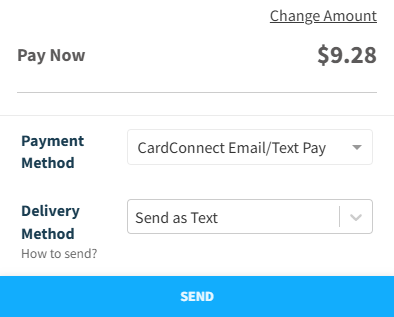
The client then receives a link via the selected delivery method. When they open this link, they can securely enter their payment details and complete the transaction. The payment is then automatically recorded in Patient Chart > Billing.
Example: End-User View of CardConnect Text to Pay
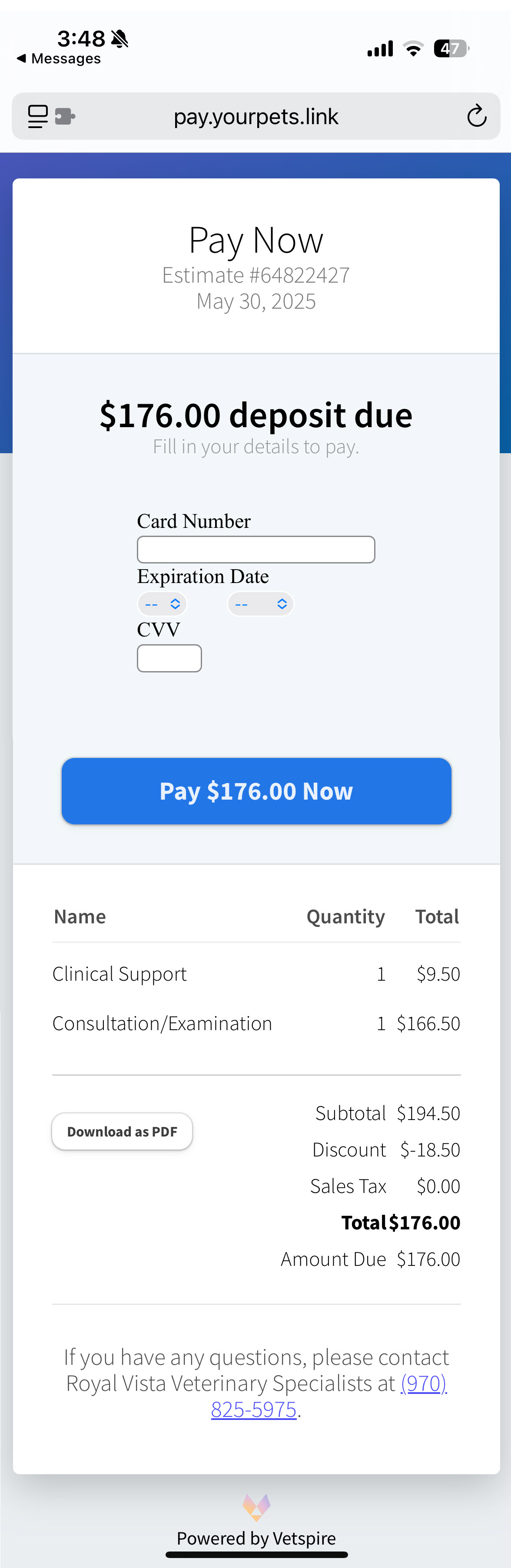
Users receive a text from the clinic’s phone number that includes a link to a Vetspire payment website.
%20(1).jpg?cb=4dcc53795306fb2ced5d30c594294100)
At the Vetspire payment website, they can enter their card information, review invoice line items, and submit payment.
How do I record a CardConnect refund in Vetspire?
When a payment is refunded through CardConnect (in the CardPointe system), you can manually mark the payment as refunded in Vetspire.
-
Go to Patient Chart > Billing and locate the CardConnect payment in the Payments table.
-
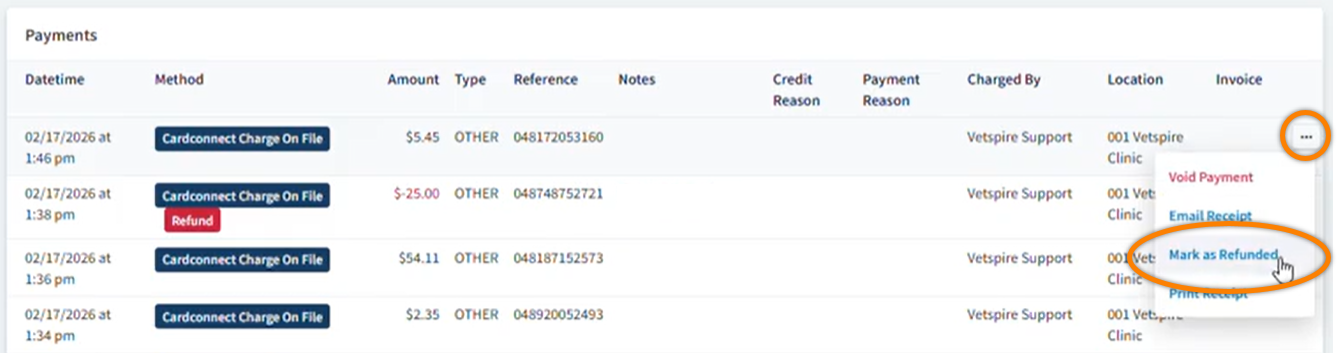
Select the ellipsis to open the action menu for the payment, then select Mark as Refunded.
The payment then displays with a ‘Refund’ label in the Payments table.