Navigate to the Orders section of the patient’s encounter and select + Order Diagnostic. Follow the instructions in the Order Diagnostic window according to the selected diagnostic integration and test.
Ordering Reference Labs
-
Select + Order Diagnostic to open the Order Diagnostic window in the encounter.
-
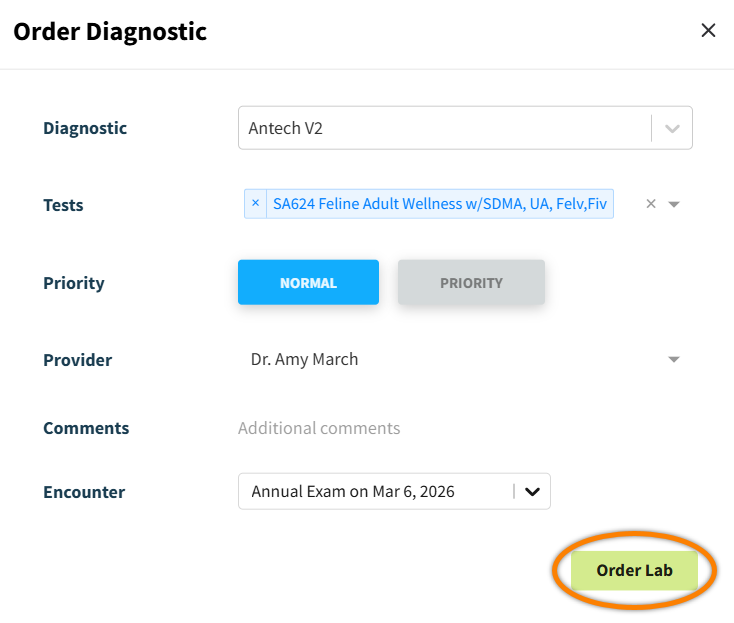
In the Diagnostic field, select the lab integration you want to use.
-
The Type field displays for some integrations. Select REFERENCE in this field.
-
-
Search for and select the Tests you want to order.
If you are using IDEXX, you will select the tests you want to order on the next screen. Please refer to the Complete Order for IDEXX Diagnostic procedure below.
-
Set the Priority as Normal or Priority (high priority).
-
The Provider field automatically populates the provider assigned to the patient’s encounter. You can change this selection as needed.
-
(Optional) Add Comments as needed. Comments entered here display on the diagnostic order form PDF.
-
The Encounter field automatically populates the current encounter. You can change this selection as needed to link the order to a different encounter.
-
Select Order Lab. The order then displays in the Diagnostic Orders table (in the Orders section of the encounter).
-
Select Print Order Form.

Edited comments do not display on the diagnostic order form PDF. The PDF only displays comments as they are originally entered in the Order Diagnostic window.
Diagnostic results will automatically display in Patient Chart > Diagnostic when the lab is completed. For troubleshooting results that are not linked to a patient chart, see Orphaned Diagnostic Results.
Ordering In-House Labs
-
Select + Order Diagnostic to open the Order Diagnostic window in the encounter.
-
In the Diagnostic field, select the lab integration you want to use.
-
The Type field displays for some integrations. Select IN-HOUSE in this field.
-
-
Select the In-house Device you want to use to run the test.
-
Search for and select the Tests you want to order.
If you are using IDEXX, you will select the tests you want to order on the next screen. Please refer to the Complete Order for IDEXX Diagnostic procedure below.
-
The Provider field automatically populates the provider assigned to the patient’s encounter. You can change this selection as needed.
-
(Optional) Add Comments as needed. Comments entered here display on the diagnostic order form PDF.
-
The Encounter field automatically populates the current encounter. You can change this selection as needed to link the order to a different encounter.
-
Select Order Lab. The order then displays in the Diagnostic Orders table (in the Orders section of the encounter).
-
Select Print Order Form.

Edited comments do not display on the diagnostic order form PDF. The PDF only displays comments as they are originally entered in the Order Diagnostic window.
Diagnostic results will automatically display in Patient Chart > Diagnostic when the lab is completed. For troubleshooting results that are not linked to a patient chart, see Orphaned Diagnostic Results.
Complete Order for IDEXX Diagnostic
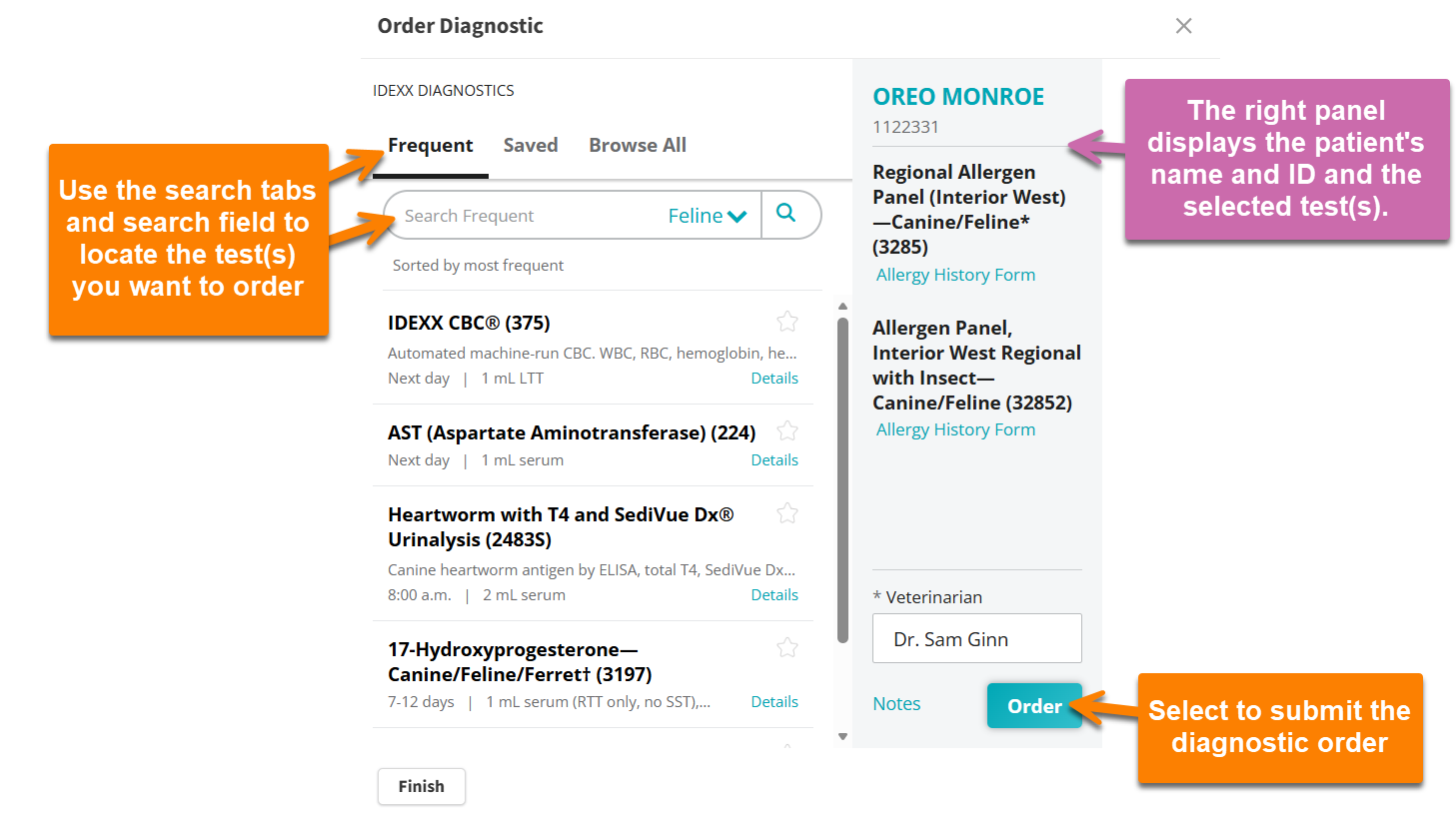
When ordering an IDEXX reference or in-house diagnostic, the system displays new selections in the Order Diagnostic window once you select Order Lab.
-
Use the Frequent, Saved, and Browse All tabs to search for the IDEXX Diagnostic you want to order.
-
Select a test to add it to the patient’s order in the right-side panel of the Order Diagnostic window.
-
The Veterinarian field auto-populates the provider previously selected in the Order Diagnostic window.
-
(Optional) Select Notes, then enter the following details. All of these notes display on the diagnostic order form PDF.
-
Technician: Enter the name of the technician assisting with the encounter.
-
Collection Date: Automatically populates to the current day but can be edited.
-
Previous Reference #: Enter the patient’s previous diagnostic reference number, when applicable.
-
Order Notes: Enter instructions for the reference lab.
-
-
Once you have selected all of the tests you want to order, select Order, then select Finish to close the window.