
To create a NOVASheet, select the New button in Patient Chart, then select the NOVASheet template you want to use.
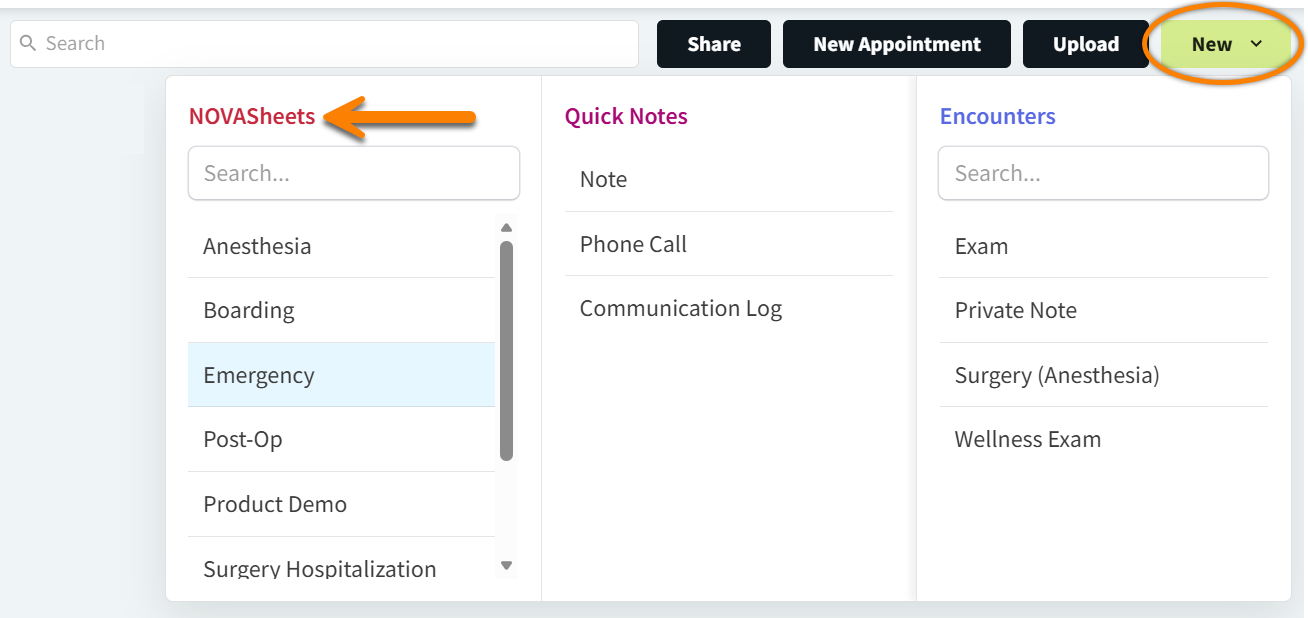
A patient can only have one open, unsigned NOVASheet at a time.
The system will alert you of the existing open NOVASheet if you try to create a new NOVASheet.
About NOVASheet Details
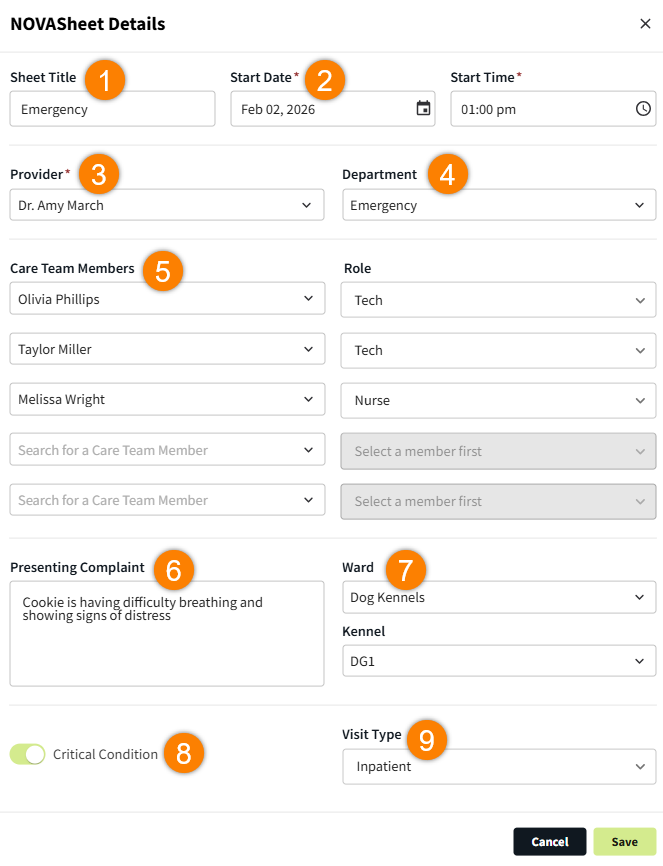
When you create a new NOVASheet, multiple options display to help you facilitate efficient patient management.
-
Sheet Title: You can enter a custom name for the NOVASheet. This field defaults to the name of the NOVASheet template.
-
Start Date and Start Time: These fields default to the current day and time and can be adjusted as needed.
-
Provider: This is the only required field when creating a new NOVASheet. The first Provider Shift that begins automatically at the NOVASheet Start Date/Time will be assigned to the provider selected in this field.
-
Department: Select the relevant Department.
-
Care Team Members: List the Care Team Members and assign a Role to each user. The system supports up to five care team members.
You can assign the same role to multiple care team members. You can also list the same care team member with multiple roles.
-
Presenting Complaint: Notes entered in this field will display on the NOVASheet.
-
Ward and Kennel: Select where the patient will be staying. The ward and kennel you select then display in the Patient Banner.
-
Critical Condition: Toggle on this option to display visual indicators in the Patient Banner and on the NOVASheet that inform staff of the patient’s critical care needs.
-
Visit Type: Select the relevant Visit Type.
-
Select Save. The system will redirect you to the new NOVASheet.
The NOVASheet Details display in the left panel of the NOVASheet. Select the pencil icon 
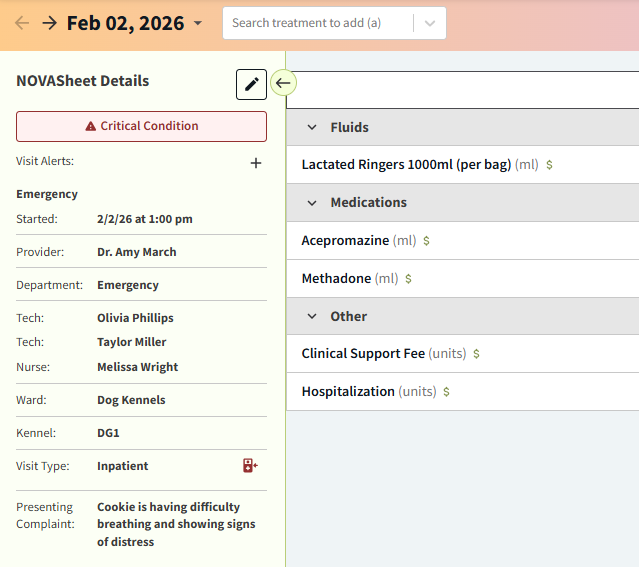
You cannot edit the Start Date or Start Time of a NOVASheet once a value has been recorded for any treatment.
Visit Alerts
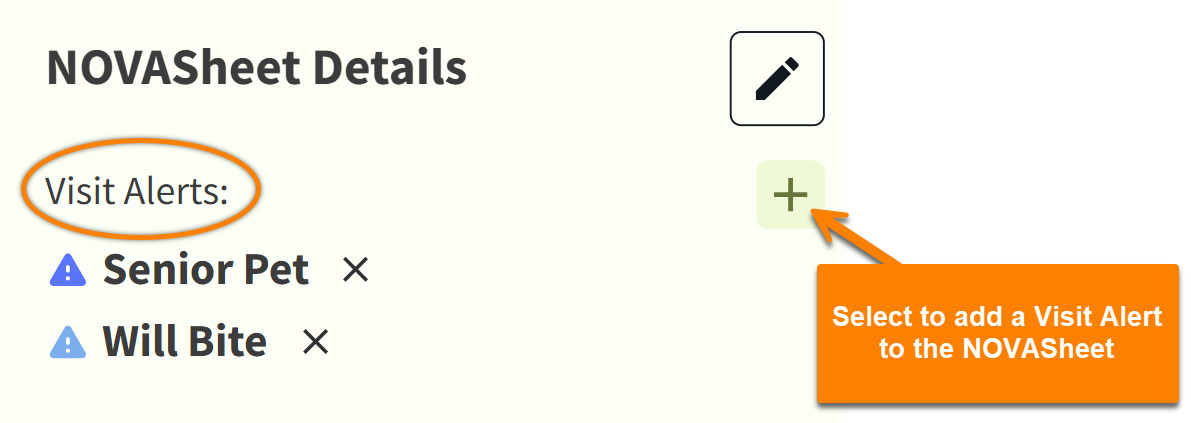
Once the NOVASheet is created, you can add Visit Alerts in the left panel (in NOVASheet Details). When you select the plus sign ➕, the drop-down menu displays your organization’s Patient Alerts (managed in More > Admin > Configure > Patient Alerts).
These alerts are designed to be temporary (for as long as the NOVASheet is open) and save to the NOVASheet but do not save to the patient’s chart or Patient Banner.
Video: Create a NOVASheet