
Because in-care patients are often seen by multiple providers in different departments, Vetspire supports documenting shift changes for patient transfers in NOVASheets.
The Transfer Patient feature in a NOVASheet saves you time spent manually updating invoices and tracking shift changes. This feature also helps ensure the accuracy of medical records for NOVA patients and streamlines reporting on provider productions.
How It Works
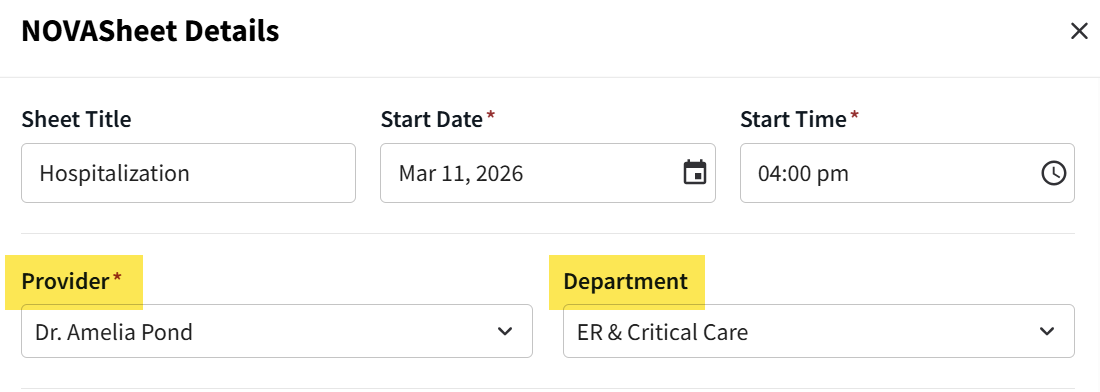
When you create a new NOVASheet, select the first provider on shift in the Provider field and the Department that the patient is first being treated in.
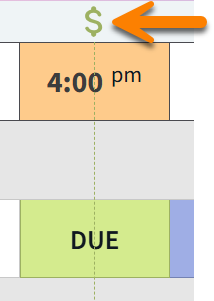
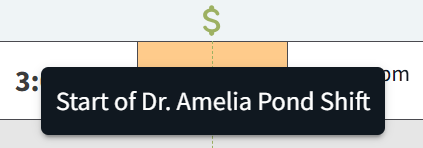
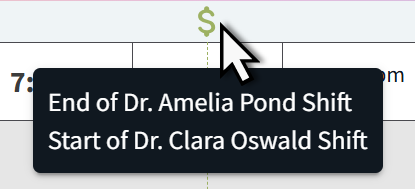
A dollar sign and dashed line displays on the NOVASheet to note each shift’s start time. Hover over the dollar sign to view whose shift is starting or ending.
Example: This NOVASheet was created at 4:00pm. Dr. Pond was the first provider assigned to the NOVASheet.
Example: At 8:00pm, Dr. Pond's shift will end, and the patient will be transferred to Dr. Oswald.
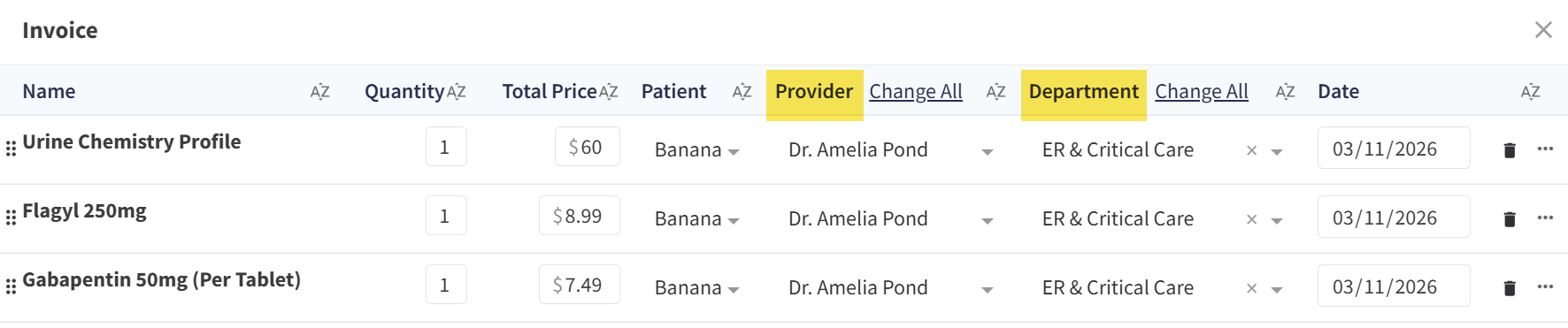
When a treatment is completed during a provider’s shift, the provider’s name and department display with the line item on the invoice.
If a shift change was missed but the treatment was completed, you can manually correct the provider and department associated with the treatment line item on the invoice.
Can I complete a treatment early?
It depends whether the treatment is billable or non-billable.
-
Non-billable treatments can be completed early. You can enter a value for the treatment in a future column.
-
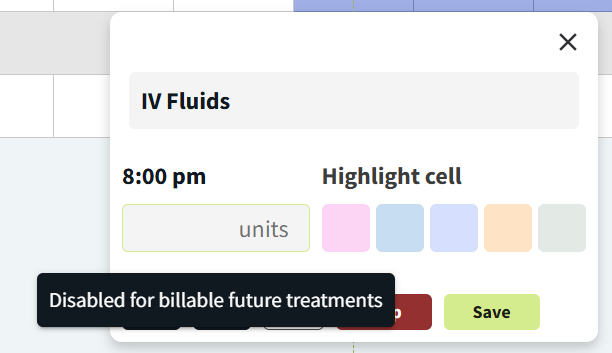
Billable treatments cannot be completed early. You can only enter a value for the treatment in a past due ('LATE') or current ('DUE') column.
The text entry field is automatically disabled for future billable treatments:
Create a New Provider Shift
-
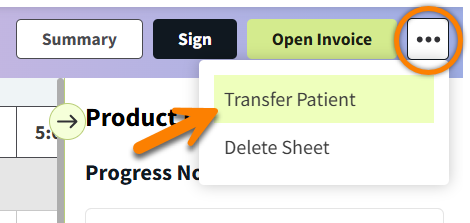
Select the ellipsis to open the NOVASheet action menu, then select Transfer Patient. This opens the Transfer Patient window.
-
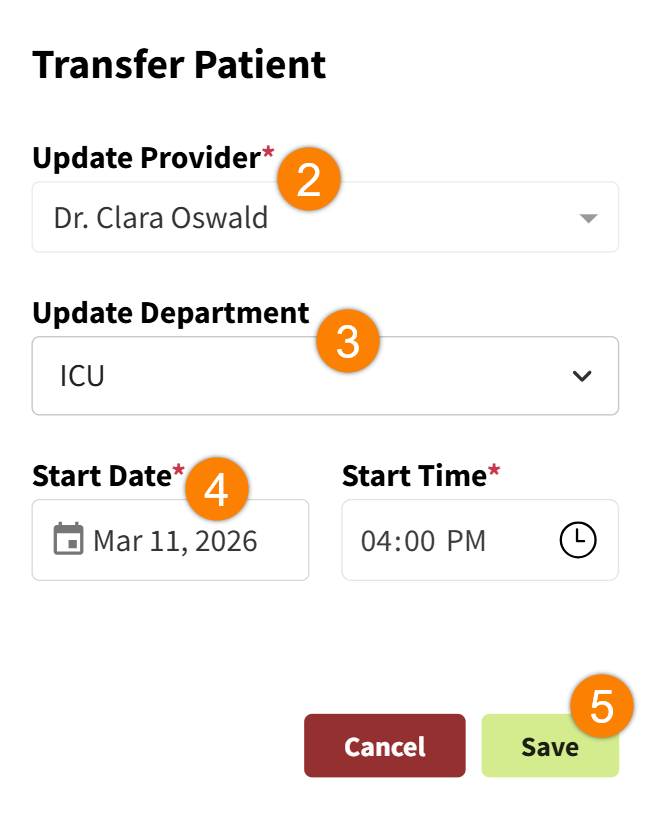
Select the provider whose shift is beginning in the Update Provider field.
-
(Optional) Select the department that the patient is moving to in the Update Department field.
-
Change the Start Date and Start Time of the shift as needed.
-
Select Save.
The system displays a success message confirming the shift change. The new provider is added to the Shift Log.
Transfer Patient Shift Log
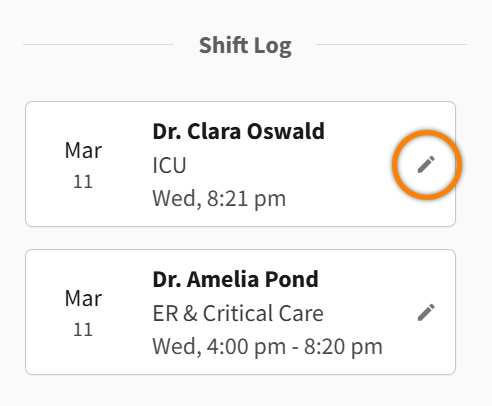
In the Transfer Patient window, the Shift Log displays all provider shifts for the NOVASheet with their department and start date/time. Select the pencil icon next to a provider shift to edit the shift details.
Notes About the Transfer Patient Shift Log
-
You can edit the assigned provider of the first shift but CANNOT edit their shift start date or time. To edit the start date or time of the first shift, you must edit the start date and time of the entire NOVASheet in the NOVASheet Details window.
-
The department selected for a shift can be edited in the Transfer Patient window but CANNOT be edited in the NOVASheet Details window.
-
When you edit a shift after billable treatments from the shift have been invoiced, verify that the invoice displays the correct provider and department for the treatments. You can manually edit the details of each line item as needed.
Vetspire Recommends
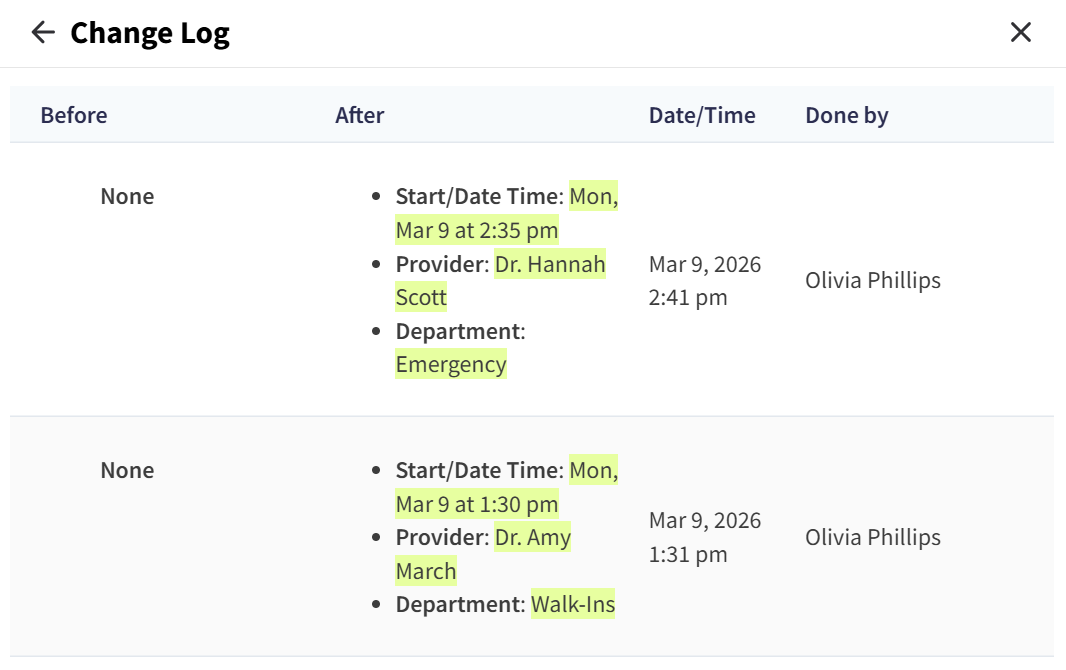
For more details on all shift changes, select View Change Log in the Transfer Patient window to see which Vetspire user added or edited shifts on the NOVASheet and when the changes were made.
User Role Permissions for Transfer Patient Feature (Admin)
Users who will be creating new provider shifts within a NOVASheet must have permissions to do so granted for their user role.
-
In More > Admin > Staff > User Roles, locate the role you want to edit. Select the pencil icon and then select Edit.
-
In the Edit Role Permissions window, select the checkboxes next to the following permissions:
-
NOVA > Provider Transfer > Create Shifts
-
NOVA > Provider Transfer > Update Shifts
-
-
Select Save Changes.
Video: NOVASheet Transfer Patient