
There are a few settings that org admins need to configure for your hospital to be able to use visits in Vetspire:
-
Org settings for visits: Configure options for Visit Types and Visit Reasons.
-
Enable the ‘Ready for Discharge’ column on Flow: This setting allows you to mark patients as ‘Ready for Discharge’ when they are cleared to leave the hospital.
-
Grant user role permissions for visits: There are specific permissions related to visits that can be granted for unique user roles.
-
(Optional) Org settings for Care Team roles: In an encounter, you can list up to five Vetspire users that are part of a patient’s care team. Each care team member is assigned a pre-defined role that is configured in your NOVA Settings.
Enable Visit Types
Visit Types are predefined system values designed for use with the Visits Report (available in More > Analytics). In your org preferences, you can toggle on the Visit Type options that you want to be available for selection when scheduling appointments and creating NOVASheets.
-
Go to More > Admin > Settings > Preferences.
-
Locate the Visit Type Organization section.
-
Toggle on the predefined Visit Types you want to use.
The system automatically saves your changes.

Enable Visit Reasons
In More > Admin > Settings > Preferences, toggle on the Enable Visit Reasons setting to add the Visit Reasons page under More > Admin > Configure.
When Visit Reasons are enabled, you can create a standardized list of reasons selected by staff when an appointment is created and by the client during self check-in.
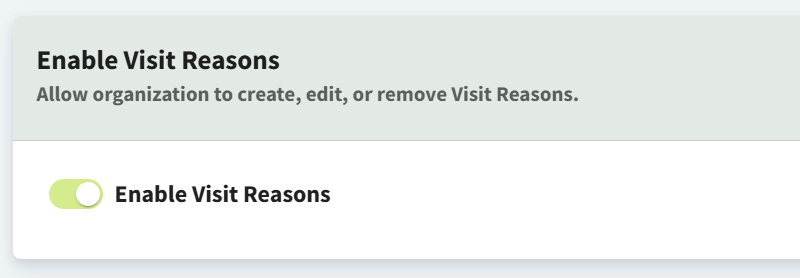
To manage your organization’s list of Visit Reasons:
-
Go to More > Admin > Configure > Visit Reasons and select Create Visit Reason. This opens the ‘Create a new visit reason’ window.
-
Enter a Name for the Visit Reason, then select Create.
On the Visit Reasons page, you can also edit and delete Visit Reasons as needed.
Notes About Visit Reasons
-
When ‘Enable Visit Reasons’ is toggled off: The Reason for Visit field is a free-text entry field. This is how the field displays by default.
-
When ‘Enable Visit Reasons’ is toggled on: The Reason for Visit field displays a drop-down menu of your custom Visit Reason options.
-
Enabling Visit Reasons will override any information that is manually entered in the Reason for Visit fields of existing appointments. Disabling Visit Reasons restores the manually entered information in the free-text Reason for Visit field.
Enable the ‘Ready for Discharge’ Flow Column
-
Go to More > Admin > Locations and select the location you want to edit.
-
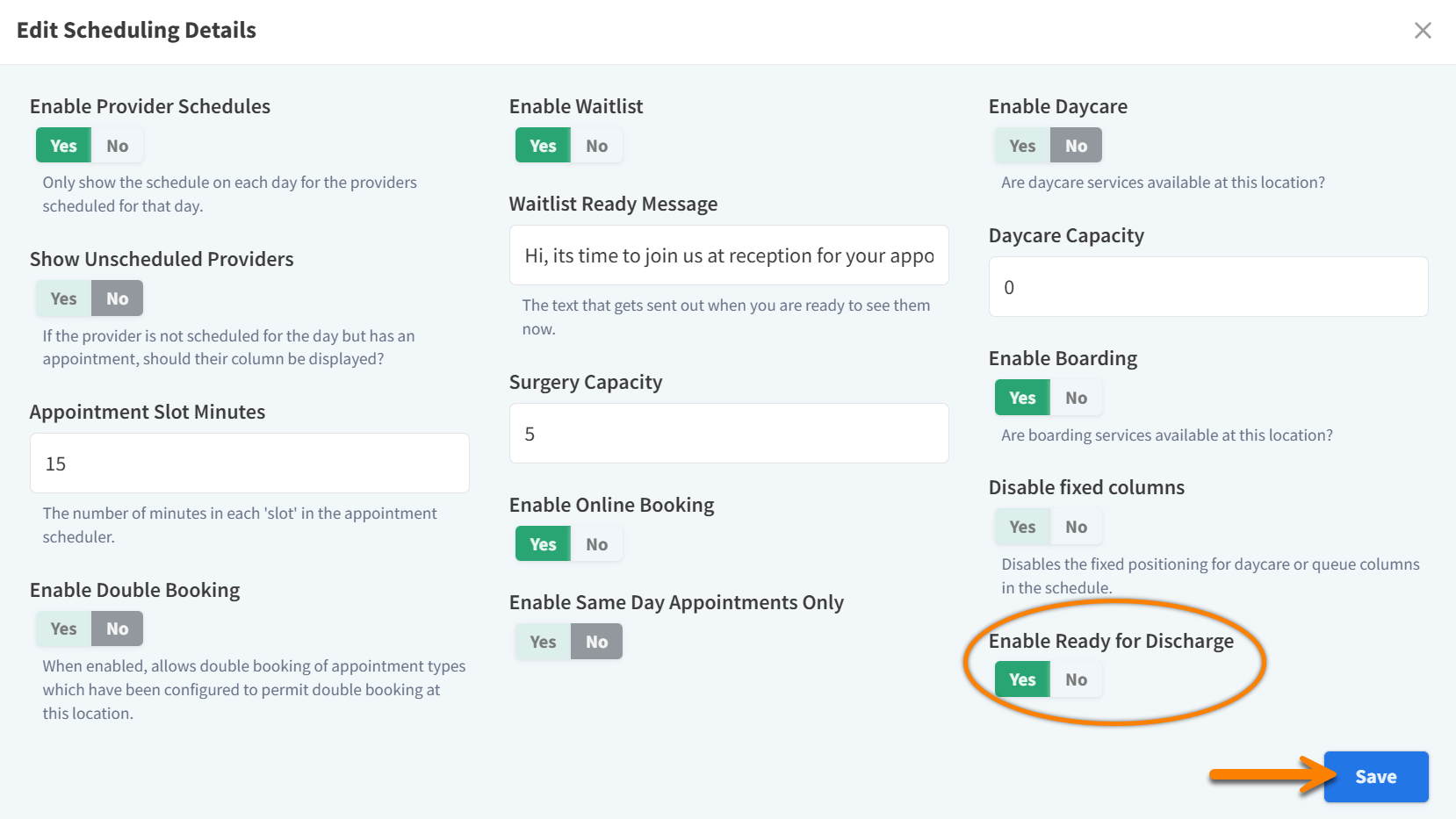
Scroll down to the Scheduling section and select Edit > Edit Basics. This opens the Edit Scheduling Details window.
-
Set the Enable Ready for Discharge setting to Yes, then select Save.
User Role Permissions Related to Visits
The abilities to end a visit and mark a patient as ‘Ready for Discharge’ are permission based. The following permissions can be enabled for appropriate user roles in More > Admin > Staff > User Roles:
-
Clinical > Visit > End Visit
-
Clinical > Visit > Mark Ready for Discharge