
You can separately mark a patient as ‘Ready for Discharge’ and end a visit. You can also discharge the patient and end the visit at the same time to proceed to checkout.
How It Works
-
A patient’s encounter does not have to be signed in order for the patient to be marked as ‘Ready for Discharge,’ giving you the flexibility to complete encounter notes after the patient has left your practice.
-
Marking a patient as ‘Ready for Discharge' does not end the visit in Vetspire. Additionally, marking a patient as ‘Ready for Discharge’ does not sign the patient’s encounter.
-
Selecting End Visit & Discharge Patient does not finalize the client’s invoice. The client’s invoice (which contains all billable items from the visit) can be finalized from Patient Chart > Billing. From here, you can proceed to checkout to collect payment.
These features are permission-based.
The following permissions must be enabled for your assigned user role to be able to end a visit and mark a patient as ‘Ready for Discharge’, respectively:
-
Clinical > Visit > End Visit
-
Clinical > Visit > Mark Ready for Discharge
Org admins: Please see our User Roles and Permissions Reference for more information on managing permissions.
Video: Discharge Patient & End Visit
Mark Patient as ‘Ready for Discharge’
This feature is designed to help you see at-a-glance which patients are being discharged. When you mark a patient as ‘Ready for Discharge,’ the patient’s appointment tile moves to the Ready for Discharge column on Flow.
To mark a patient as ‘Ready for Discharge’:
-
Go to the patient’s chart and locate the visit in the Chart timeline.
-
Select the ellipsis to open the action menu for the visit, then select Mark Ready for Discharge.
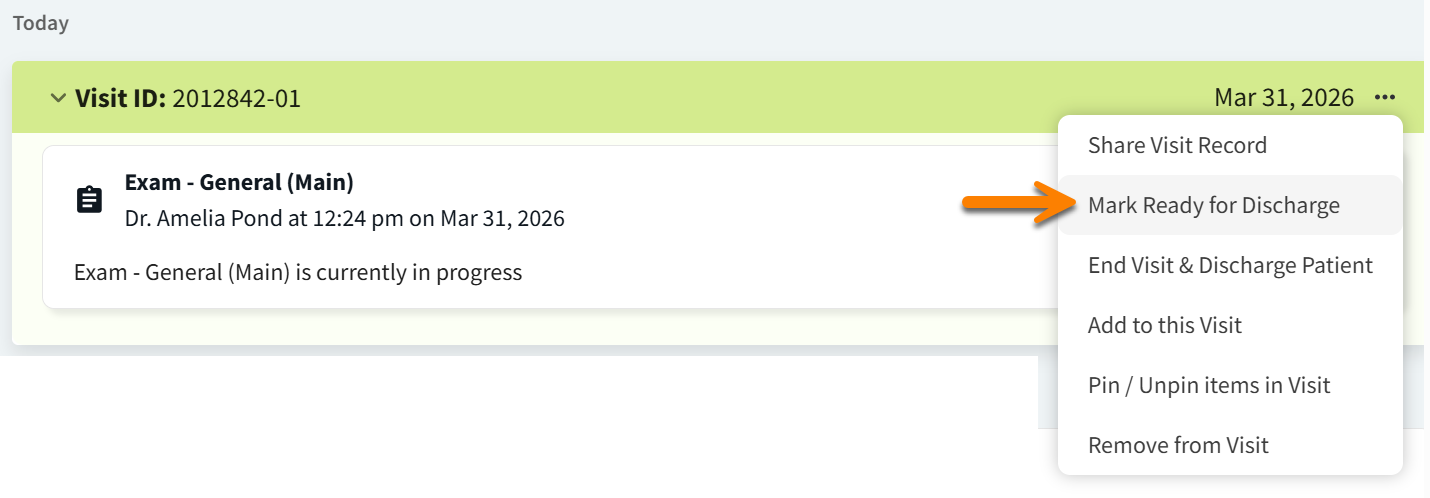
You can select Remove Ready for Discharge from the action menu for the visit to unmark the patient as ‘Ready for Discharge.’ When you select this option, the patient’s appointment tile moves back to the In Progress column on Flow.
End Visit and Discharge Patient
This option can be used when the patient is leaving your practice whether or not payment is collected at the time of service, allowing you to keep the visit details and financials separated if needed.
-
Go to the patient’s chart and locate the visit in the Chart timeline.
-
Select the ellipsis to open the action menu for the visit, then select End Visit & Discharge Patient.
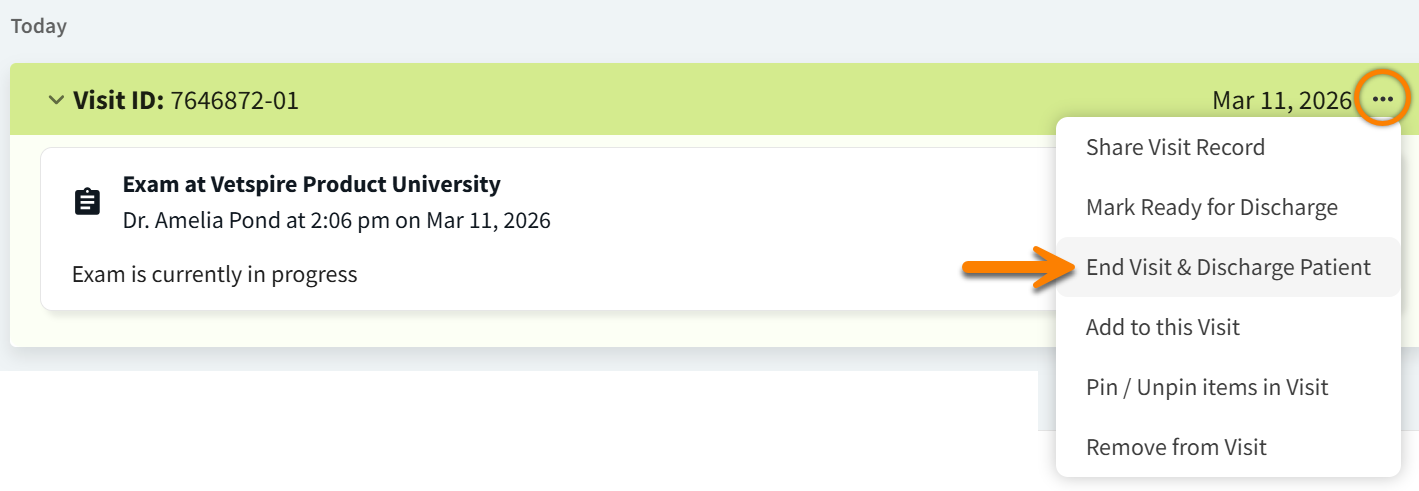
The patient’s appointment tile then moves to the Checking Out column on Flow.
Checkout and End Visit
This option is designed to be used when the patient is leaving the hospital and payment is collected at the time of service.
-
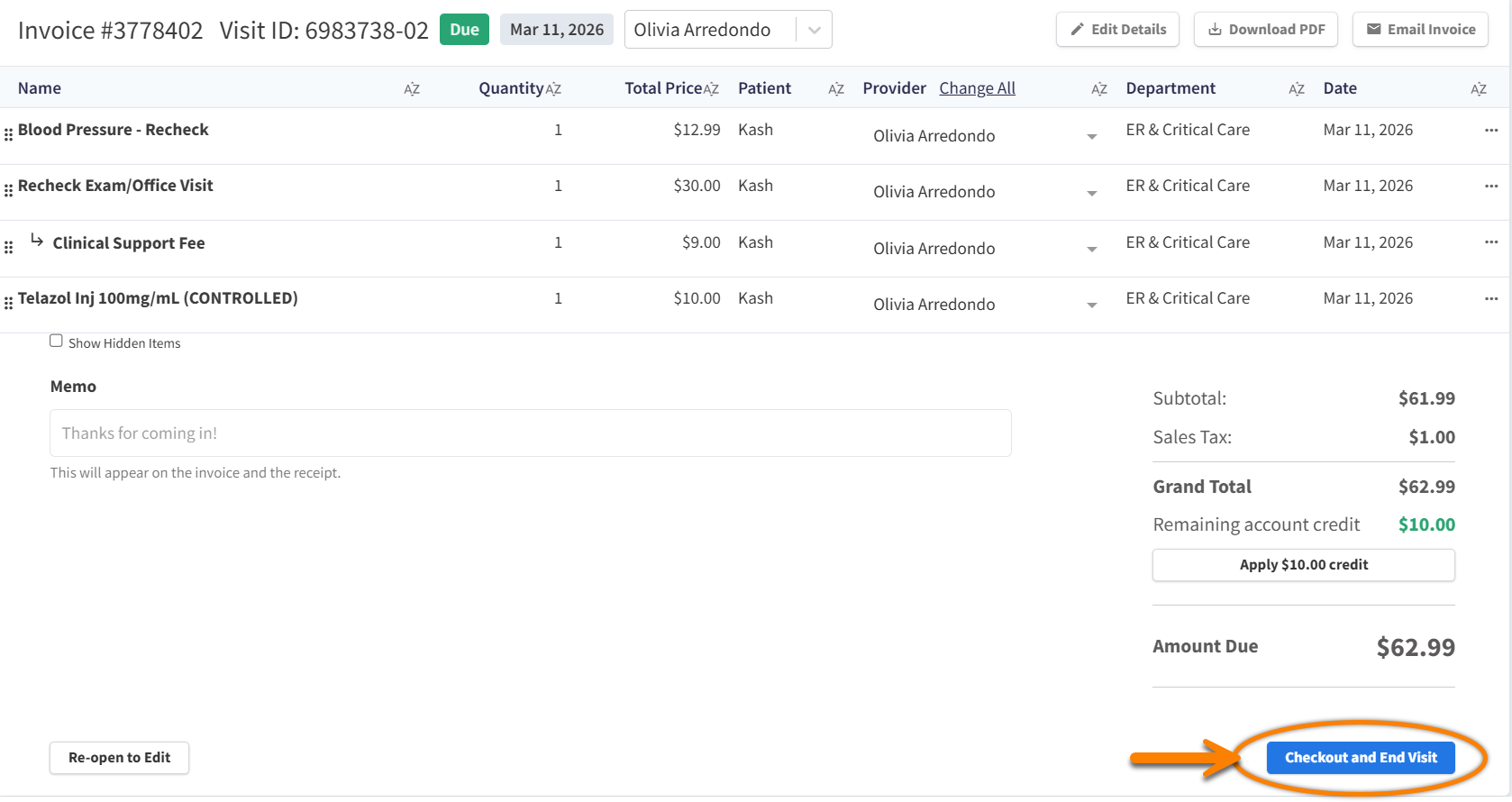
Go to Patient Chart > Billing and select the client’s Open invoice for the patient’s visit.
-
Select Finalize to update the invoice to the Due status.
-
Select Checkout and End Visit. The appointment tile moves to the Checking Out column on Flow.
-
Collect payment as usual. (See our Collect Invoice Payment guide for more details.)
What happens when I end a visit?
-
The visit banner turns from green to gray in Patient Chart to visually indicate that the visit has ended.

-
The patient’s appointment tile moves to the Checking Out column on Flow.
-
The patient’s associated invoice for the visit (including any billable treatments administered via a NOVASheet and during an encounter) is updated to the Due status.
-
Ending a patient’s visit does not sign the patient’s encounter.
-
The visit can be re-opened from the action menu (Re-open Visit). Re-opening the patient’s invoice for edits does not re-open the visit.
