This feature is available upon request for organizations using Vetspire AI.
Please contact Vetspire Support or your account representative to add AI Import to your Vetspire AI suite.
With Vetspire AI, you can now import medication, immunization, and reminder data from uploaded PDFs directly into the patient’s medical record. When you use the AI Import feature, Vetspire AI extracts key details from the summarized document and prompts you to review the information before saving to the medical record. You can choose which details you want to upload and make edits as needed.
How to Use AI Import
-
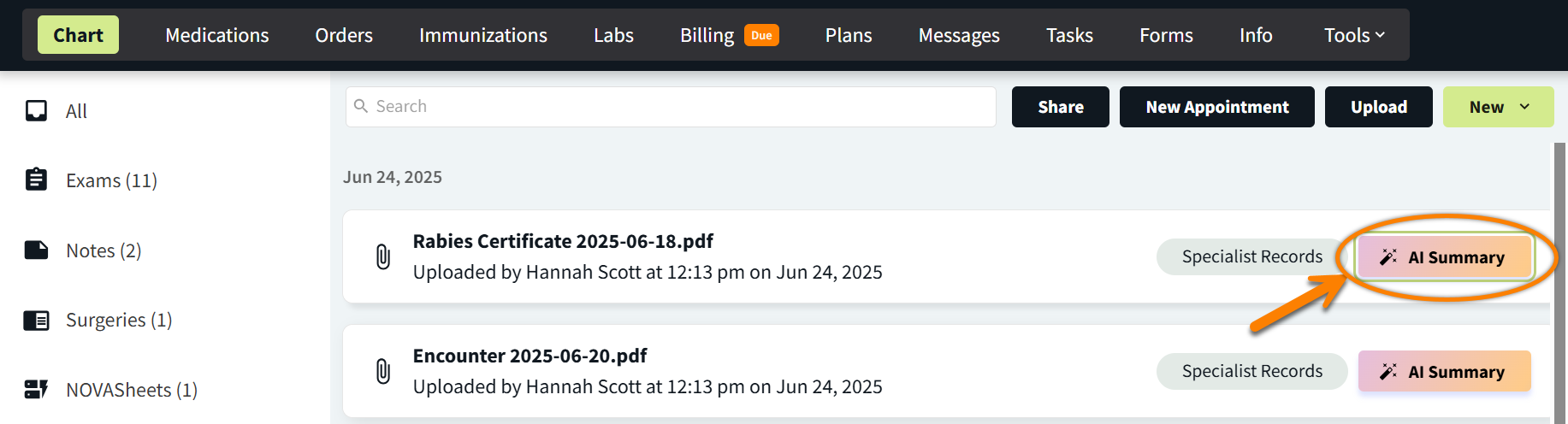
From Patient Chart > Uploads, select the AI Summary button for the document you want to review. This opens the PDF Summary panel on the right side of the screen.
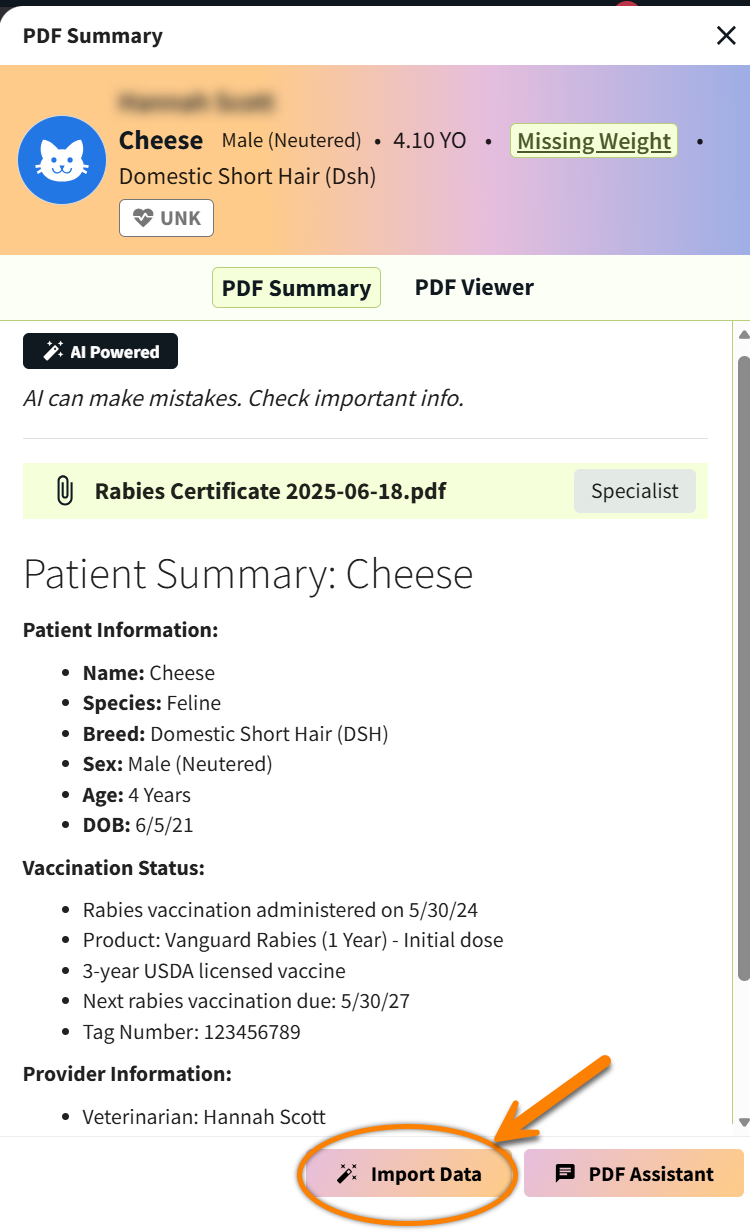
AI Summaries match the original content of the PDF, including dates, personal details, measurements, and medication information.
-
Select the Import Data button at the bottom of the PDF Summary panel. The panel then expands to display the Import Data window.
-
(Optional) In the left column of the panel, select to view Vetspire AI’s PDF Summary or the original document in the PDF Viewer. (The panel displays the PDF Viewer by default.)
-
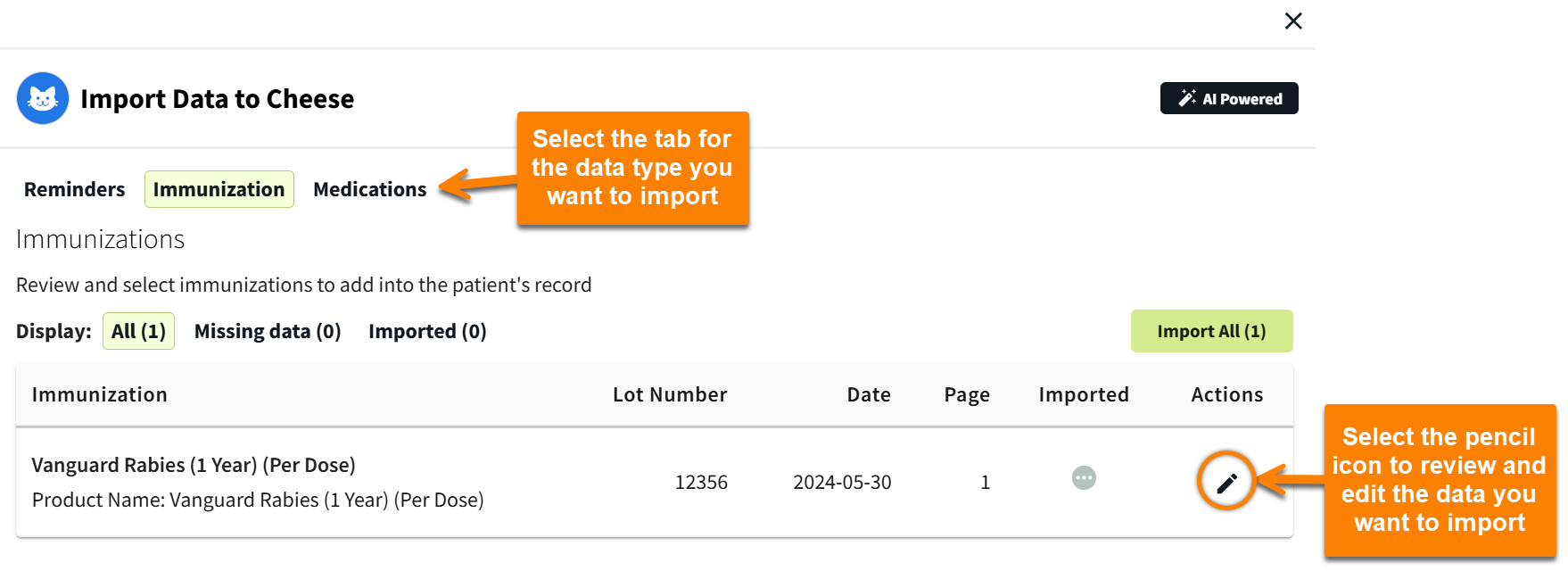
In the Import Data window, select the corresponding tab for the data you want to view: Reminders, Immunizations, or Medications.
-
(Optional) Select the pencil icon in the Actions column to make edits to the details of a reminder, immunization, or medication. You can review and edit all extracted information before importing for each data type.
-
Select Import All.
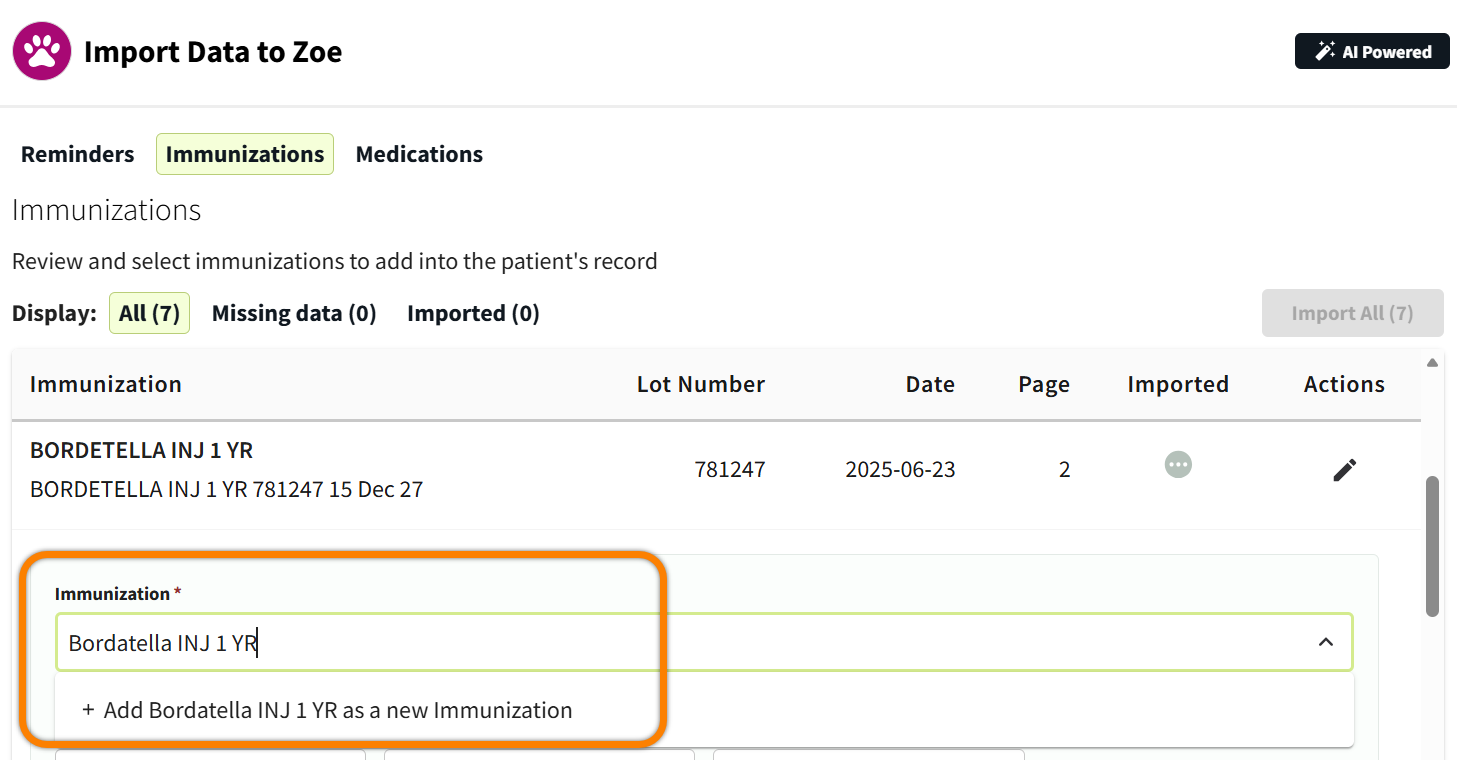
What do I do when AI Import lists a product that is NOT in my Vetspire Inventory?
When importing products from documents summarized by Vetspire AI, and there is no match for the product in your Vetspire Inventory, you can manually add the product to the patient’s chart.
Note: This will not create a new product record in your Vetspire Inventory.
Where does data imported by AI Import display in Patient Chart?
-
Reminders: When imported, the protocol reminder is added under Patient Reminders in the right panel of Patient Chart. The reminder details include the protocol name and due date.
-
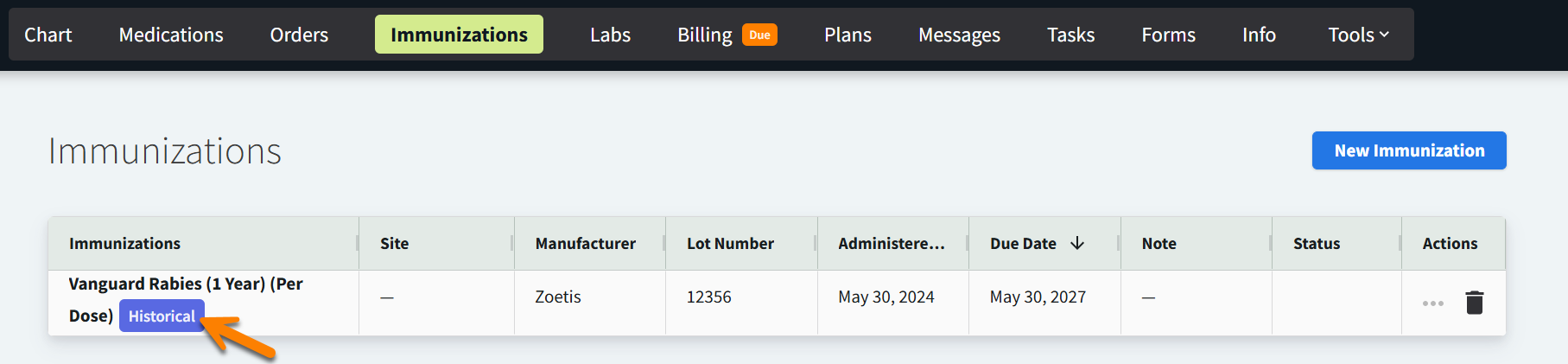
Immunizations: When imported, immunization data displays in Patient Chart > Immunizations with a ‘Historical’ label.
-
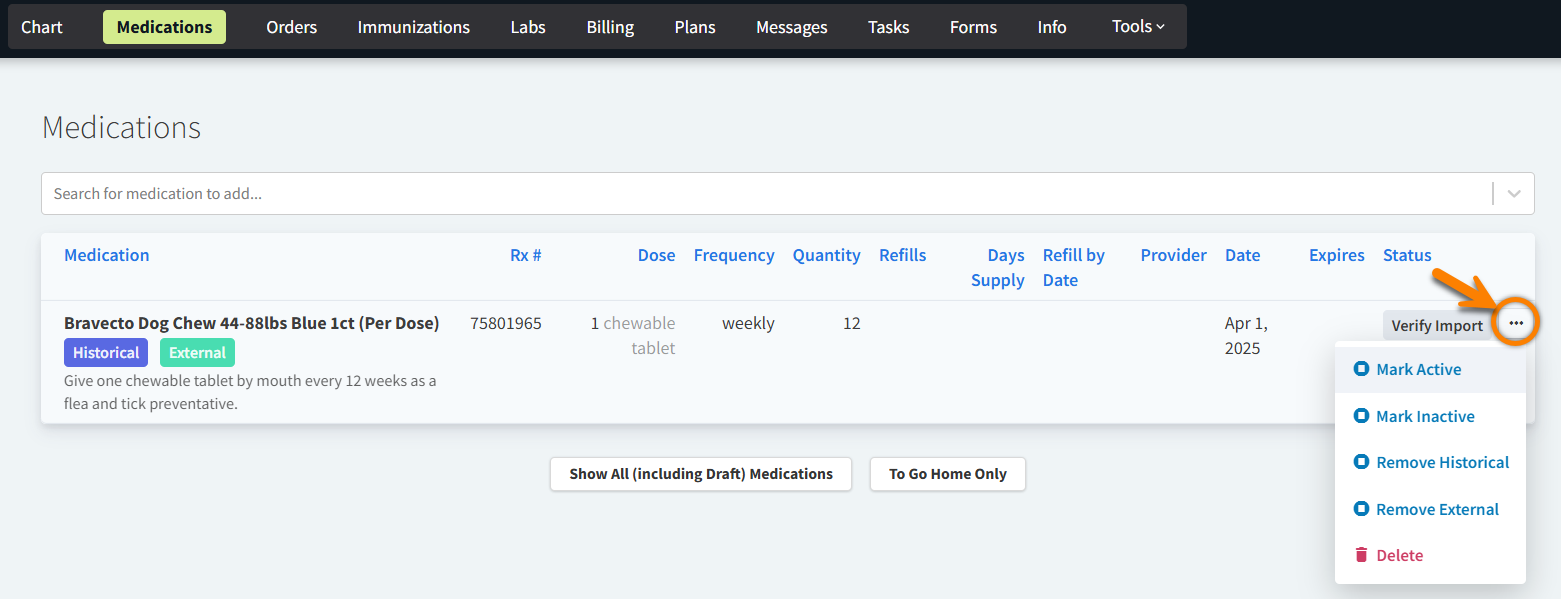
Medications: When imported, medication data displays in Patient Chart > Medications with a ‘Historical’ and/or ‘External’ label, and the record displays in the Verify Import status. Select the ellipsis to open the action menu for the medication and choose the appropriate option for the patient’s current medication routine: Mark Active, Mark Inactive, Remove Historical, or Remove External.
What data can AI Import add to Patient Chart for immunizations and medications?
The following table lists which details Vetspire AI can extract and import for immunizations and medications, when these details are available in the PDF document uploaded to Patient Chart:
|
|
Immunizations |
Medications |
|---|---|---|
|
Imported Data |
|
|
‘Patient Information Mismatch’ Alert
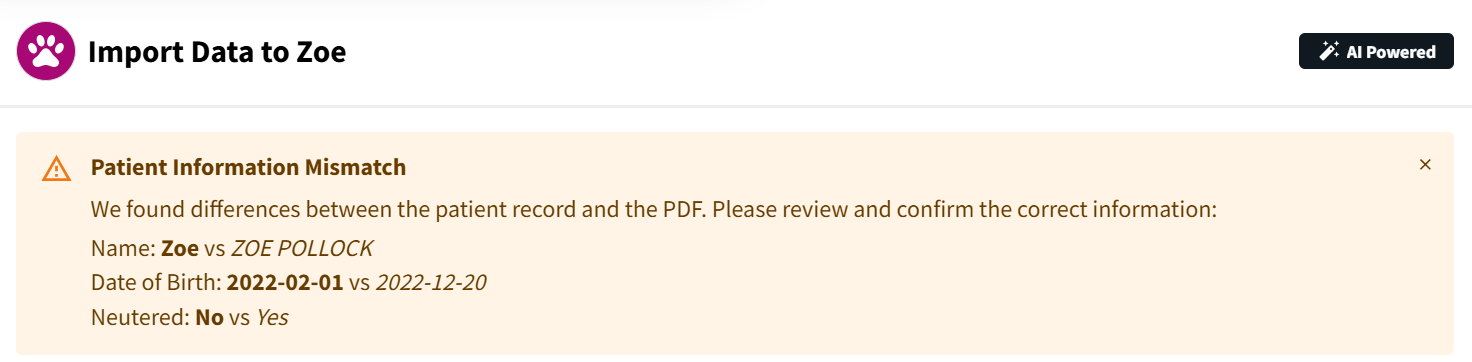
When Vetspire AI detects differences between the patient’s medical record and the PDF content, a ‘Patient Information Mismatch’ alert displays at the top of the Import Data window. The alert lists which details do not match the patient’s information, so you can then review the patient’s details and make edits as needed.
Information currently in Vetspire displays in bold, and mismatched information in the PDF displays in italics.
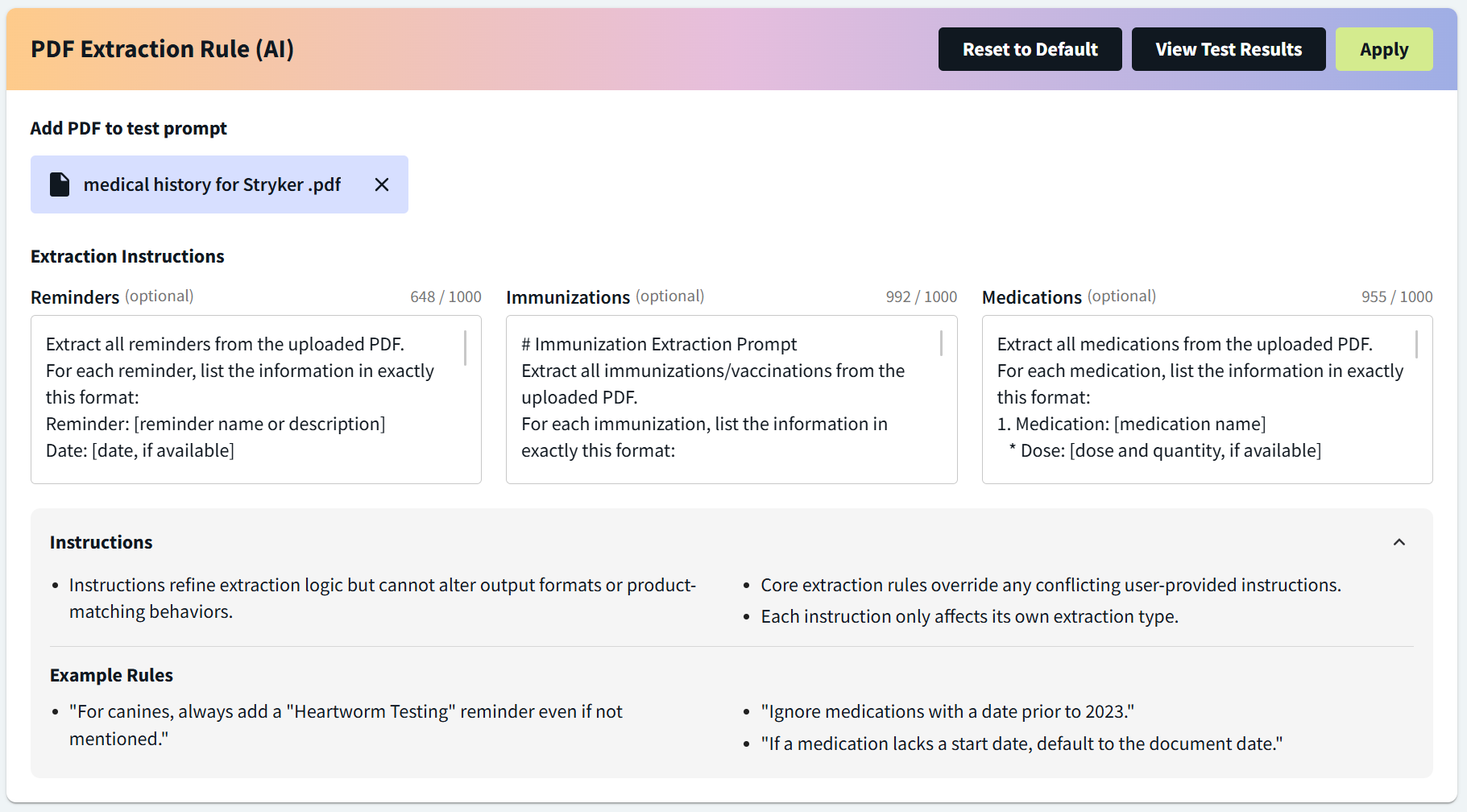
Create Custom PDF Extraction Rules (Admin)
In More > Admin > Configure > AI PDF Imports, you can set rules for exactly how you want Vetspire AI to extract data from PDFs and import data for reminders, immunizations, and medication records. Example: