
When a client brings in two patients to be seen at the same time, you can use AI Scribe to capture a Multi-Patient Recording that saves to each patient’s encounter.
Both patients must have open encounters to create a Multi-Patient Recording.
To begin an AI Scribe recording for both patients:
-
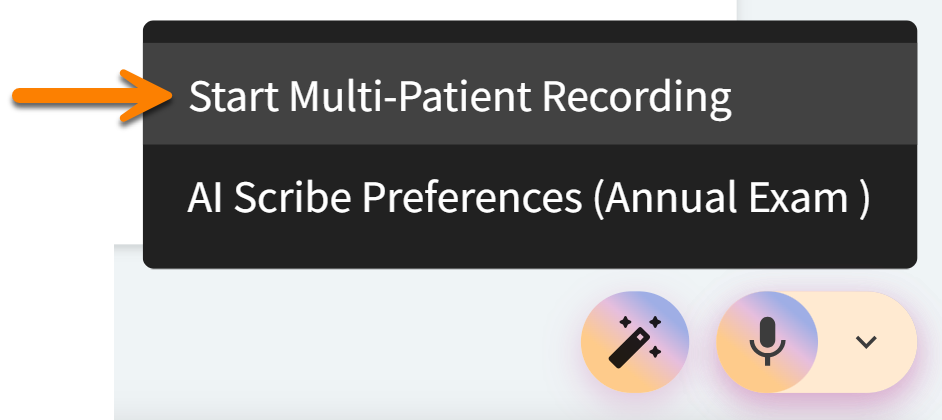
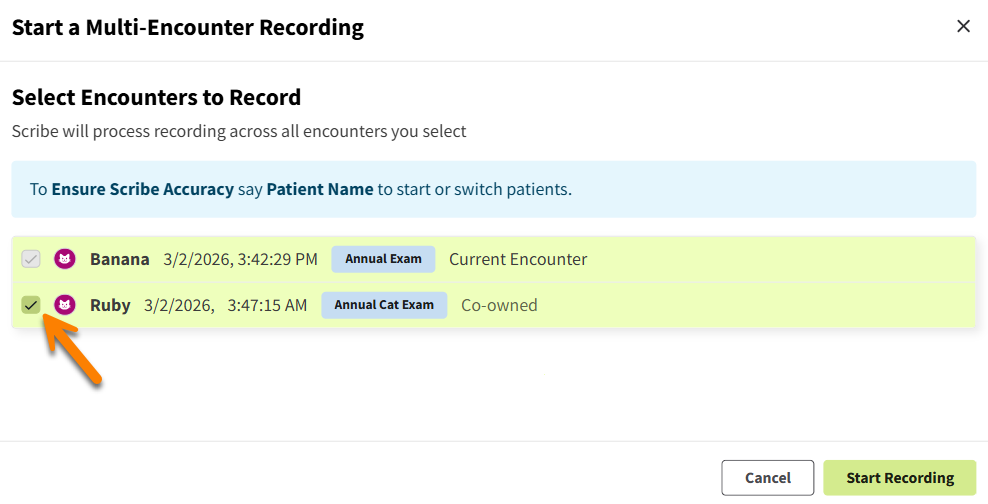
Select the arrow next to the AI Scribe microphone, then select Start Multi-Patient Recording. This opens the ‘Start a Multi-Encounter Recording’ window, which displays all open encounters for all of the client’s patients.
-
Select the checkbox next to the second patient’s open encounter. (The patient whose encounter you are currently accessing is selected by default.)
-
Select Start Recording.
-
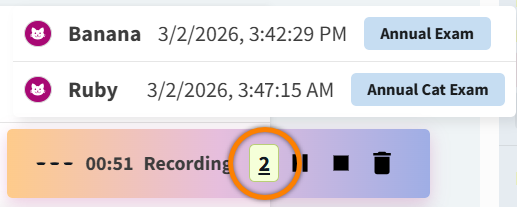
In the AI Scribe recording bar, select the number of patients (2) to view which encounters are currently being recorded.
-
Select the Stop icon to save the recording and begin AI Scribe’s processing of the audio file.
-
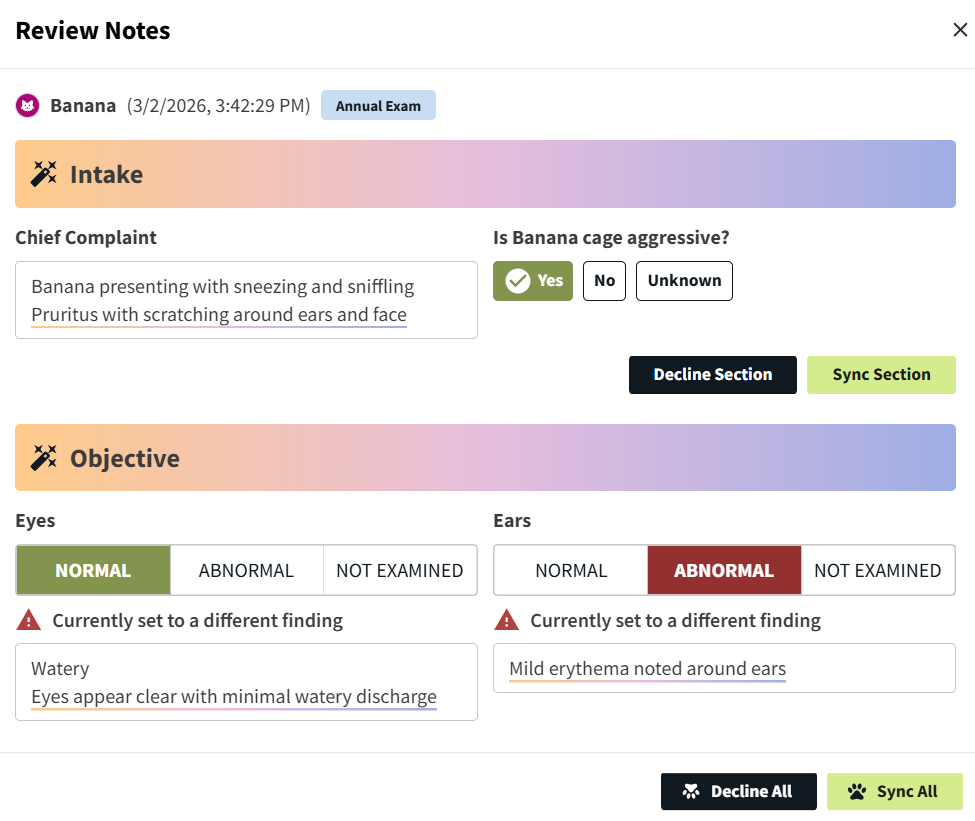
When the recording bar updates to ‘Notes Ready!,' select Review to open AI Scribe’s suggested notes for the patient’s encounter you are currently viewing.
-
You can edit, sync, and decline sections as needed, or select Sync All to add AI Scribe’s suggestions to your encounter notes.
-
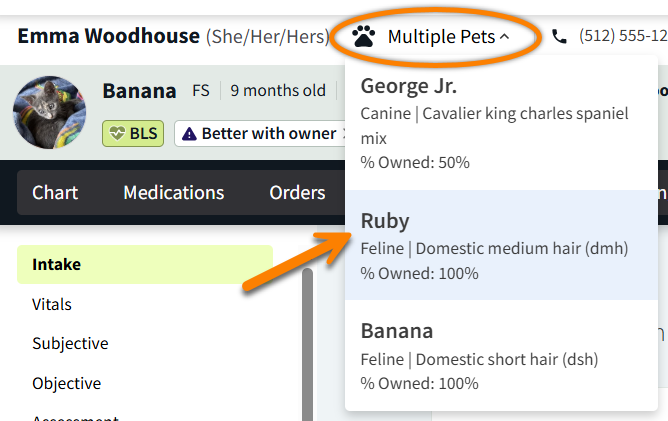
Navigate to the second patient’s chart using the Multiple Pets drop-down menu in Patient Banner.
-
Open the second patient’s encounter, then select Retrieve Notes on the audio file to open the ‘Review Notes’ window.
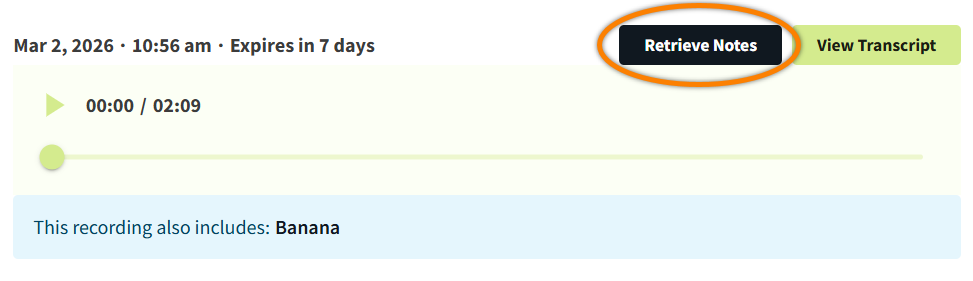
The audio file displays the additional patient included in the recording.
-
Edit, sync, and decline sections of AI Scribe’s suggestions as needed, or select Sync All.
The same audio file and transcript is saved to both encounters. The audio file is stored in each encounter for 7 days after the recording is saved, and the transcript can be accessed at any time.
Things to Note About Multi-Encounter Recordings:
-
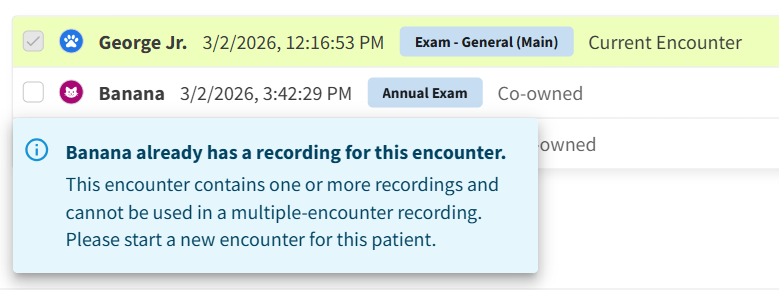
Any encounter that already has a saved AI Scribe recording file cannot be included in a multi-patient recording. The ‘Start a Multi-Encounter Recording’ window displays an alert when you select an encounter that has already used AI Scribe.
-
When you pause or stop AI Scribe in one encounter, the recording is also paused or stopped in the second encounter.
-
We recommend vocalizing each patient’s name as you examine them to help AI Scribe determine which data points correspond to which patient.