
This feature is permission based.
Please contact your organization admin for more information on Vetspire AI permissions.
You can set specific instructions for how AI Scribe captures, organizes, and summarizes information in each section of a specific encounter template. Your preferences will override any AI Scribe instructions configured in the encounter template (in Admin settings).
Things to Note About User Preferences for AI Scribe
-
New AI Scribe Preferences do not apply to existing open encounters. They will apply to future encounters that you are assigned to and that use the template that you select to customize.
-
Your AI Scribe Preferences are unique to your user profile and do NOT apply to the encounter template for the entire organization.
-
When you begin an appointment from Schedule or Flow, the system will use the user preferences saved by the provider who is assigned to the appointment (when applicable).
-
When you begin an appointment from Patient Chart, the system will use the user preferences saved by the logged-in user (when applicable).
-
Any organization-wide AI Scribe Preferences configured by admins will display in the encounter template when you are customizing your own instructions in My Profile > Preferences. You can edit or delete these preferences as needed for your customization.
Set Your User Preferences for AI Scribe
You can access your AI Scribe Preferences from within an encounter or in My Profile > Preferences.
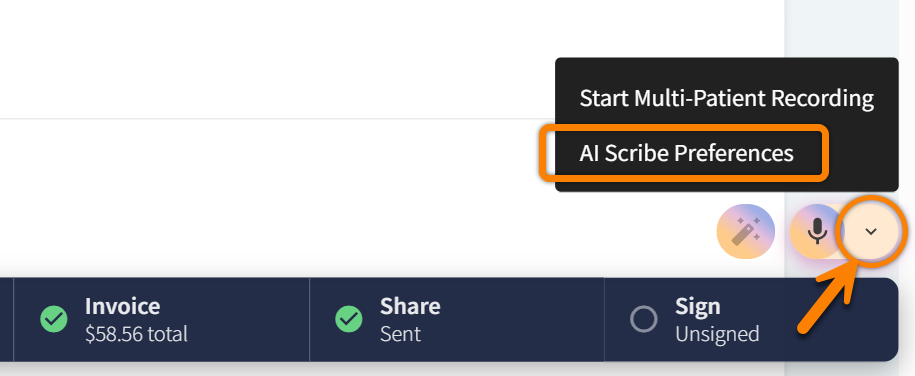
In an encounter: Select the arrow next to the AI Scribe microphone, then select AI Scribe Preferences. This opens My Profile > Preferences in a new browser tab, so your open encounter is not disrupted.
From Global Navigation: Select your name or initials to open your My Profile settings page, then navigate to the Preferences tab.

-
In My Profile > Preferences, scroll down to the AI Scribe Preferences section and select New AI Scribe Preferences.
When you access AI Scribe Preferences from an encounter, the current encounter template automatically opens in the New AI Scribe Preferences editing section.
-
Add custom AI Scribe instructions for as many sections of the encounter template as you would like.
-
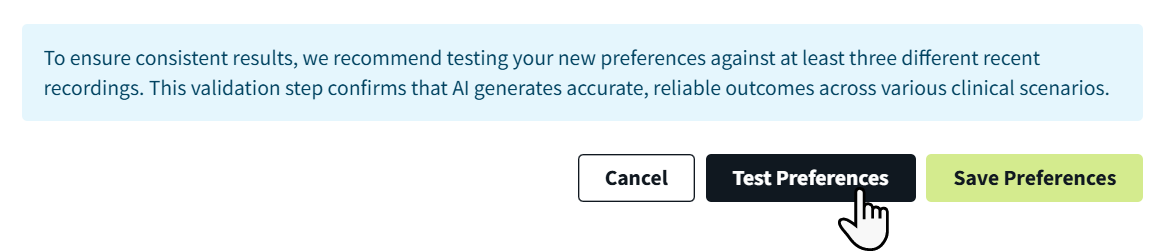
(Optional) Select Test Preferences at the bottom of the screen. This opens the New Preference Test window, in which you can compare previously saved encounter transcripts with how AI Scribe would transcribe the same encounter with your newly configured instructions.
-
Scroll down to the bottom of the screen and select Save Preferences.
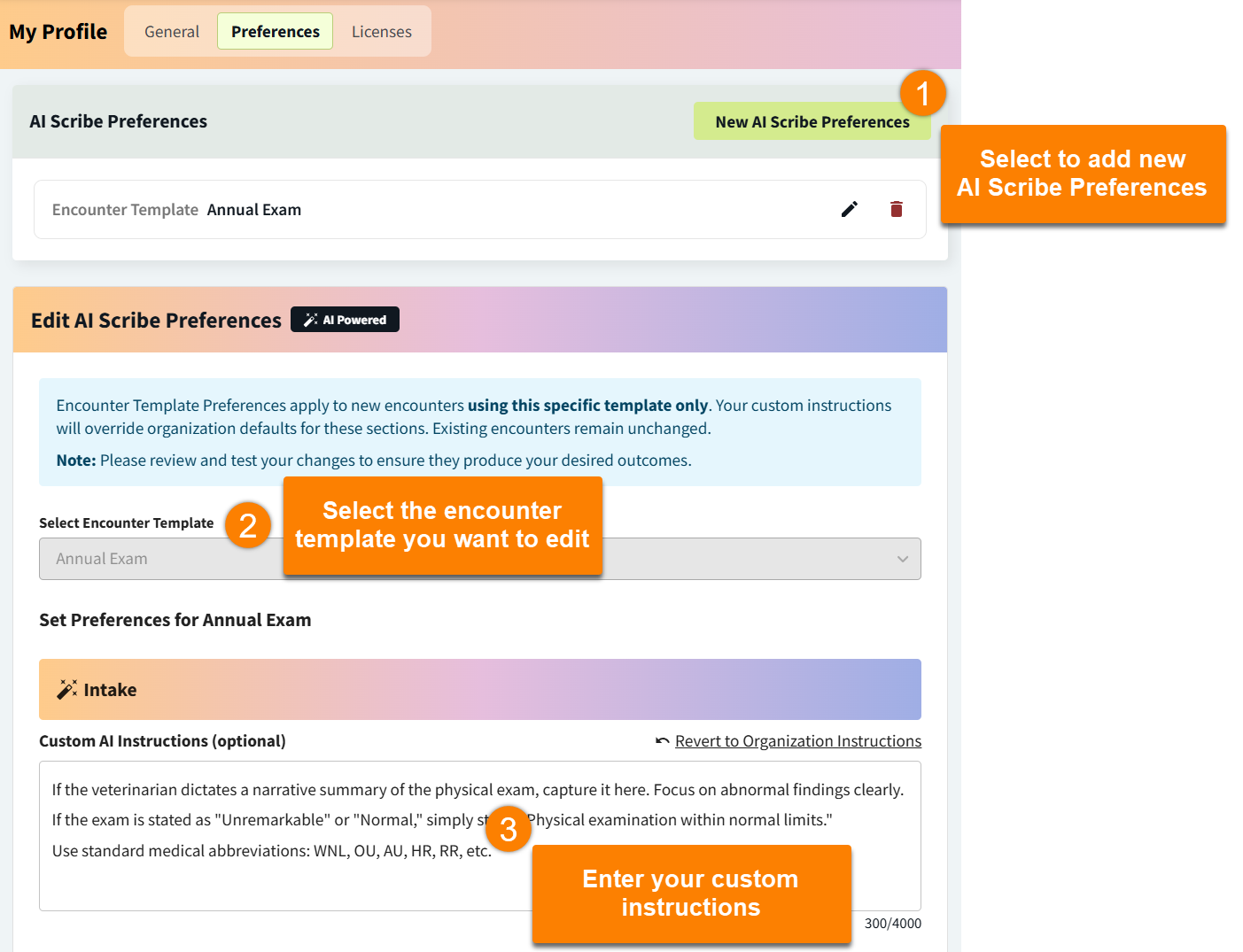
By default, the New AI Scribe Preferences window displays any instructions saved by your org admin in the encounter template. You can edit and delete this text as needed.
To reset an encounter section to the admin default, select the Revert to Organization Instructions link in the section.
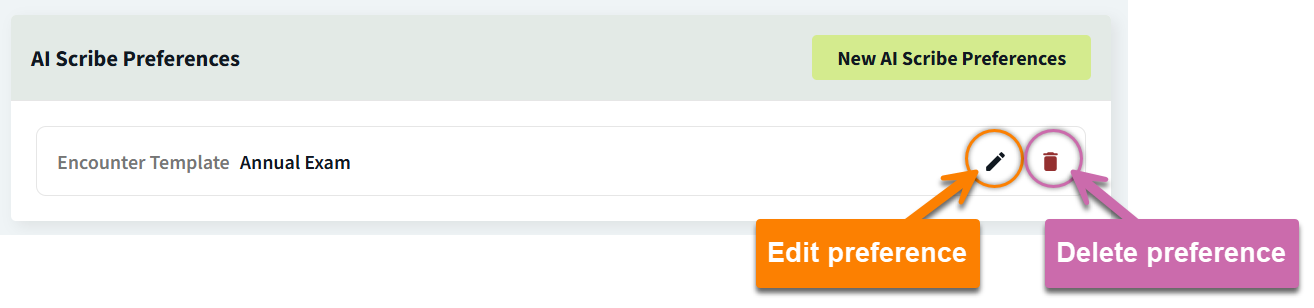
You can edit and delete your AI Scribe Preferences at any time in My Profile > Preferences.
Test Your AI Scribe Preferences
At the bottom of the New AI Scribe Preferences section, select Test Preferences to open the New Preference Test window.
Here, you can compare previously saved encounter transcripts with how AI Scribe would transcribe the same encounter using your newly configured instructions.
Which encounter transcripts can I choose from?
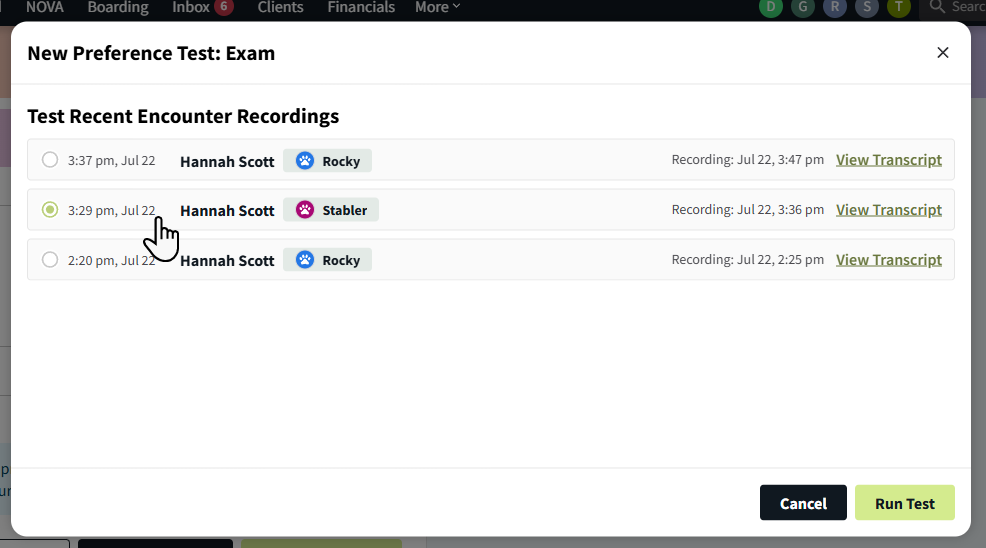
The New Preference Test window displays transcripts from previous encounters that you used AI Scribe with and that used the same encounter template that you are configuring instructions for.
-
Select the transcript you want to use to test your preferences, then select Run Test.
-
Each section with new instructions displays in the New Preference Test window.
The test demonstrates how AI Scribe will apply your new preferences.
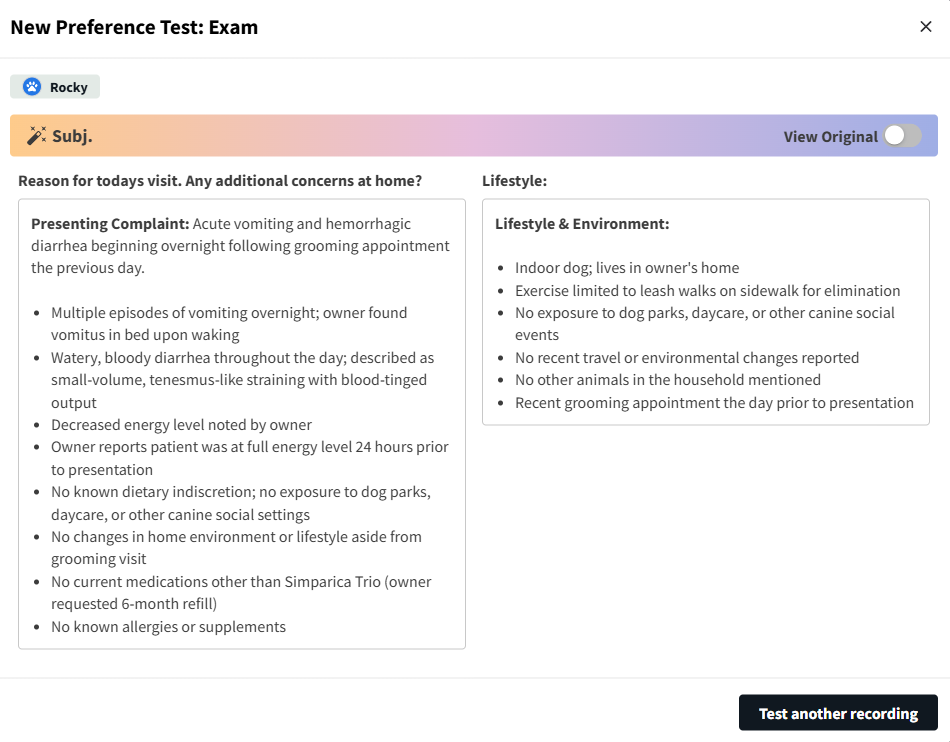
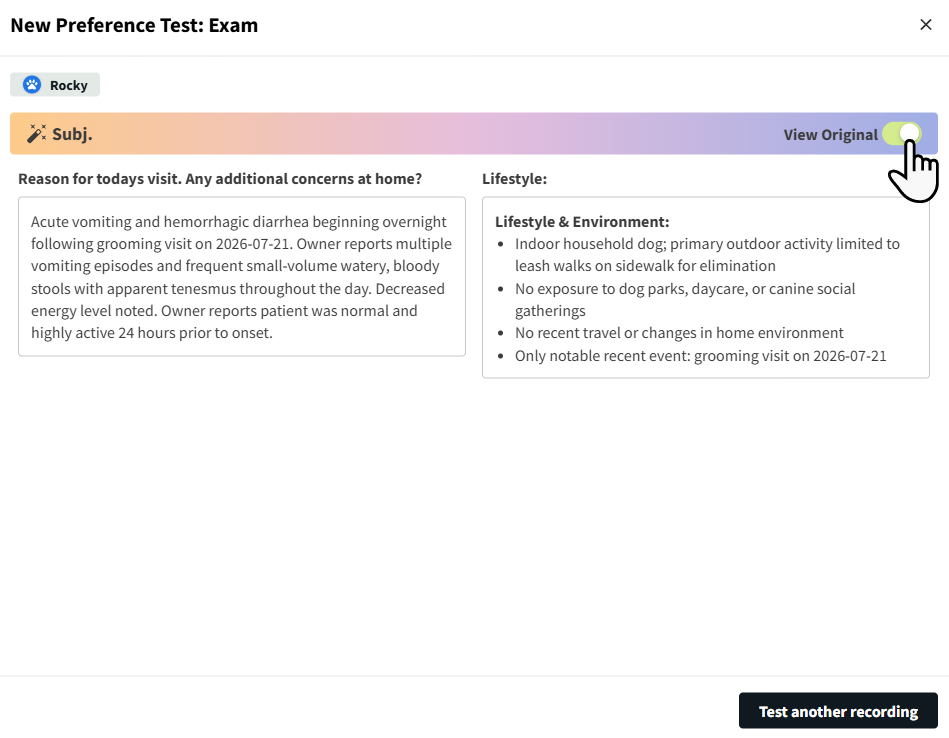
Toggle on the View Original option to see the previous AI Scribe formatting.
-
Select Test another recording to test a different encounter transcript.
-
When you are ready to save your preferences, select Cancel in the New Preference Test window, then select Save Preferences.
Video: AI Scribe Preferences Demo