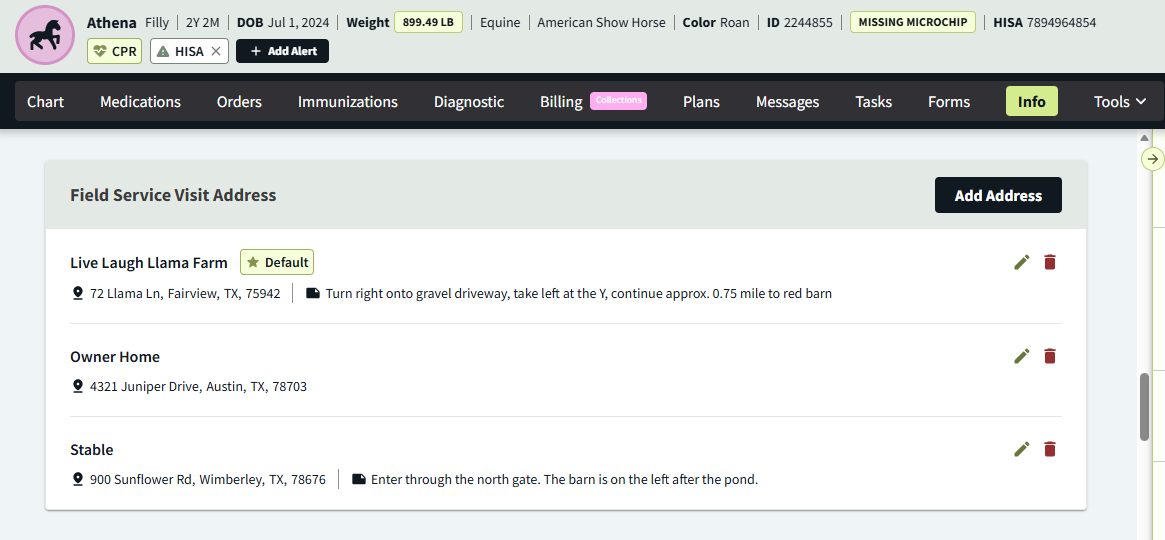
In the Info tab of Patient Chart, you can save multiple service addresses to a patient’s profile. When scheduling an appointment that does not take place at your practice, you can select one of the patient’s saved addresses as their Field Service Visit Address. This feature is designed to support clinical teams providing on-site and home visit services.
Org admins must enable the Field Service Visit Address feature.
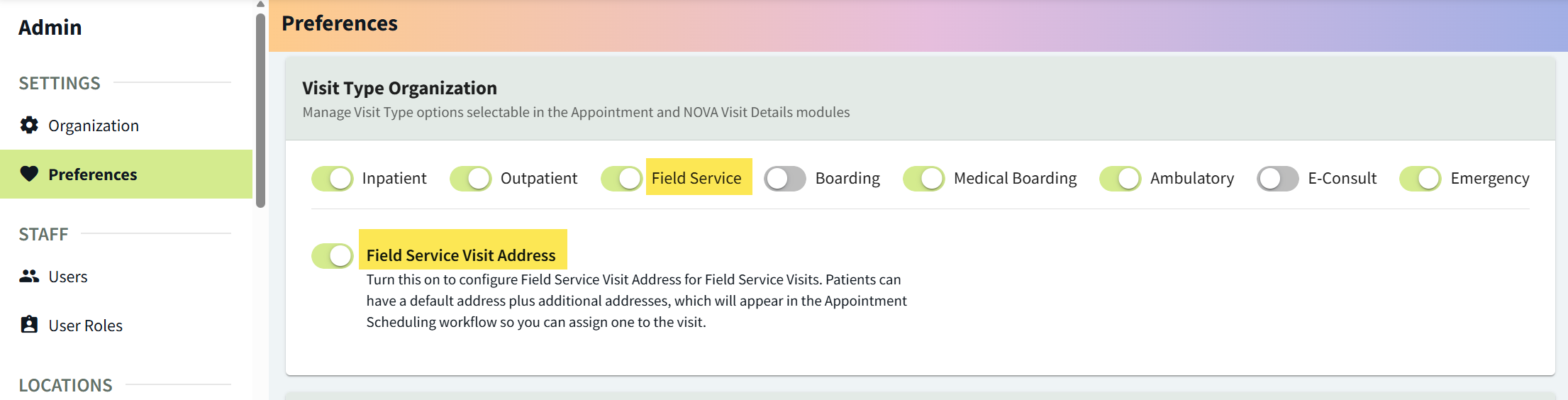
This feature is enabled in the Visit Type Organization section of More > Admin > Settings > Preferences.
-
Toggle on the Field Service visit type if it is not already enabled.
-
Toggle on the Field Service Visit Address setting.
-
Select the Save button at the top of the screen.
Add a Patient’s Field Service Visit Address
-
Go to Patient Chart > Info and locate the Field Service Visit Address section.
-
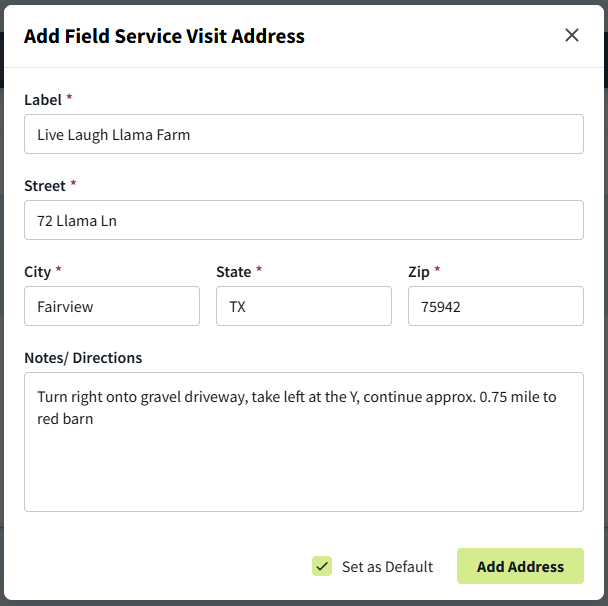
Select Add Address. This opens the Add Field Service Visit Address window.
-
Enter a unique name for the address in the Label field to help your team identify the address when scheduling the patient’s appointment. (Examples: Farm, Stable, Barn, etc.)
-
Enter the address details in the Street, City, State, and Zip fields.
-
(Optional) Enter any relevant Notes/Directions to help your team navigate to the address.
-
(Optional) Select the Set as Default checkbox to auto-populate this Field Service Visit Address for the patient when scheduling their Field Service Visit.
-
Select Add Address.
Schedule a Field Service Visit
-
Go to Schedule and select an open time slot on the calendar. This opens the Schedule Appointment window.
-
In the Search patients or clients field, search for and select the patient whose profile you edited in the above procedure.
-
Edit the required fields as needed. (See our How to Schedule an Appointment guide for additional information.)
-
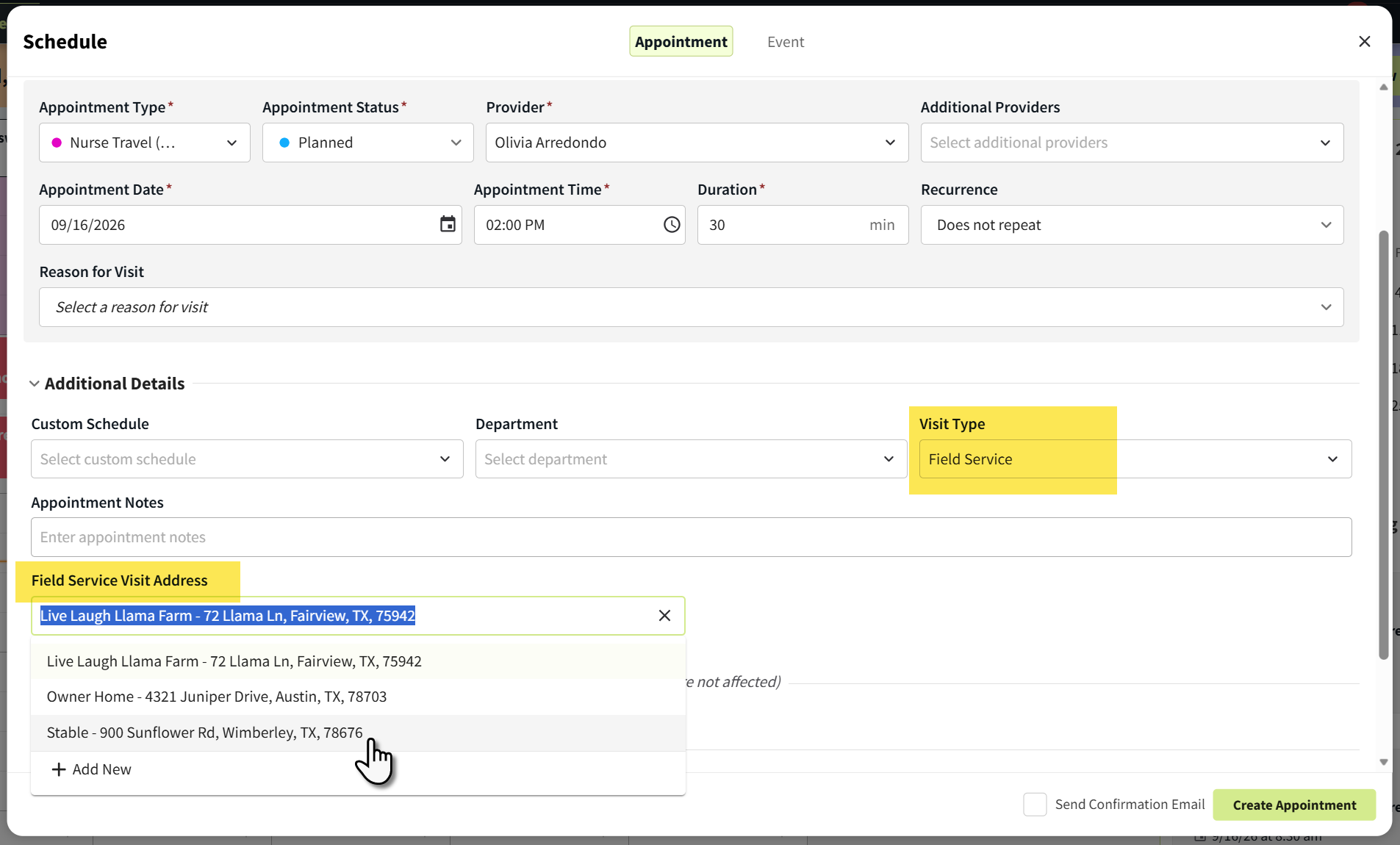
In the Additional Details section of the Schedule Appointment window, set the Visit Type to Field Service.
The Field Service Visit Address field displays in the Schedule Appointment window only when the Visit Type is set to Field Service.
-
By default, the patient’s default address populates the Field Service Visit Address field. To change this address, select the field and do one of the following:
-
Select another address from the patient’s profile, OR
-
Select + Add New to save a new Field Service Visit Address to the patient’s profile. (This opens the Add Field Service Visit Address window, as described in the above procedure.)
-
-
Select Create Appointment.
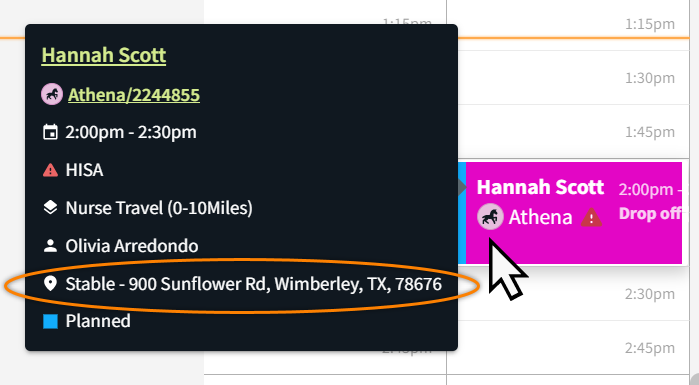
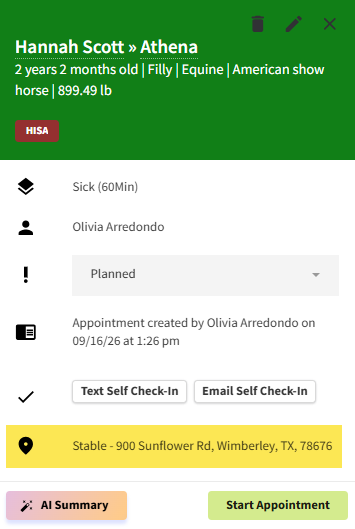
The Field Service Visit Address displays with the appointment details when you hover over the appointment tile or select the tile on the Schedule calendar.