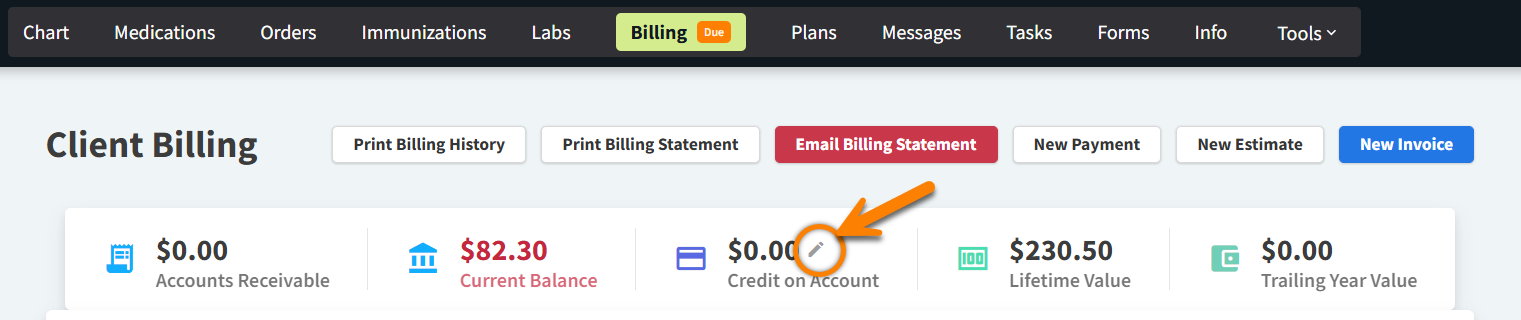
In Patient Chart > Billing, you can manually add a Credit on Account balance that can be applied to the client’s Due invoices.
-
Select the pencil icon next to the Credit on Account value. This opens the Create Credit Memo window.
-
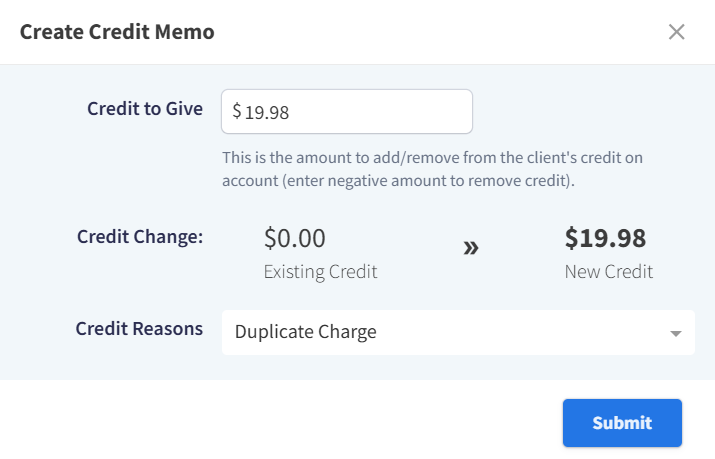
Enter the credit amount in the Credit to Give field. The Credit Change fields display the previous balance as the Existing Credit and the new balance as the New Credit.
-
Select the relevant Credit Reason.
-
Select Submit.
How do I correct a Credit on Account balance?
From Patient Chart > Billing, you can manually adjust the Credit on Account balance (such as when a credit is applied to the wrong account).
-
Select the pencil icon next to the Credit on Account value. This opens the Create Credit Memo window.
-
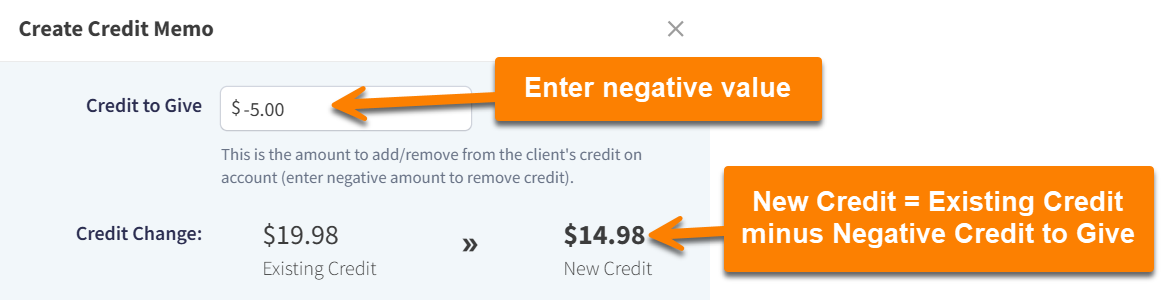
Enter a negative value in the Credit to Give field. In the Credit Change section, the New Credit value updates to the Existing Credit minus the value in the Credit to Give field.
-
Select the relevant Credit Reason.
-
Select Submit.