
You can edit specific details of invoices in the Due status after they have been finalized (i.e., moved from the Open status), including the invoice location, date, and the assigned provider/department for individual line items.
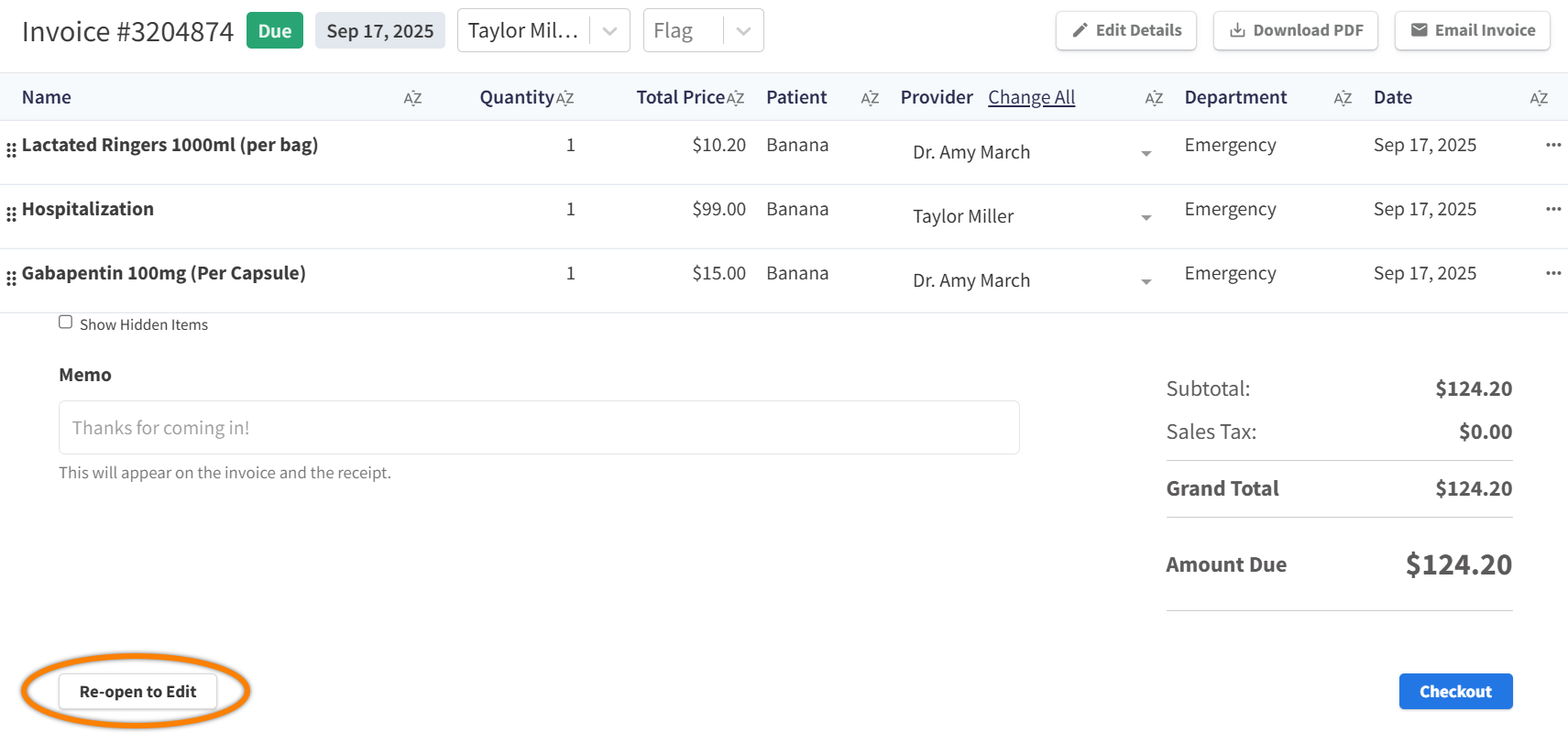
To edit a Due invoice, select the invoice in Patient Chart > Billing, then scroll down and select the Re-open to Edit button at the bottom of the invoice.
Notes About Re-Opening Invoices
-
You CANNOT re-open invoices when partial payment has been collected.
-
Your organization may determine the timeframe during which invoices can be re-opened for edits (in Billing Preferences). Please contact your administrator for more information.
Mark as Not Rendered
On Due invoices, you can mark a line item (i.e., a product or service) as Not Rendered to remove the cost of the line item from the invoice total.
-
Open the client’s invoice in Patient Chart > Billing.
-
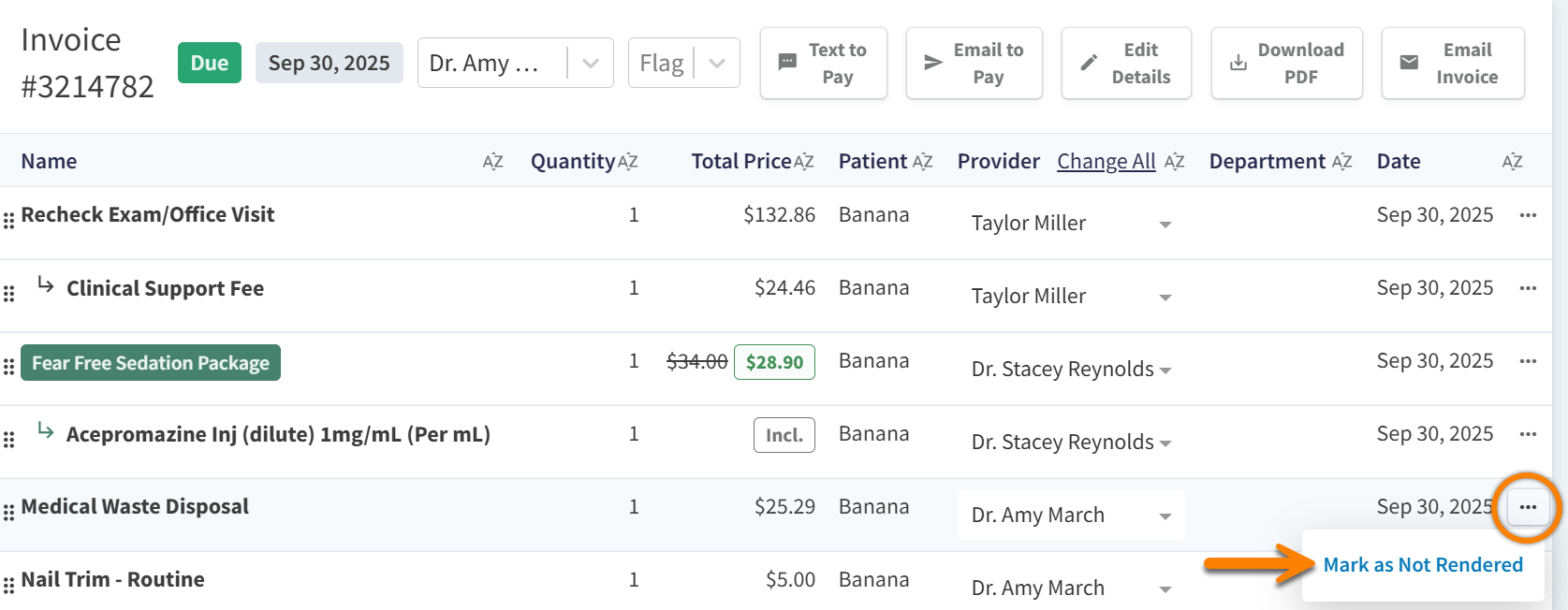
Select the ellipsis to open the action menu for the line item, then select Mark as Not Rendered.
-
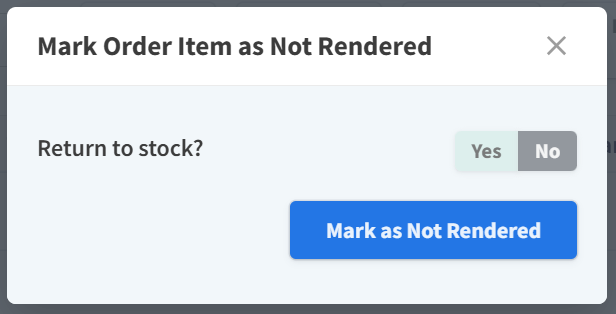
In the Mark Order Item as Not Rendered window, set Return to stock? to Yes or No:
-
Select Yes when the refunded item is being returned to your physical inventory, such as unopened non-prescription dental chews.
-
Select No for products and services that are not returned to inventory, such as nail trim services.
-
-
Select Mark as Not Rendered in the window.
The line item will then display on the invoice with a ‘Not Rendered’ tag.

Can I mark a line item as ‘Not Rendered’ if partial payment has been collected for the invoice?
Yes!
-
When the remaining invoice balance is less than the cost of the line item marked as ‘Not Rendered,’ the difference between the invoice total and the amount paid is added to the client’s account as an account credit.
-
An account credit is not added to the client’s account when the remaining balance is greater than the cost of the line item marked as ‘Not Rendered.'