
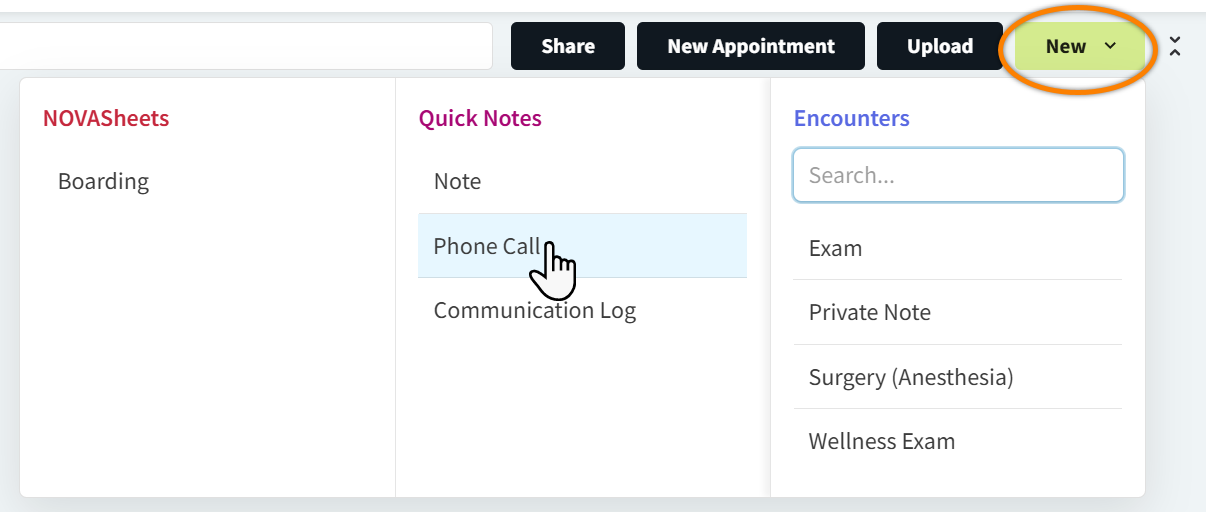
In Patient Chart, you can create three types of Quick Notes that can be included in shared medical record PDFs: a Note, Phone Call, or Communication Log.
In the Chart tab, select New and then select one of the Quick Note options. This opens the New Note pop-up window.
-
Note: Enter your text and select Save. Notes can be located in Patient Chart using the

-
Phone Call: Enter information in the free-text Person Contacted and Reason fields, then enter your notes and select Save. Phone Calls can be located in Patient Chart using the

-
Communication Log: Enter information in the free-text Person Contacted field, then enter your notes and select Save. Like Phone Calls, Communication Logs can be located in Patient Chart using the
Additional Information about Quick Notes
Quick Note types are system-defined and cannot be edited or customized. Additionally, encounter templates cannot be configured or categorized to display in Patient Chart using the Notes or Communications filters.