This article describes planned changes to user role permissions in Vetspire, specifically related to administrator roles. This article is intended for organization admins.
All changes to user role permissions will be communicated via release notes. Select our logo in the top left corner of Vetspire to view new and previous release notes.

Earlier this year, we began our initiative to improve user role permissions and give administrators more precise control over users' access to Vetspire features based on their role responsibilities.
Currently, several permissions are enabled when a user’s profile has the Administrator toggle set to Yes (More > Admin > Staff > Users > Select a user to edit).
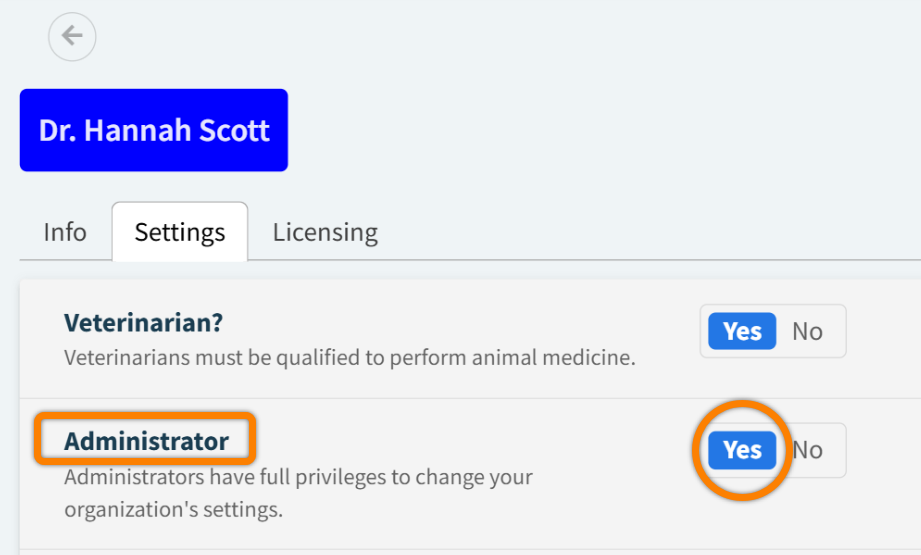
This fall, we are separating all permissions from the Administrator toggle and adding them as individual permissions on the User Roles page (More > Admin > Staff > User Roles).
Why are permissions moving from user profile settings to user roles?
Instead of granting users access to all Admin pages in one sweep, this change gives you more granular control over permissions and enables you to create custom roles with specific permissions to perfectly fit your practice’s needs.
By separating permissions from the Administrator toggle, we can help your organization:
-
Assign users only the access they need – no more, no less!
-
Secure access to Vetspire features and data
-
Improve reporting on user activity
-
Efficiently manage user roles across departments and locations
Will the ‘Administrator’ toggle be removed from user profile settings?
Yes, but not yet! The Administrator toggle will not be removed until all new permissions are enforced (according to the Admin Permissions Release Schedule.)
We will communicate this change before and when it is implemented.
How do Admin users prepare for these changes?
Do NOT turn off the ‘Administrator’ toggle for any user accounts.
For any user accounts that currently have the Administrator toggle set to Yes, including your own, we strongly recommend keeping this setting as Yes.
Because new permissions are being enforced on the User Roles page over the next several months, keeping the Administrator toggle set to Yes helps ensure that users do not lose any of their current permissions.
It is important to us that your clinical workflows are not disrupted by these changes. You can proactively complete the following steps to prepare for when the Administrator toggle is removed from user profile settings and new permissions are enforced via the User Roles page.
1. Identify Impacted User Roles
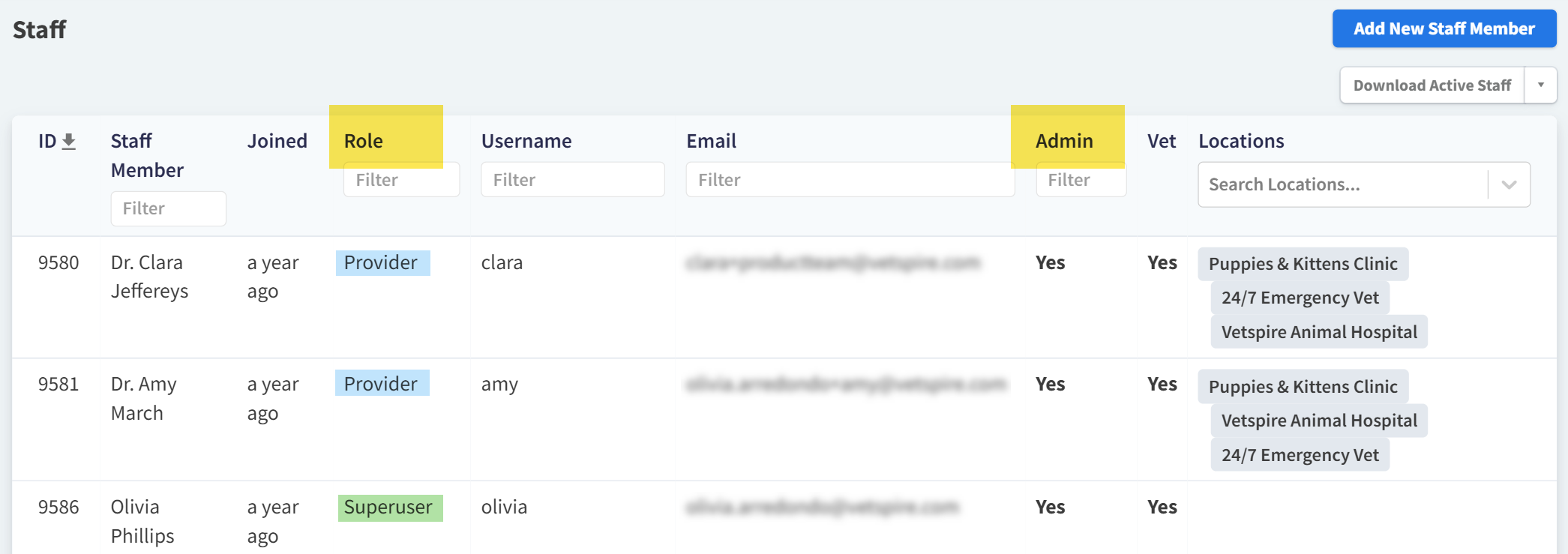
In More > Admin > Staff > Users, all users who have the Administrator toggle set to Yes are identified in the Admin column of the Staff table.
In the Role column of the Staff table, you can see which user role each user is assigned to.
These columns can help you quickly identify which individual users or user roles may need new permissions assigned to them. You can create new user roles for Admins as needed in More > Admin > Staff > User Roles.
Example:
2. Assign New Permissions to User Roles
In More > Admin > Staff > User Roles, Admin permissions can be selected for each appropriate role.
These permissions will be enforced according to the Admin Permissions Release Schedule.
This means that if a user role does NOT have a specific permission granted by the date that the permission is enforced, they will not have access to the feature that the permission allows for unless you edit the user role and grant the permission.
This is why we recommend granting permissions in advance, so you don’t have to reconfigure your user roles with each release!
Vetspire Recommends
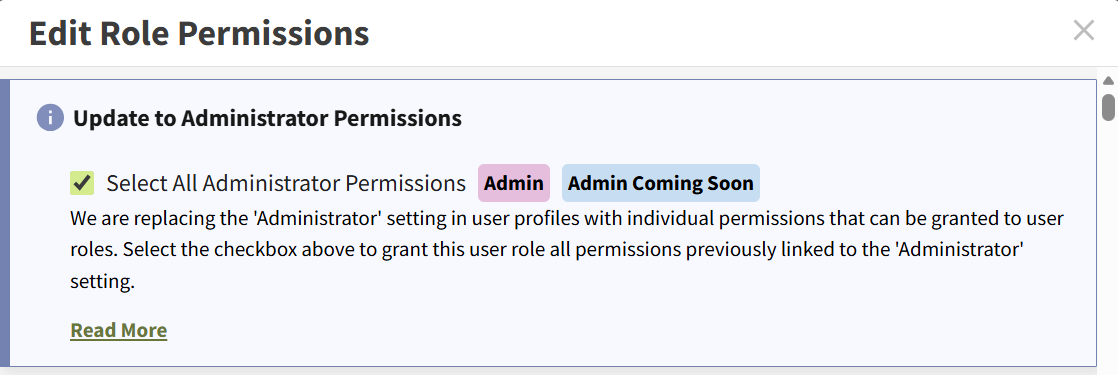
To grant a user role all Admin permissions in a single click, select the pencil icon to edit the user role, then check the box next to Select All Administrator Permissions in the editing window.