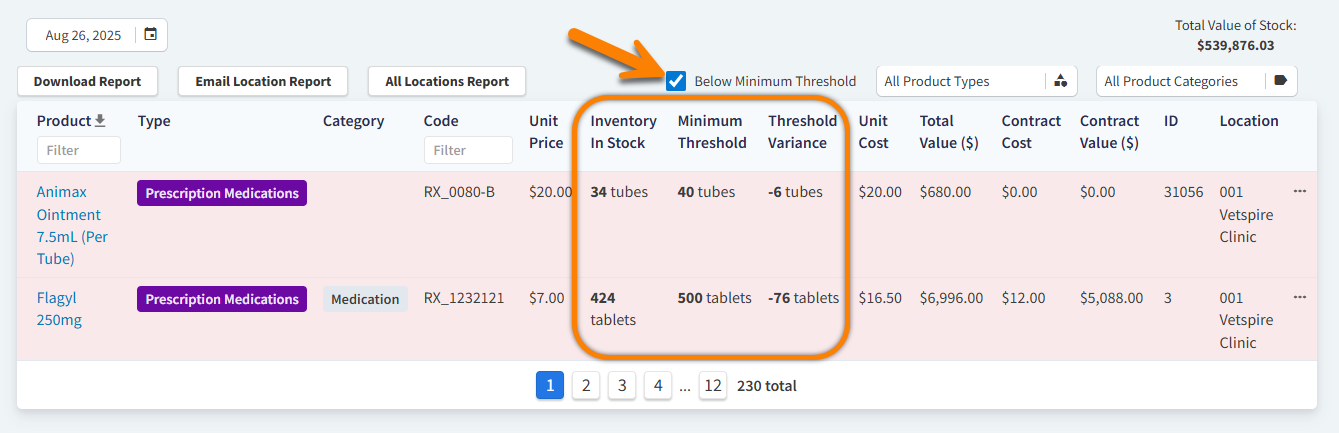
In the Inventory settings for a product, the minimum threshold is the lowest stock quantity that should be maintained for the product. Setting a minimum threshold for each product with tracked inventory enables additional insights in product and inventory reporting.
Set a Minimum Threshold
-
Go to More > Inventory & Services > Manage > Products.
-
Search for and select the product you want to edit. The product details display.
-
Scroll down to the Inventory section of the product details and select Show Inventory.

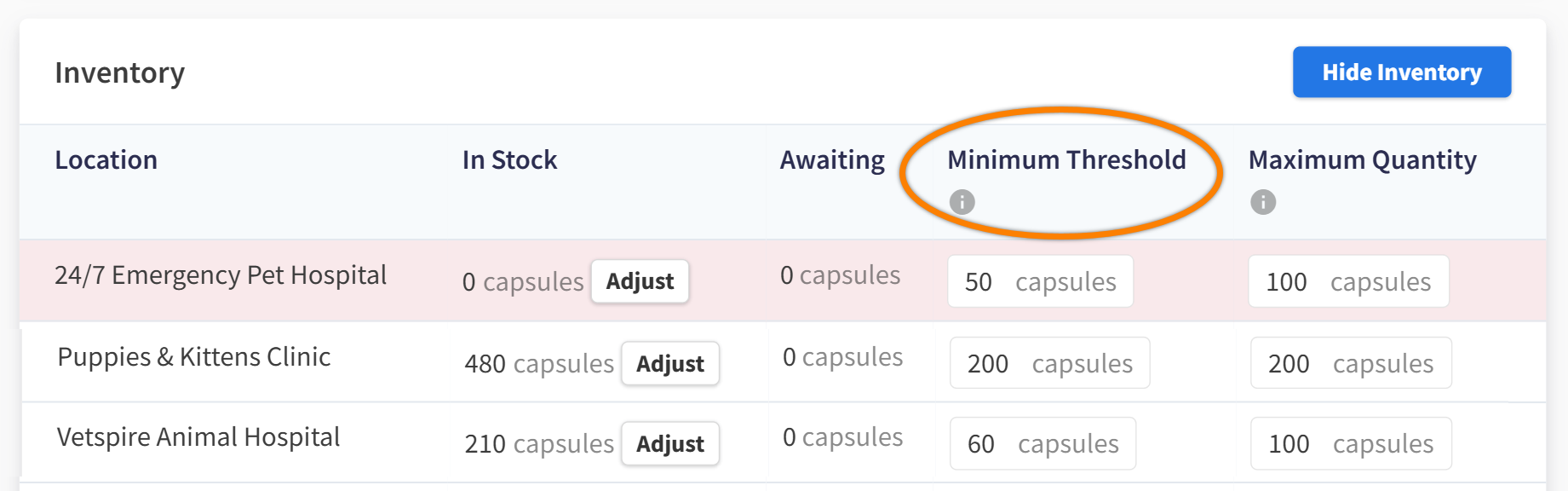
The Inventory table expands to display stock settings for the product at each of your organization’s locations.
-
Enter a value in the Minimum Threshold column for your location.
-
(Optional) Make adjustments to the In Stock count as needed.
-
(Optional) Make adjustments to the Maximum Quantity count as needed. This value is the recommended stock quantity that should be maintained at the location.
Your changes are automatically saved.
Minimum Threshold Reporting
You can filter the Inventory Counts page to view only products with a current stock count that is below the set minimum threshold. This filter helps you quickly see which products may need to be re-ordered.
Select the checkbox next to the Below Minimum Threshold filter. The Threshold Variance column displays the number of units that need to be re-ordered to meet the minimum threshold.